
Ask about the ideas that matter
Build a quiz around the video’s learning content. Add your audience and goals so the questions focus on the concepts you want learners to take away.
Create illustrated questions and answers from a YouTube lesson. Print the quiz or adapt it in PowerPoint.
Drag and drop your files here.
Paste a link from YouTube, TikTok, X/Twitter, Instagram, Facebook, or any website.
Give a lecture, explainer, or tutorial a clear next step: questions learners can answer, explain, and revisit.
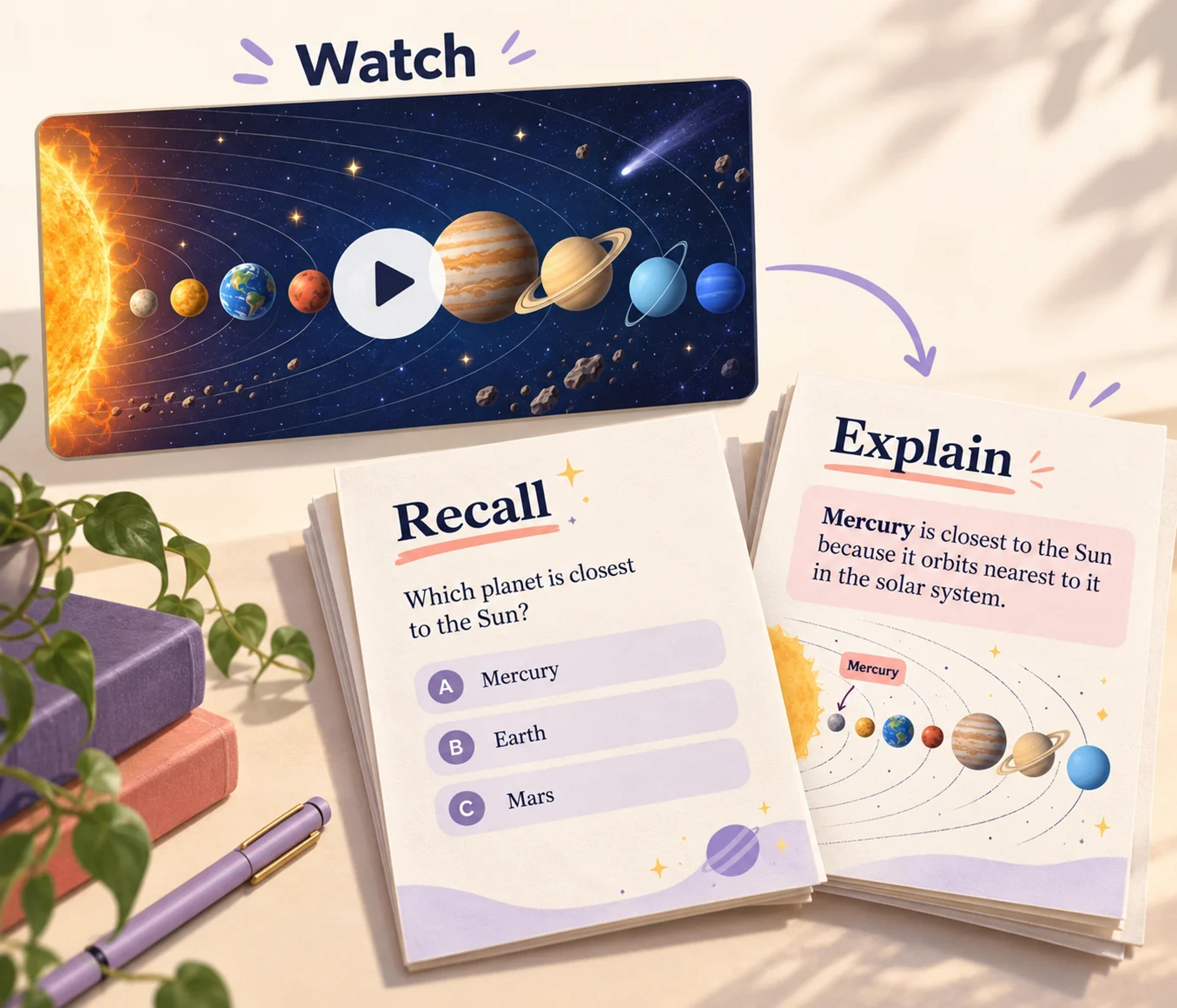
Build a quiz around the video’s learning content. Add your audience and goals so the questions focus on the concepts you want learners to take away.
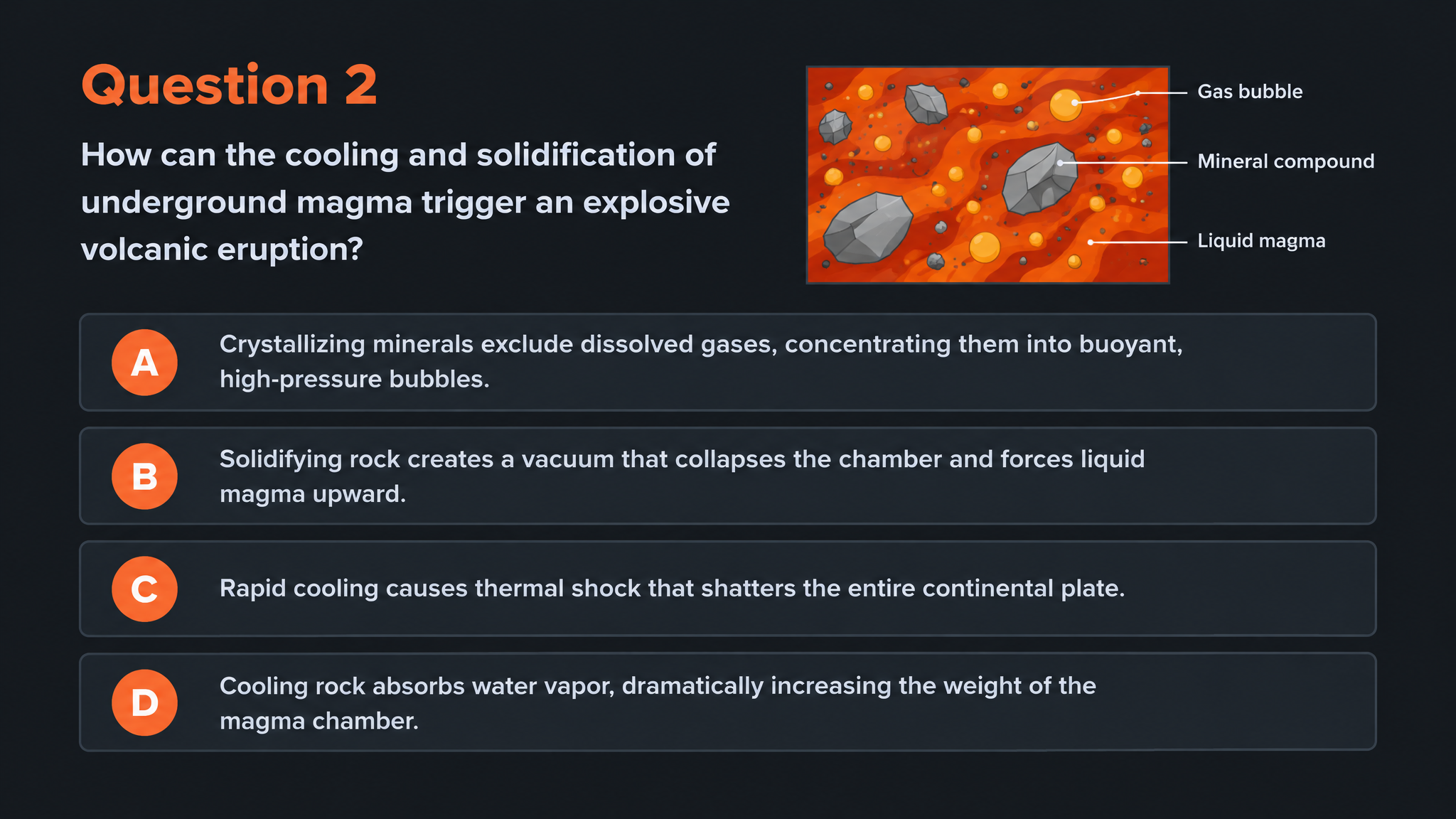
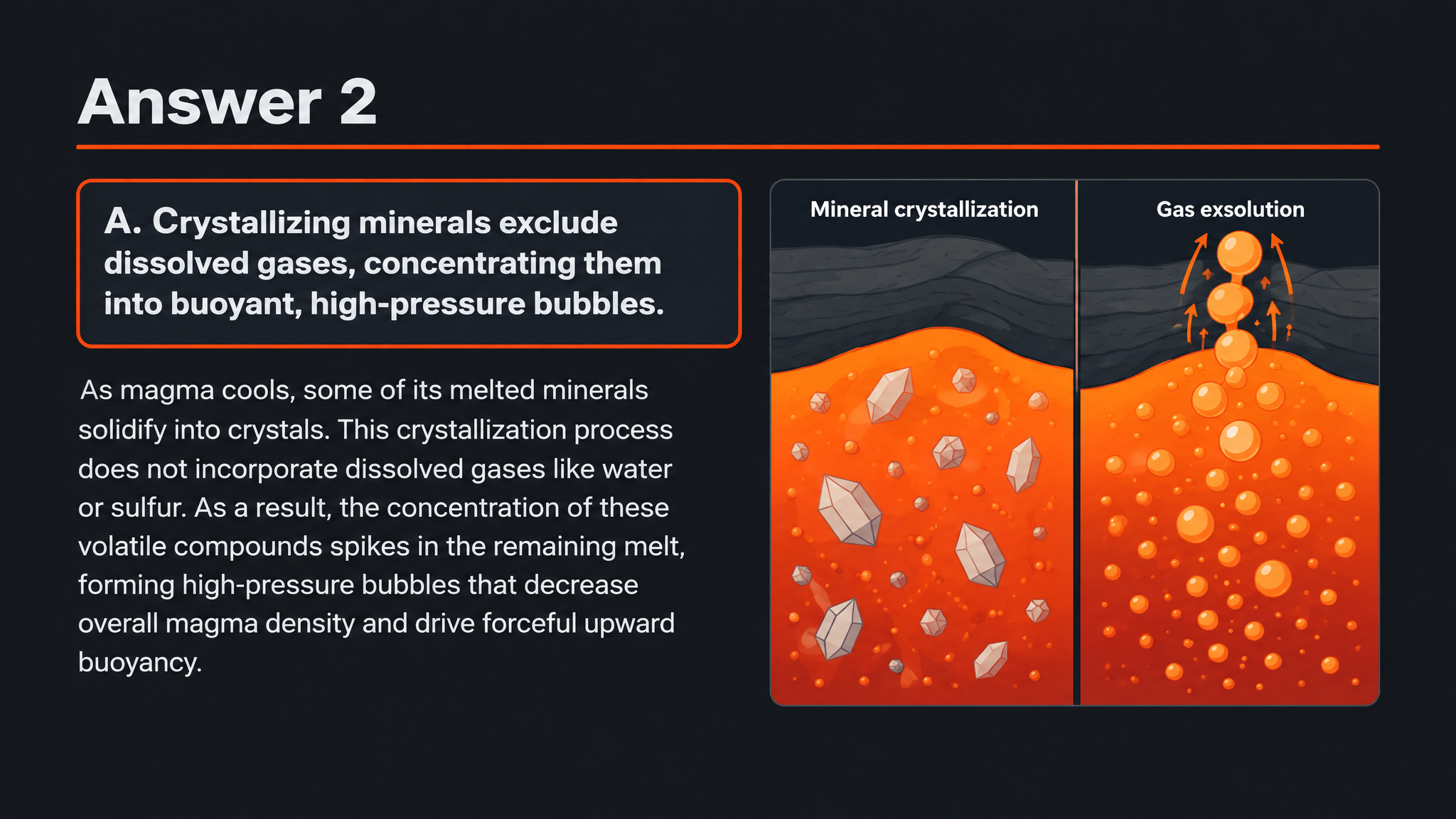
Reveal the answer and use the visual explanation to discuss why it makes sense. Turn a question into a conversation about what the video taught.
Print the quiz in one click for a paper exercise, or export editable PPTX to present the questions and adapt them for your class.
Choose the moment when questions will make the biggest difference.
Follow an educational video with a short printed activity. Ask learners to recall the central ideas and explain their answers to a partner.
Use a video as preparation and bring its quiz into the next session. Spend class time exploring the answers and the questions they raise.
Turn a recorded lecture or tutorial into questions for later practice. Keep an editable PowerPoint version to add your own examples and course context.
Add the URL of the YouTube lecture, lesson, explainer, or tutorial you want to use.
Choose the audience, language, and question format. Describe the concepts to emphasize and the level of explanation you want.
Generate your visual questions and answer pages. Print them in one click, or export editable PPTX and tailor the activity in PowerPoint.
Yes. Paste the YouTube link into SlidesPilot and choose your quiz settings. SlidesPilot turns the learning content into designed questions with corresponding answers and explanations.
Use educational explainers, recorded lectures, lessons, and tutorials. Describe your audience and the concepts you want to emphasize to connect the quiz to your teaching or study goal.
Yes. Set the audience, language, question type, and number of choices. Add instructions to focus the quiz on the key ideas, terminology, or relationships covered in the video.
Yes. Create a paired question-and-answer set. Reveal the answer during a discussion, use the explanation for self-study, or bring the pages into a lesson presentation.
Yes. Print your generated quiz in one click. It is a useful way to follow a video with a classroom exercise, tutoring activity, or offline revision session.
Yes. Export editable PowerPoint and customize the question wording, design, and examples. Combine the quiz with your own teaching slides and reuse it for another class.
Yes. Use the AI Quiz Generator for documents, pasted text, topics, and other supported links. You can bring different learning sources into the same printable, editable quiz workflow.
Carry the ideas from a YouTube lesson into a visual recall set.
Move from watching a demonstration to explaining its ideas.
Give assigned online reading a focused comprehension activity.
Create a clear question, answer options, and a useful explanation.
Use a focused statement to start a clear explanation of the answer.
Prepare question pages and answers for a paper-based activity.
Create an editable quiz presentation for the shared classroom screen.
Build visual questions and answer explanations for your next lesson.
Paste the link. Create beautiful questions you can discuss, print, and edit in PowerPoint.