
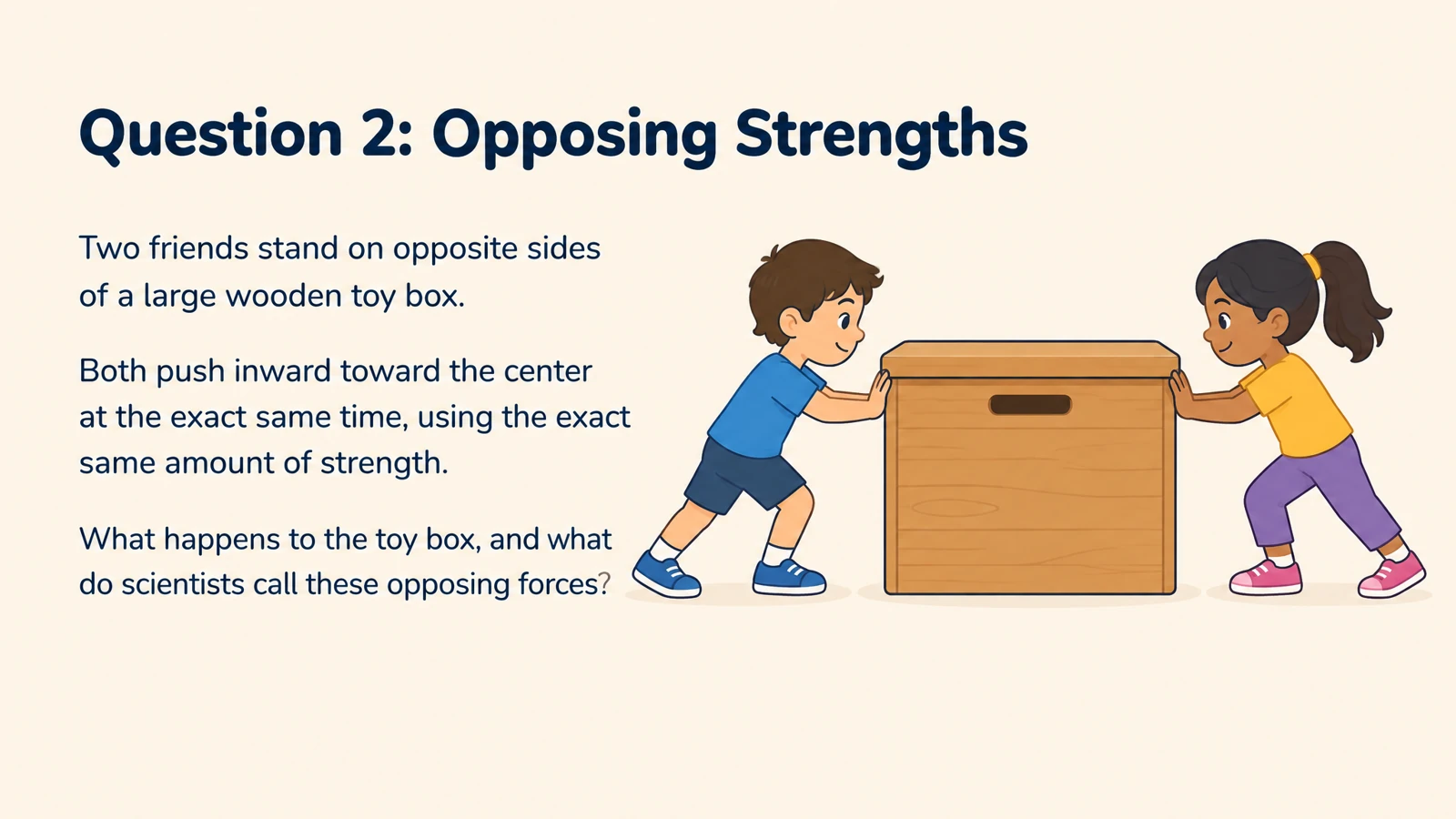
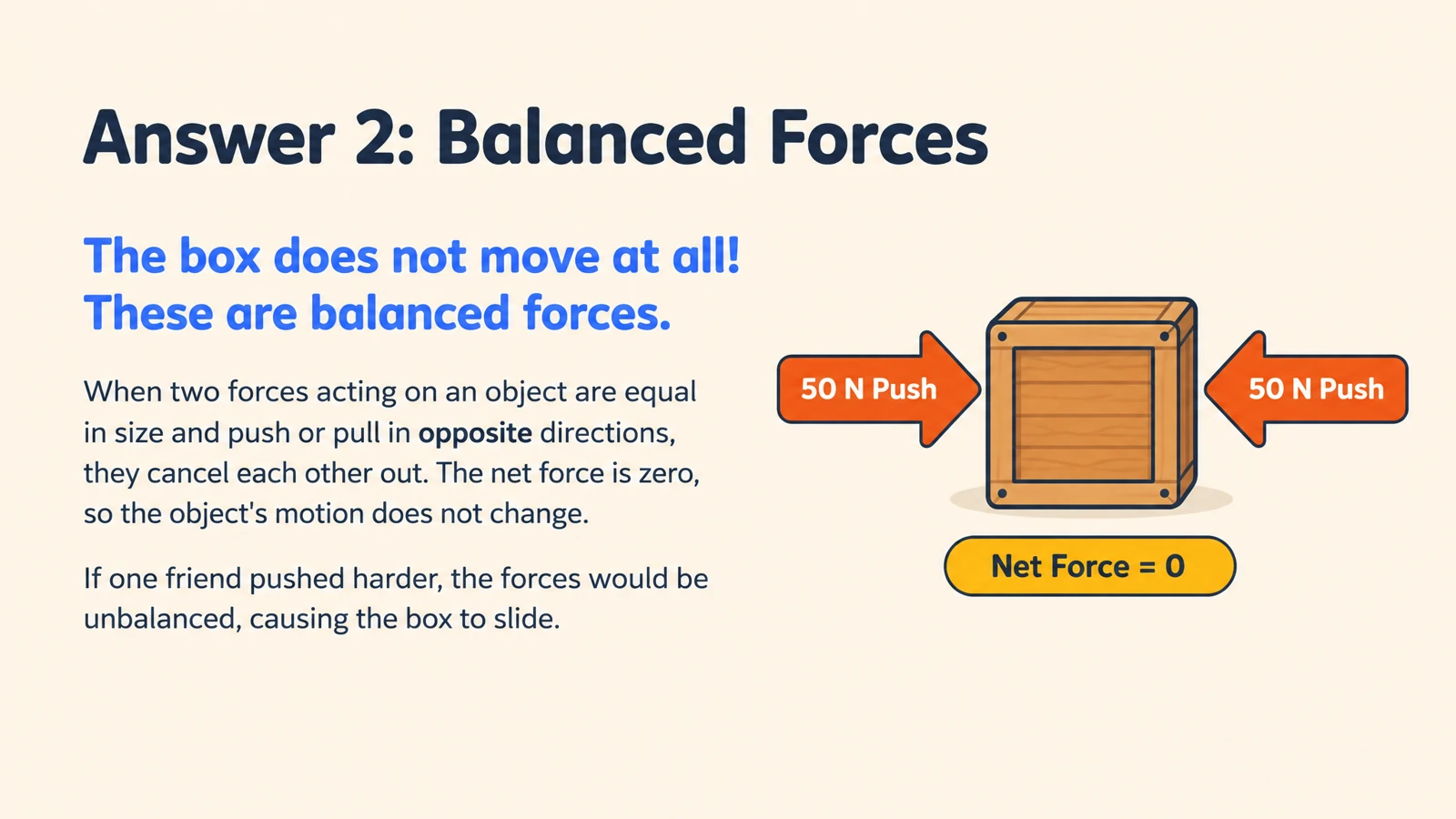


A short explainer becomes a class discussion
Create questions around the central idea and a familiar example. Ask students to explain what the presenter showed, then reveal the answer to guide the discussion.
Create illustrated cards from an educational video link. Use the questions for a lesson recap or discussion.
Drag and drop your files here.
Paste a link from YouTube, TikTok, X/Twitter, Instagram, Facebook, or any website.
Transform a video you have selected for teaching into questions students can attempt and visual explanations you can discuss.
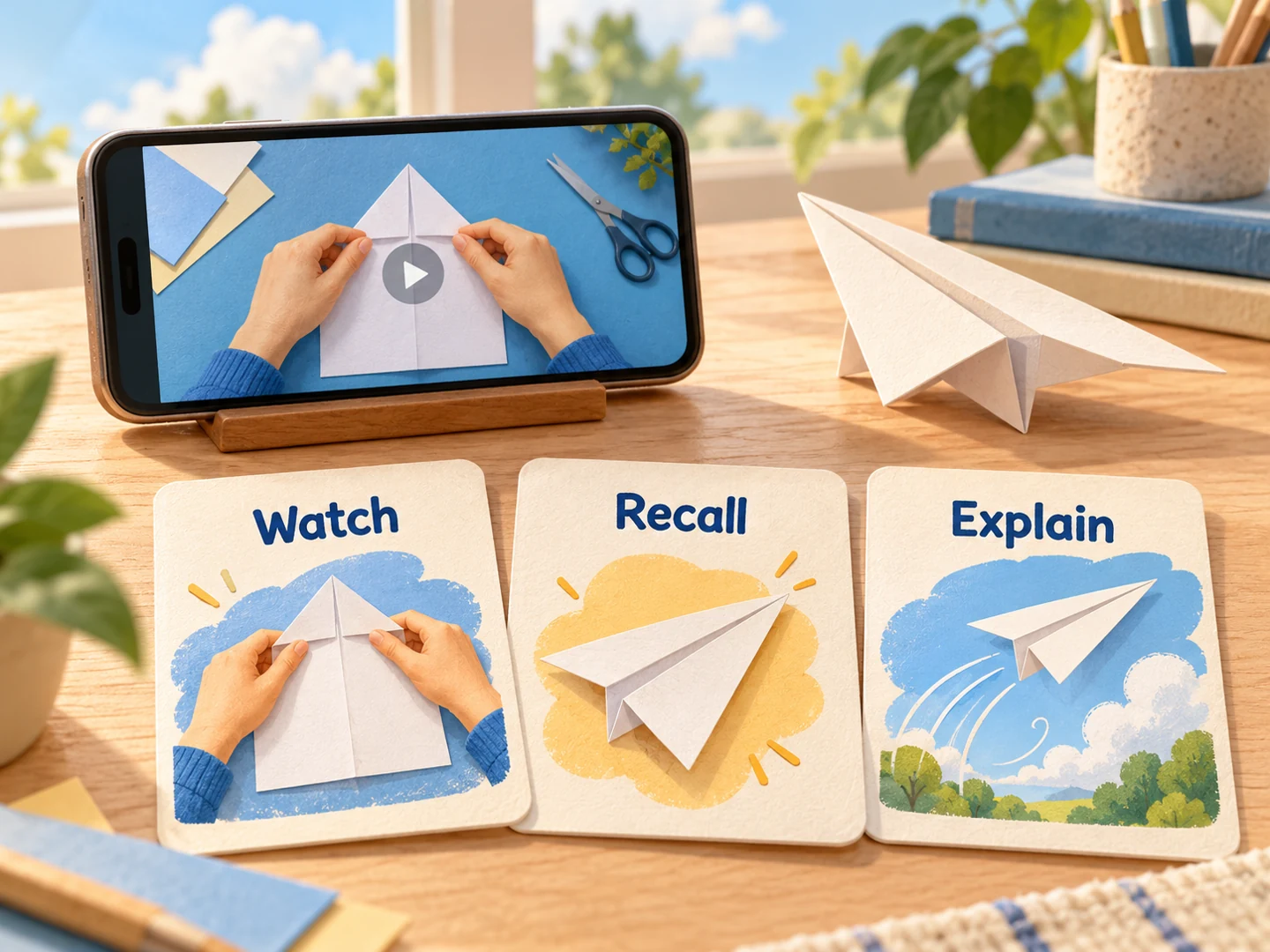
Create questions around the central idea and a familiar example. Ask students to explain what the presenter showed, then reveal the answer to guide the discussion.
For a process-led video, request prompts about each stage and how the stages connect. Use the visual answers to walk the class through the sequence.
Name the concepts your class needs, such as Newton’s laws in an introductory physics lesson. Set the depth and number of cards around your teaching objectives.
Paste a supported video URL into Paste link. Start with the demonstration, tutorial, or explanation you want students to work with.
Specify what students should recall, explain, or compare. Set the audience, language, length, and visual style.
Lead a discussion, print questions for small groups, or save a PDF for students. Export editable PowerPoint to adapt the cards for your lesson.
Give your students a second activity with a clear learning purpose after watching.
Use a question to connect the video’s concept with a new situation. A lesson about force can lead to prompts about starting, stopping, or changing direction.
Let students attempt a prompt before revealing the explanation. The illustrated answer gives your walkthrough a concrete reference and connects the activity back to the video.
Export PPTX to add a class-specific example or combine cards with your lesson slides. Print or save a PDF so learners can continue independently afterward.
Paste a supported video link, describe your students and learning objectives, and generate. Use the illustrated questions for a lesson recap or group activity, then print the set or export editable PPTX.
Paste a video link from YouTube, TikTok, X/Twitter, Instagram, or Facebook. The shared link input also accepts websites, so you can switch between a video lesson and written material.
Yes. Ask for a concise set around the clip’s main idea and examples. Short explainers can make useful warm-ups or quick review activities.
Yes. Name the concepts you want students to revisit and set the level of detail. Create a focused set for a lesson recap, discussion, or follow-up activity from a longer source.
You can begin directly with the video link. If you already have an excerpt or notes you want to use, switch to Paste in text and create the cards from that text.
Yes. Choose the output language and describe your students’ level. Use vocabulary and explanations suited to an introductory class, a more advanced course, or a training group.
Yes. Print the completed cards for a classroom activity, or use Save as PDF in the print dialog to create a file for students. Select the question and answer pages that fit your activity. Independent learners can also use the cards to revisit a video lesson.
Yes. Export editable PPTX to change the wording and design in PowerPoint. Add your own examples or use selected cards in a teaching presentation.
Move from watching a demonstration to explaining its ideas.
Build a classroom follow-up from a YouTube lesson.
Turn assigned web reading into questions for your next lesson.
Explain words, processes, and concepts through scenes and diagrams.
Make illustrated cards you can take to the study table or classroom.
Connect questions, variables, fair tests, and evidence.
Turn lesson notes into illustrated cards for teaching and student practice.
Create illustrated study cards from your material or a topic.
Create illustrated cards for the learners you teach, from the video you want to use.