
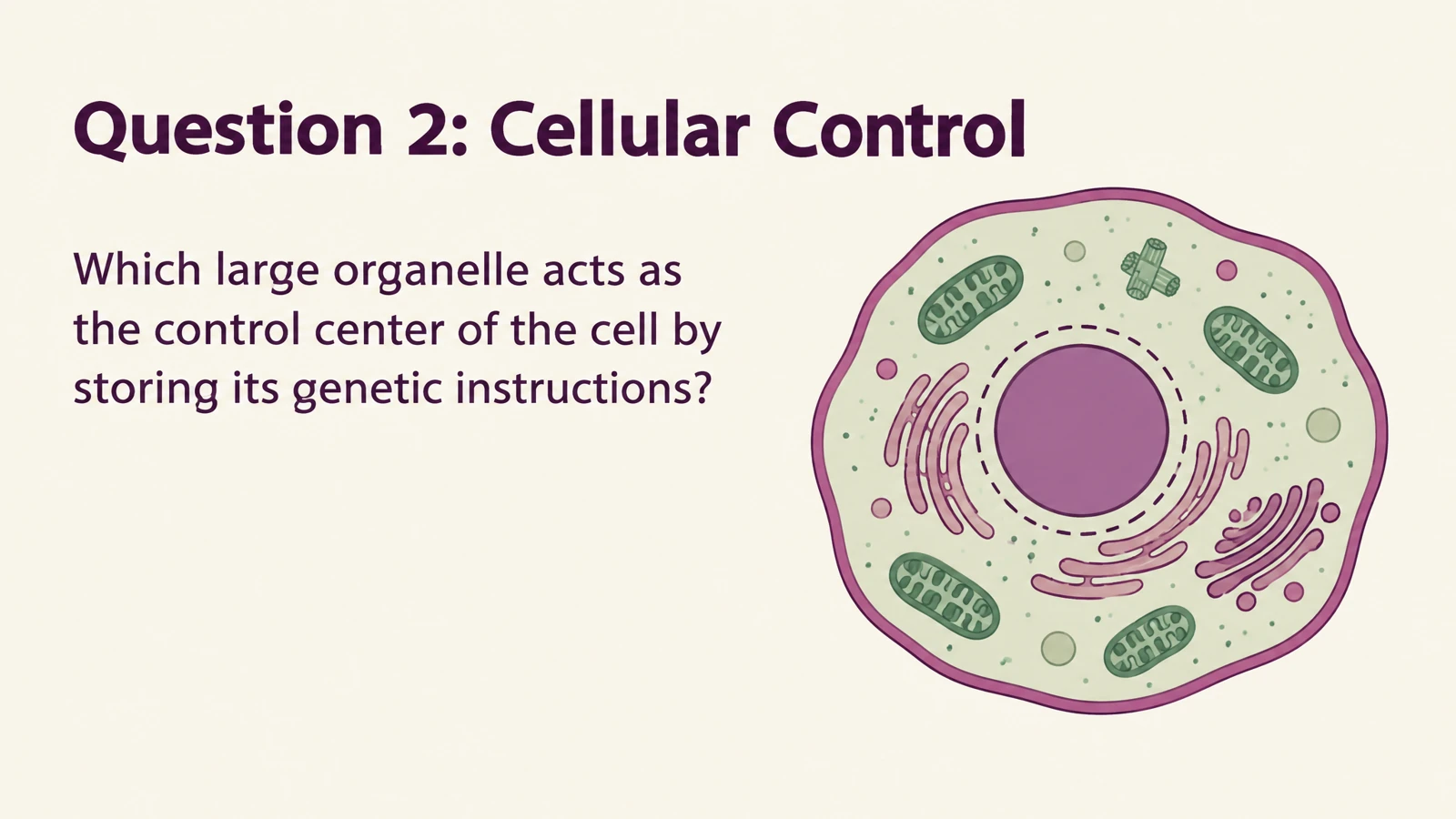
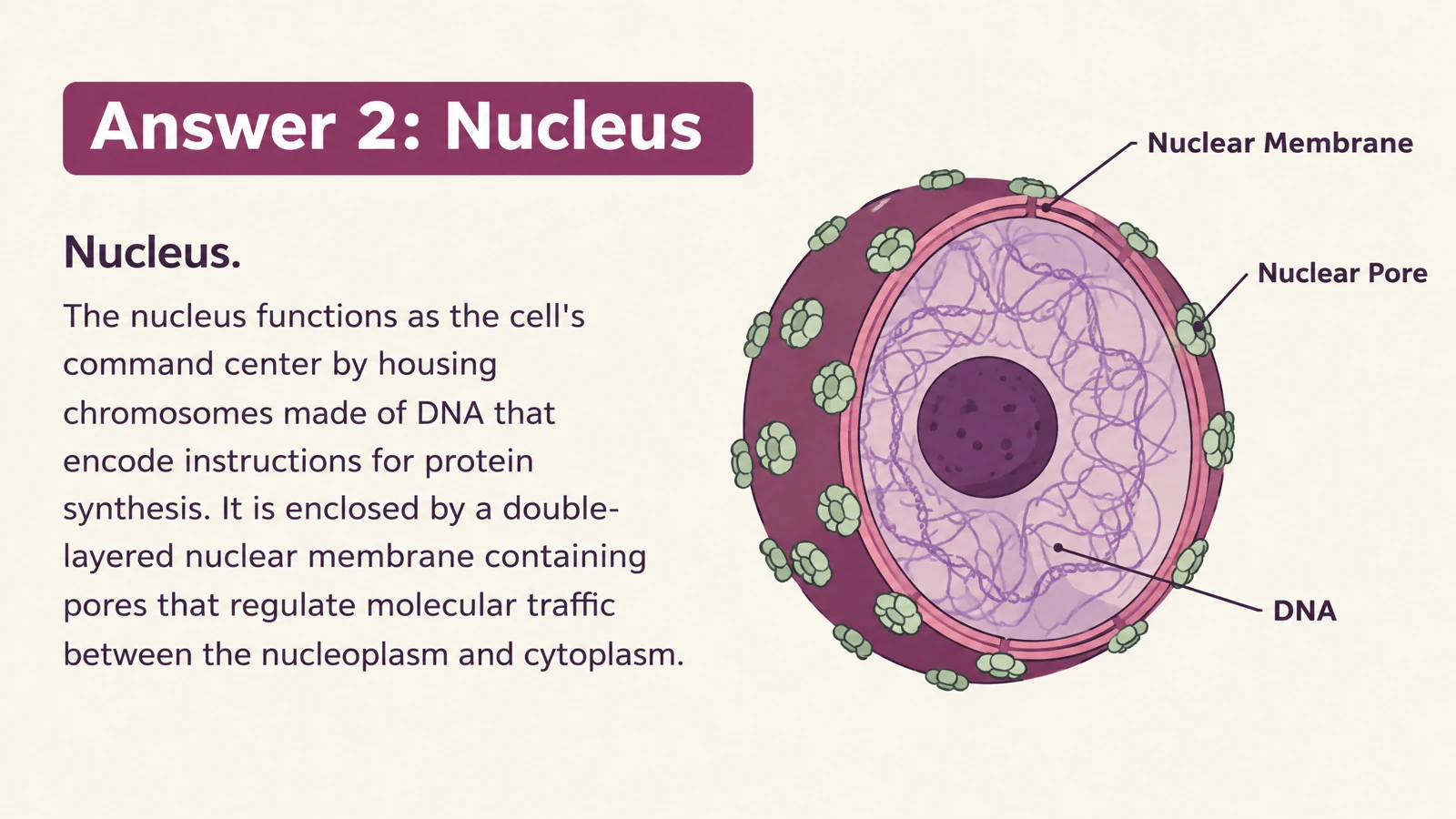


Print the whole visual set
Bring illustrated questions and explanations into paper-based practice with one-click printing.
Create flashcards with diagrams, scenes, and visual explanations that make concepts easier to teach.
Drag and drop your files here.
Paste a link from YouTube, TikTok, X/Twitter, Instagram, Facebook, or any website.
Pictures can show relationships that a definition alone leaves abstract.
Place a word in a familiar situation. Give learners a meaningful context to recall, discuss, and connect to another example.
Make a process, structure, or relationship visible. Use the question side to prompt recall and the answer side to explain what is happening.
Describe the learner age, illustration style, and level of detail. Create friendly introductory cards or a more technical visual study set.
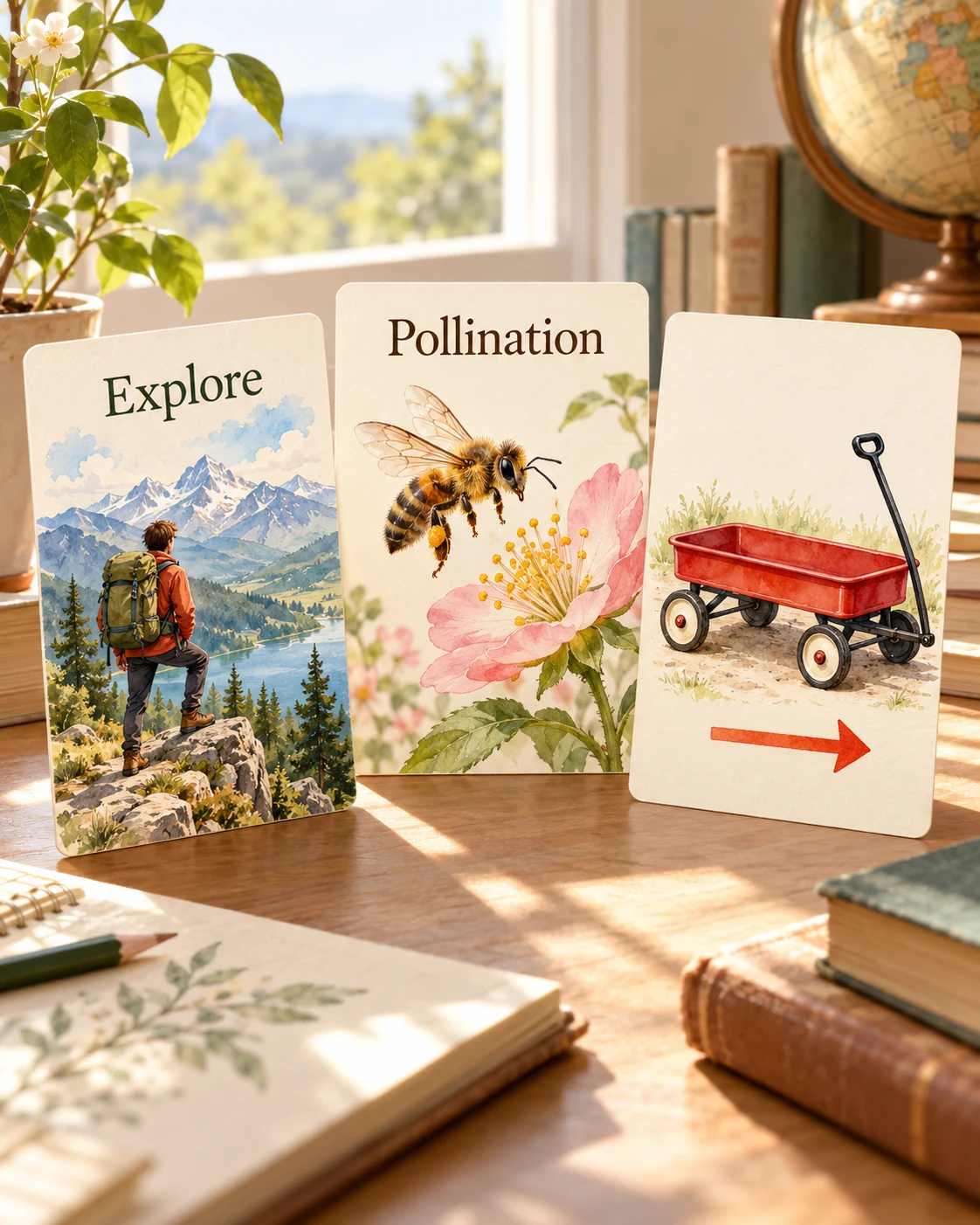
Beautiful cards should be useful wherever you teach or study.
Bring illustrated questions and explanations into paper-based practice with one-click printing.
Download editable PPTX to adjust text, images, and layouts. Reuse a diagram or a question in the next lesson deck.
Use the visual cards on-screen for a shared discussion. Invite learners to describe what they see, then reveal the answer and connect the explanation to the picture.
Add your learning material or describe a topic, then choose the audience, language, and visual style. SlidesPilot creates illustrated question-and-answer cards around that material. Use your instructions to describe what each picture should explain, such as a word in context or the steps in a scientific process.
Use scenes to explain vocabulary, diagrams to show structures, and illustrations to make relationships concrete. For example, a picture of someone pushing a trolley can support a question about force. Tell SlidesPilot the concept and the kind of visual explanation you want learners to understand.
Yes. Describe the age group, subject, and vocabulary level when you create the set. Request familiar situations, clear illustrations, and short explanations for an introductory activity. You can print the cards for a classroom station, a tutoring session, or learning together at home.
Yes. Set the audience and depth for your course or training session. Ask for diagrams of a process, visual comparisons between concepts, or examples that explain specialist terminology. The design and explanation can fit the subject rather than relying on a children’s picture-card style.
Yes. Upload a document, image, or audio file, paste notes or a link, or describe a topic. The four input tabs stay available so you can use the source you already have. Add instructions about the concepts and examples you want the visual cards to cover.
Yes. Select the output language and use the design settings and your instructions to shape the visual style. Describe the audience, tone, and amount of detail you want. This lets you create a coherent set for a particular lesson or group of learners.
Yes. Open Print on the finished set to print your cards, or select Save as PDF in the print dialog. Keep the questions and illustrated answers available for partner practice, classroom discussion, or revision away from the screen.
Yes. Export your cards as editable PPTX and customize the text, images, and layout in PowerPoint. Adapt an example to your class, simplify the wording, or combine selected cards with an existing lesson deck. You can keep developing the same resource over time.
Make illustrated cards you can take to the study table or classroom.
Explore eleven complete illustrated sets and download their PDFs.
Connect cell structures with their functions in an illustrated set.
Connect useful words with meanings, scenes, and your own examples.
Practice everyday Spanish with illustrated bilingual examples.
Explore fraction models, comparisons, and printable math practice.
Generate cards, then edit and arrange the exported PPTX in PowerPoint.
Create illustrated study cards from your material or a topic.
Create illustrated flashcards from your own material. Flip through the answers, print a set, or keep editing in PowerPoint.