
For a quick self-check
Generate multiple-choice or true-or-false questions from the concepts you have just covered. Choose the length to fit your revision session.
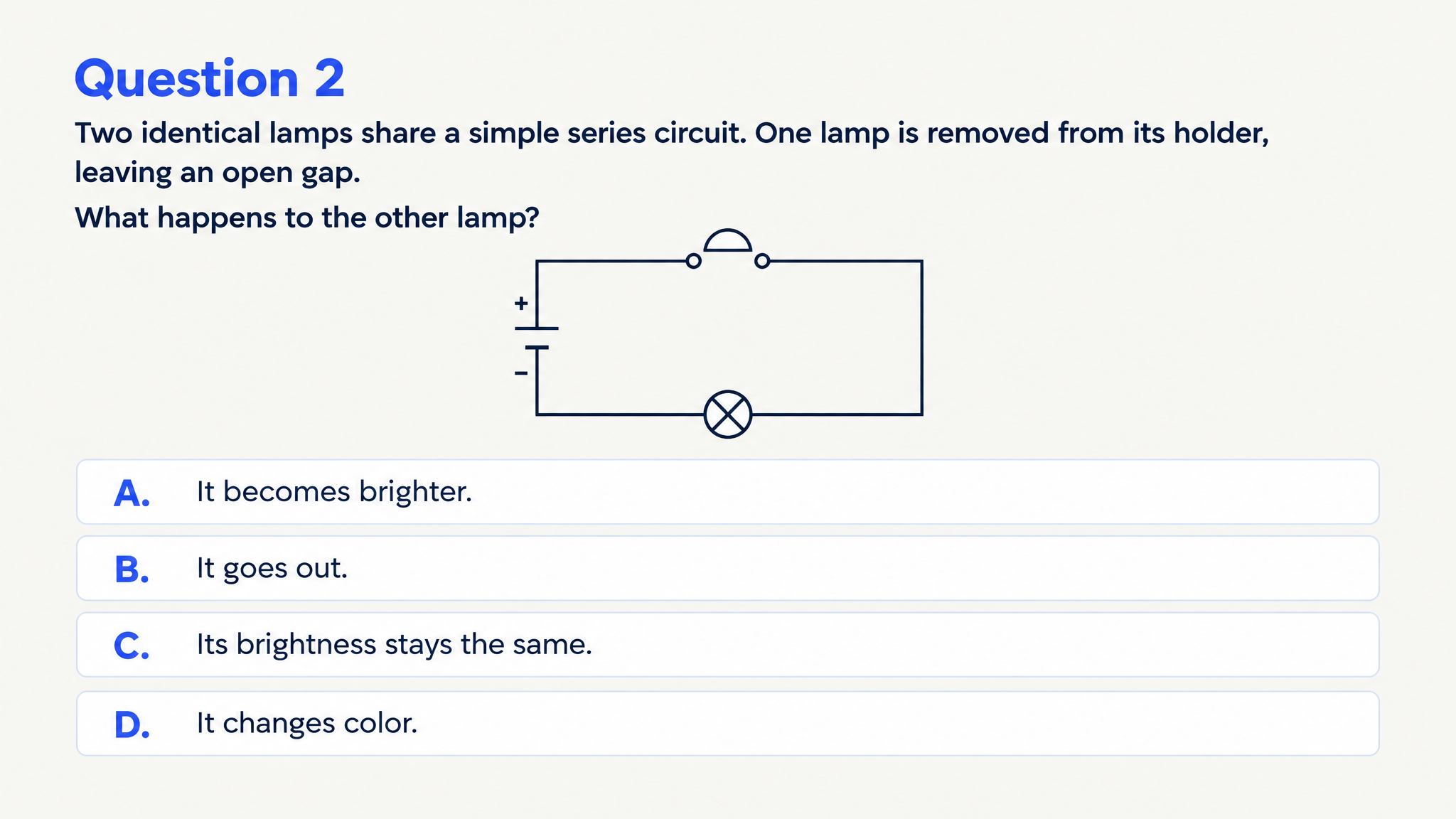
Turn lesson notes or pasted text into illustrated quiz questions with answers.
Drag and drop your files here.
Paste a link from YouTube, TikTok, X/Twitter, Instagram, Facebook, or any website.
Your notes already contain the lesson. SlidesPilot turns that material into designed questions, visual answers, and a practice set shaped around the understanding you want to build.
Turn key terms into questions about meaning, function, or a familiar example. For cell biology notes, ask learners which structure controls entry into a cell and use the answer to explain its role.
Use matching questions for related terms or ask how one idea leads to another. Add instructions about the relationships you want learners to practice, such as causes and outcomes in a history lesson.
Generated explanations give you a second pass through the material. Discuss them with a study partner, print the set for a recap, or adapt the exported PowerPoint for your next class.
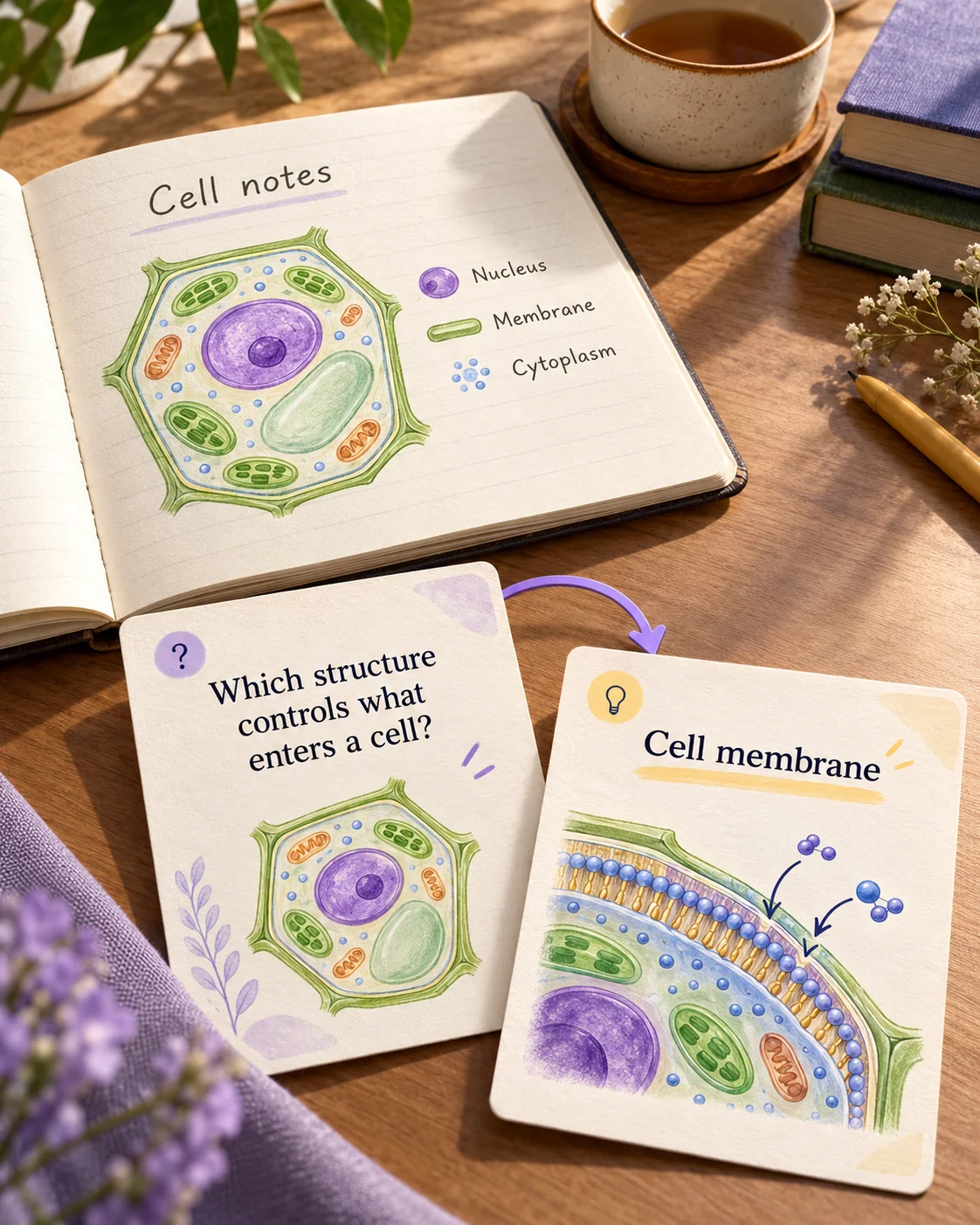
Keep your own material at the center of the quiz.
Generate multiple-choice or true-or-false questions from the concepts you have just covered. Choose the length to fit your revision session.
Request matching or fill-in-the-blank questions to work on terminology and relationships. Include instructions about which ideas deserve emphasis.
Create a printed exercise for learners, or export editable PPTX to bring the questions into a recap lesson.
Paste text or upload the file that contains your lesson or revision material.
Set the question type, language, audience, and length. Describe whether you want recall or application questions.
Use the visual set for practice, print it, or adapt the exported PowerPoint deck.
Paste a passage, lecture notes, or your revision material into the text field. Select the question type, audience, language, and length, then add your learning goals. SlidesPilot creates a designed set of questions and answer explanations from that material.
Yes. Switch to Upload files and add the document that contains your material. PDF, Word, PowerPoint, images, and audio are supported inputs. Use the text tab when you want to work from a particular passage you have already copied.
Choose multiple choice, matching, true or false, or fill in the blank. Use the format that fits the learning task: matching for relationships, missing words for terminology, or multiple choice for distinctions between ideas. Describe the concepts and examples you want the questions to cover.
Yes. Add instructions about what learners should do with the ideas in your notes. Ask for an everyday scenario, a comparison, or an explanation of how a process works. This gives the quiz a clear purpose beyond repeating the wording of the original material.
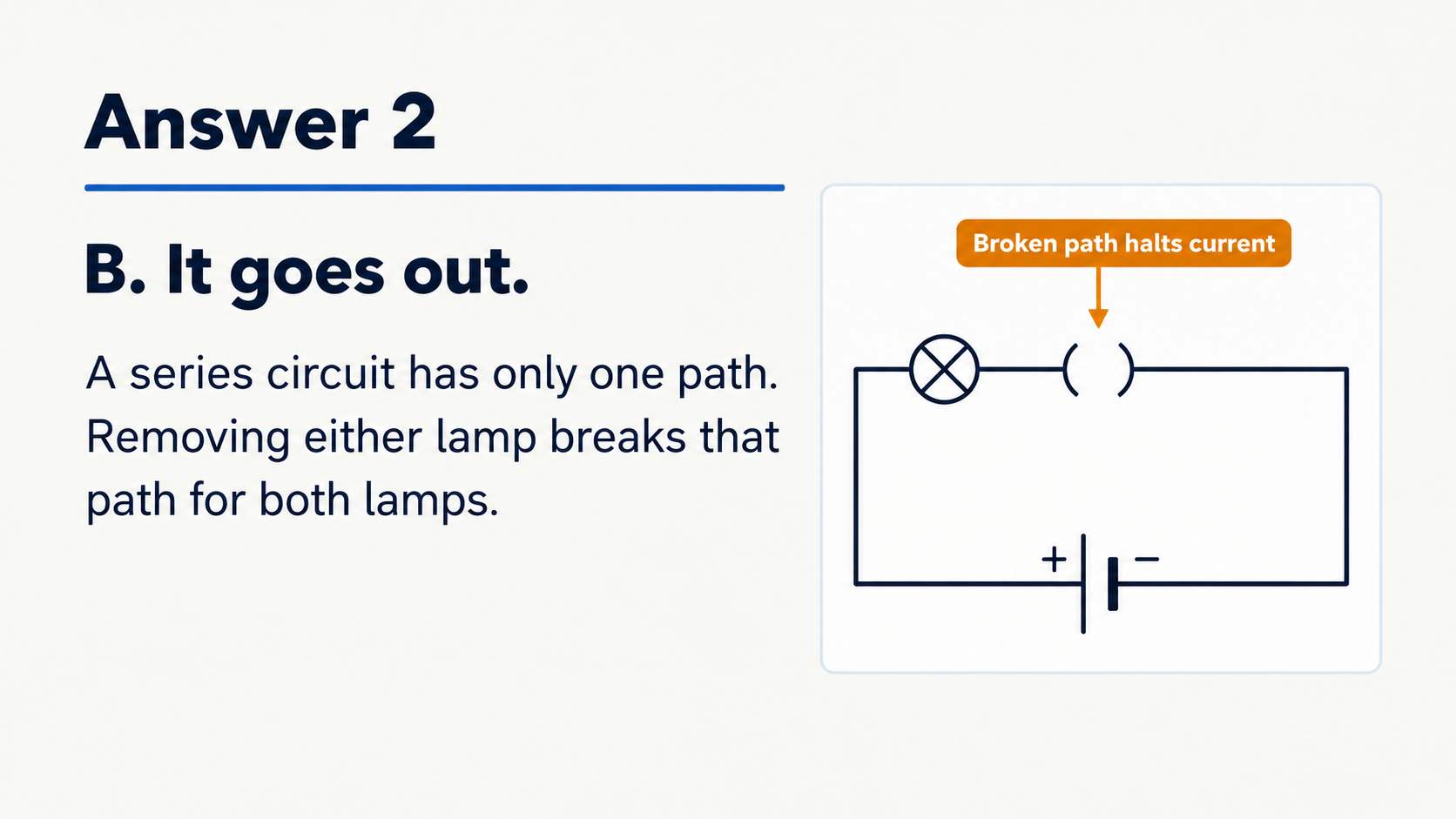
Yes. The generated set includes answers and explanations alongside the question pages. Work through a question, then reveal the reasoning to revisit the concept. The same pages support a study-group discussion or a teacher’s recap after an exercise.
Yes. Add the material covered in class and specify the learner level, question format, and ideas to revisit. Print the questions for an activity or present them during the next lesson. Export editable PPTX if you want to add examples from the class discussion.
Yes. Choose the output language and audience and describe the amount of detail you want. You can request clear introductory questions or more demanding comparisons and applications. Use your instructions to keep the challenge connected to what learners have studied.
Yes. Print selected pages from the completed set or save them as a PDF through the print dialog. Download editable PPTX to revise the wording, options, explanations, and design in PowerPoint. Keep a version you can adapt for the next review session.
Give lecture notes and pasted text a question side for revision.
Build questions from a Word lesson, guide, or training handout.
Create a clear question, answer options, and a useful explanation.
Practice vocabulary and subject terms inside meaningful sentences.
Use a focused statement to start a clear explanation of the answer.
Prepare question pages and answers for a paper-based activity.
Organize a practice set around your revision topics and goals.
Build visual questions and answer explanations for your next lesson.
Create a practice quiz with visual questions and explanations you can return to.