


From heading to question
A heading such as “Forces and motion” can become a prompt about what makes an object accelerate. Ask for cards that explain the ideas inside your handout, with examples suited to your learners.
Transform lesson handouts and course documents into illustrated flashcards you can print and adapt.
Drag and drop your files here.
Paste a link from YouTube, TikTok, X/Twitter, Instagram, Facebook, or any website.
SlidesPilot turns the material in a Word document into focused questions and visual answer pages, giving a familiar handout a new role in revision.
A heading such as “Forces and motion” can become a prompt about what makes an object accelerate. Ask for cards that explain the ideas inside your handout, with examples suited to your learners.
Use a glossary, class summary, or training document to practice both meaning and application. A card can ask for a term on one side and explain its role in a situation on the other.
Set the scope around the lesson you are studying now. Specify the section, audience, and depth in your instructions so the set fits the time available for practice.
Choose Upload files and add your Word handout, revision guide, or course document.
Ask for the concepts, examples, and level you want. Choose the card language, length, and visual style.
Generate the cards, work through the questions, then print a copy or export editable PPTX for your next lesson.
Choose how the document becomes part of your study routine.
Use a handful of cards before discussing the reading. Give learners time to explain an idea, then reveal the answer and connect it to the topic.
Print the cards for paired questioning or a short solo session. Separate questions and answers using the page choices in your print dialog.
Export PowerPoint to change examples, adjust wording, or combine cards with a lesson deck. Your next version can reflect the questions your class actually asked.
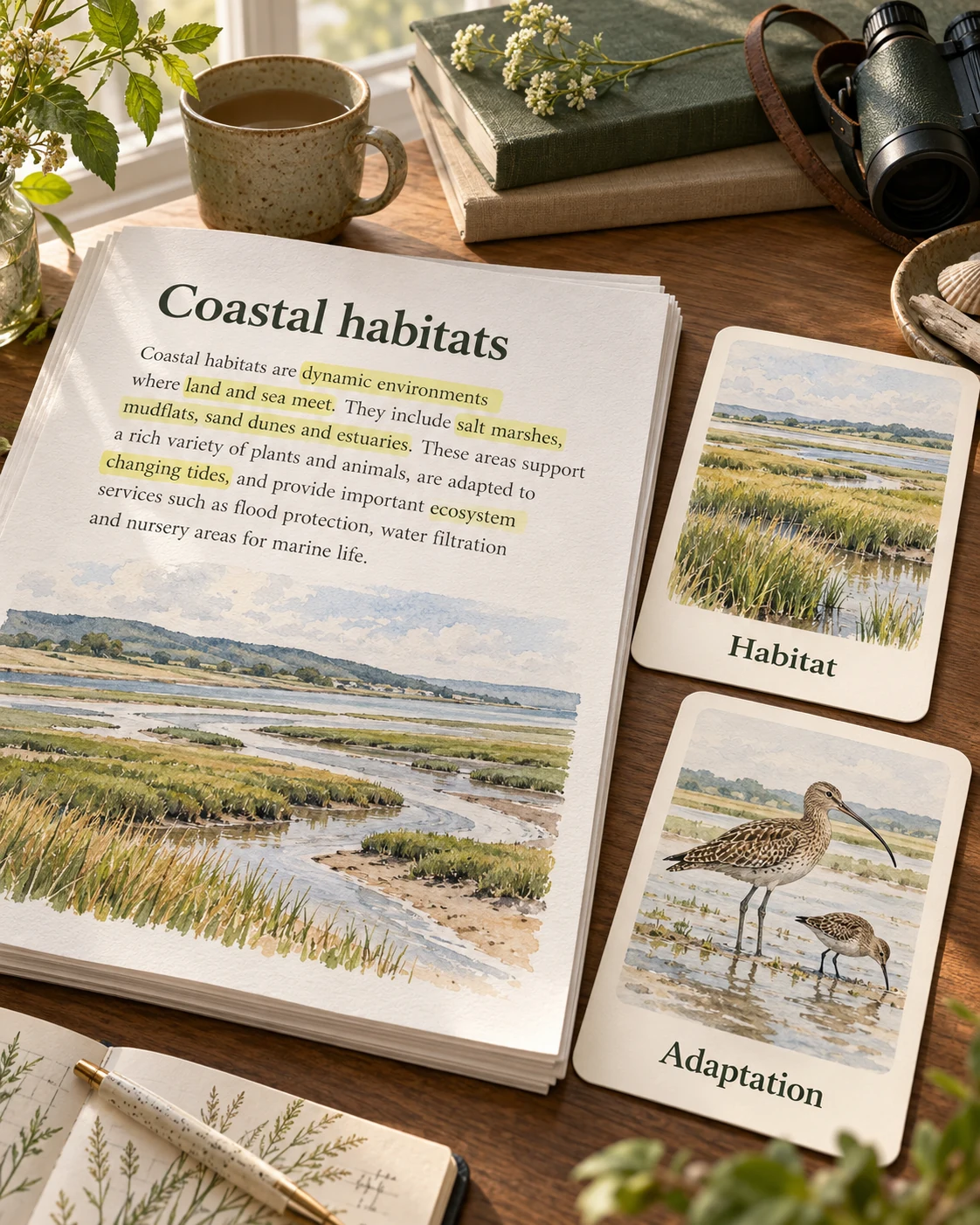
Upload your Word file in the Action Area, describe the audience and the ideas to cover, and generate a flashcard set. SlidesPilot creates question and answer pages from your document, with illustrated explanations that you can revisit.
Use lesson handouts, course notes, glossaries, training material, or study guides. A vocabulary handout can become meaning-and-example cards; a science lesson can become questions about processes and relationships.
Yes. Name the chapter, heading, or learning objective in your instructions. You can also upload a document containing just the material for that review session.
Yes. Ask for explanations, comparisons, worked ideas, or examples. For a forces lesson, you might request cards that connect each concept to a familiar action such as pushing a shopping cart.
Yes. Choose the output language and describe the learners. Specify whether you want a first introduction, exam revision, or a more detailed explanation of the topic.
Yes. Open the generated set and select Print. Your browser print dialog lets you choose the printer, pages, and Save as PDF option.
Export the set as editable PPTX and open it in PowerPoint. Adjust text, examples, and visual elements before printing or presenting the cards.
Yes. The same Action Area includes Paste in text, Paste link, and Generate. Choose the source you have ready while keeping flashcards as your output.
Build questions from a Word lesson, guide, or training handout.
Turn a PDF chapter or handout into focused question-and-answer cards.
Give lecture notes and pasted text a question side for revision.
Break a chapter into concepts, processes, and examples to recall.
Reuse an existing slide deck as question-and-answer study material.
Make illustrated cards you can take to the study table or classroom.
Generate cards, then edit and arrange the exported PPTX in PowerPoint.
Create illustrated study cards from your material or a topic.
Turn the next reading into questions learners can answer.