


Move from explanation to recall
Use the content in your PowerPoint to create focused questions and answer pages. Build a revision companion to the lesson you already teach.
Turn your existing lesson slides into illustrated question-and-answer cards for a recap or practice activity.
Drag and drop your files here.
Paste a link from YouTube, TikTok, X/Twitter, Instagram, Facebook, or any website.
The lesson is already prepared. Turn its ideas into prompts learners can revisit.
Use the content in your PowerPoint to create focused questions and answer pages. Build a revision companion to the lesson you already teach.
Illustrations and diagrams help explain the concepts behind the slides. Turn a dense teaching point into a card learners can describe in their own words.
Print the new set for a tutoring session, revision station, or independent review. Keep the presentation and practice material working together.
Choose the PowerPoint file containing the lesson or lecture material.
Set the audience, language, and length. Add instructions about the concepts that matter most.
Explore the questions and answers. Print the cards or download editable PPTX to customize the study deck.
Turn an existing teaching deck into a new question-and-answer resource, with illustrated explanations and an editable format you can keep developing.
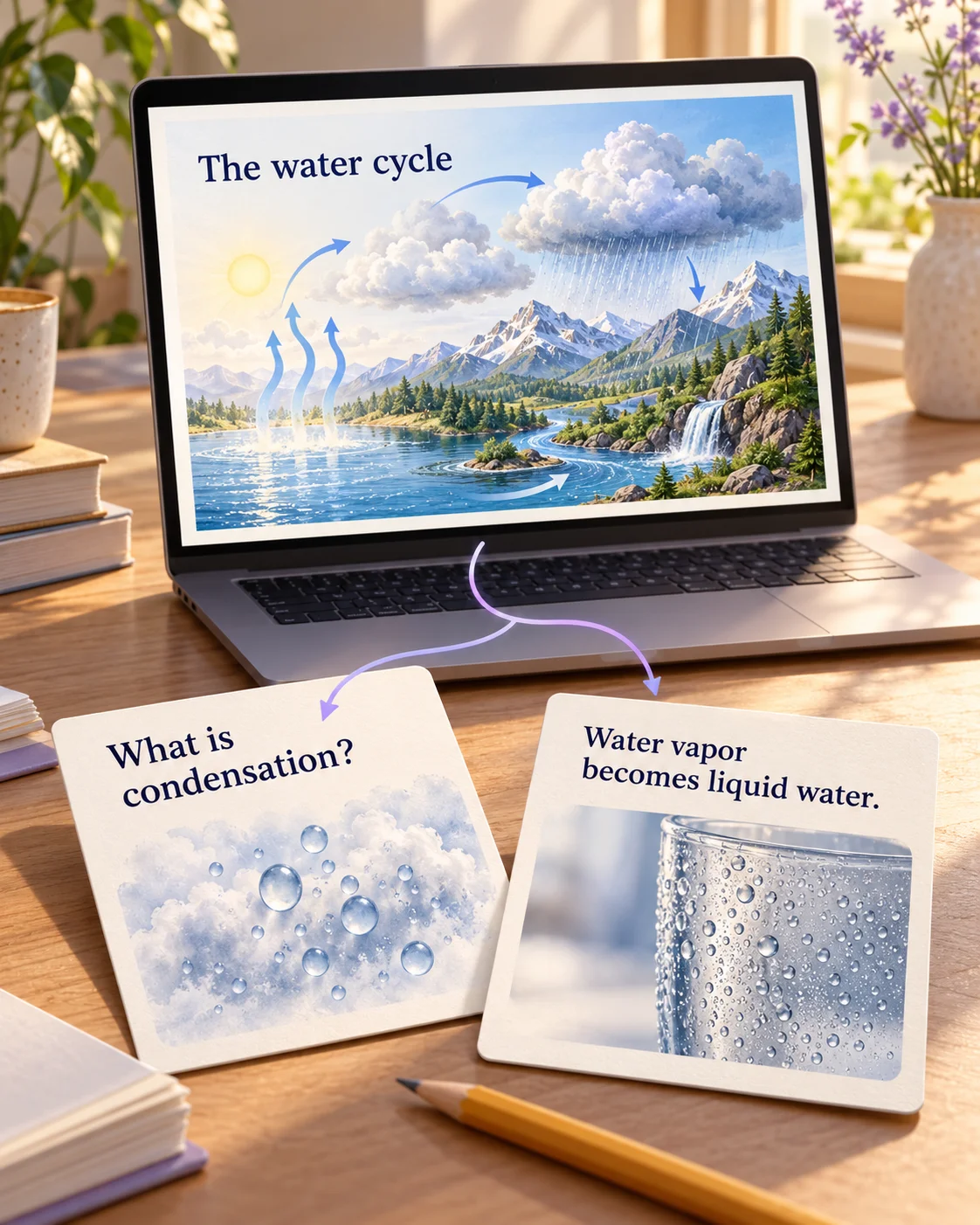
A slide might explain the whole water cycle; a flashcard can ask what condensation means. Describe the ideas to emphasize so the new set gives each concept a question learners can answer.
Use diagrams and illustrated examples to explain the answer. Ask for a familiar situation, a step in a process, or a contrast between related terms to suit the lesson you originally presented.
Export your new cards as editable PPTX. Refine an explanation, adapt the language for another group, or bring selected cards back into your lecture as review questions. Print a set when the activity moves off-screen.
Yes. Upload your PowerPoint presentation and choose the audience, language, and flashcard settings. Add instructions about the concepts you want to practice. SlidesPilot uses the deck’s material to create a new set of illustrated questions and answers.
SlidesPilot turns the teaching material into prompts and answer explanations. A slide explaining a process can become questions about its steps; a slide introducing terms can become meaning-and-example cards. Your instructions help focus the new resource on the ideas learners should recall and explain.
Yes. Upload the lecture deck and specify the topics, course level, and type of revision you want. Ask for key terms, comparisons, or explanations of a process. The result gives you questions to work through after the lecture, with visual answers you can revisit.
Yes. Name the concepts or lesson objectives you want the set to emphasize. For a water-cycle presentation, you might focus on evaporation, condensation, and precipitation. Choose the depth and audience so the cards fit your next revision session or teaching activity.
Yes. SlidesPilot creates designed cards with illustrations and diagrams that explain the ideas behind the source material. Request everyday examples, process visuals, or comparisons in your instructions. The goal is a useful question-and-answer resource built around the lesson.
Yes. Select the language and audience and describe the vocabulary level you want. Adapt a lecture topic for another group or create revision cards in the language you prefer to study. The exported PowerPoint gives you further control over wording and examples.
Yes. Download your new flashcard set as editable PPTX. Change questions, refine explanations, adjust images and layouts, or insert selected cards into another teaching presentation. You can keep developing the study deck after its first use.
Yes. Print the completed cards in one click for a study group, tutoring session, or classroom activity. Select the pages you need in the print dialog, or use Save as PDF for a digital copy. The original presentation can become both an on-screen lesson and paper practice.
Turn teaching slides you already have into a quiz on the same material.
Generate cards, then edit and arrange the exported PPTX in PowerPoint.
Turn a PDF chapter or handout into focused question-and-answer cards.
Make Word handouts and study documents useful for active recall.
Give lecture notes and pasted text a question side for revision.
Make illustrated cards you can take to the study table or classroom.
Prepare to explain a paper's question, methods, and findings.
Create illustrated study cards from your material or a topic.
Create a visual revision set from the presentation you already have.