

Free YouTube Subtitle Downloader

Download YouTube subtitles as SRT or VTT, with the words and timing together in one file. Paste a video link, open its transcript, and choose the subtitle format for your next project.

How to download subtitles from YouTube

From a video link to a subtitle file you can keep, the process stays in one workspace.

  1. Open the video’s transcript

    Paste the YouTube URL into the tool above. SlidesPilot opens the video’s text in the transcript workspace, where you can read the wording and view timestamps before choosing your download.

  2. Choose SRT or VTT

    Open Download and select the file format for your project. SRT is a familiar choice for subtitle editors and video workflows; VTT is the WebVTT format used for web caption tracks. Both keep text connected to timing.

  3. Save your subtitle file

    Download the selected file and keep it with the video or project materials. You now have a separate caption file to use in your subtitle workflow, alongside TXT and Markdown options when you also want a reading copy.

The right subtitle format for the next step

A subtitle file carries two things together: what is said and when it appears. Choose the format your editor or player uses, and keep that timing with the words.

  • Download YouTube subtitles as SRT

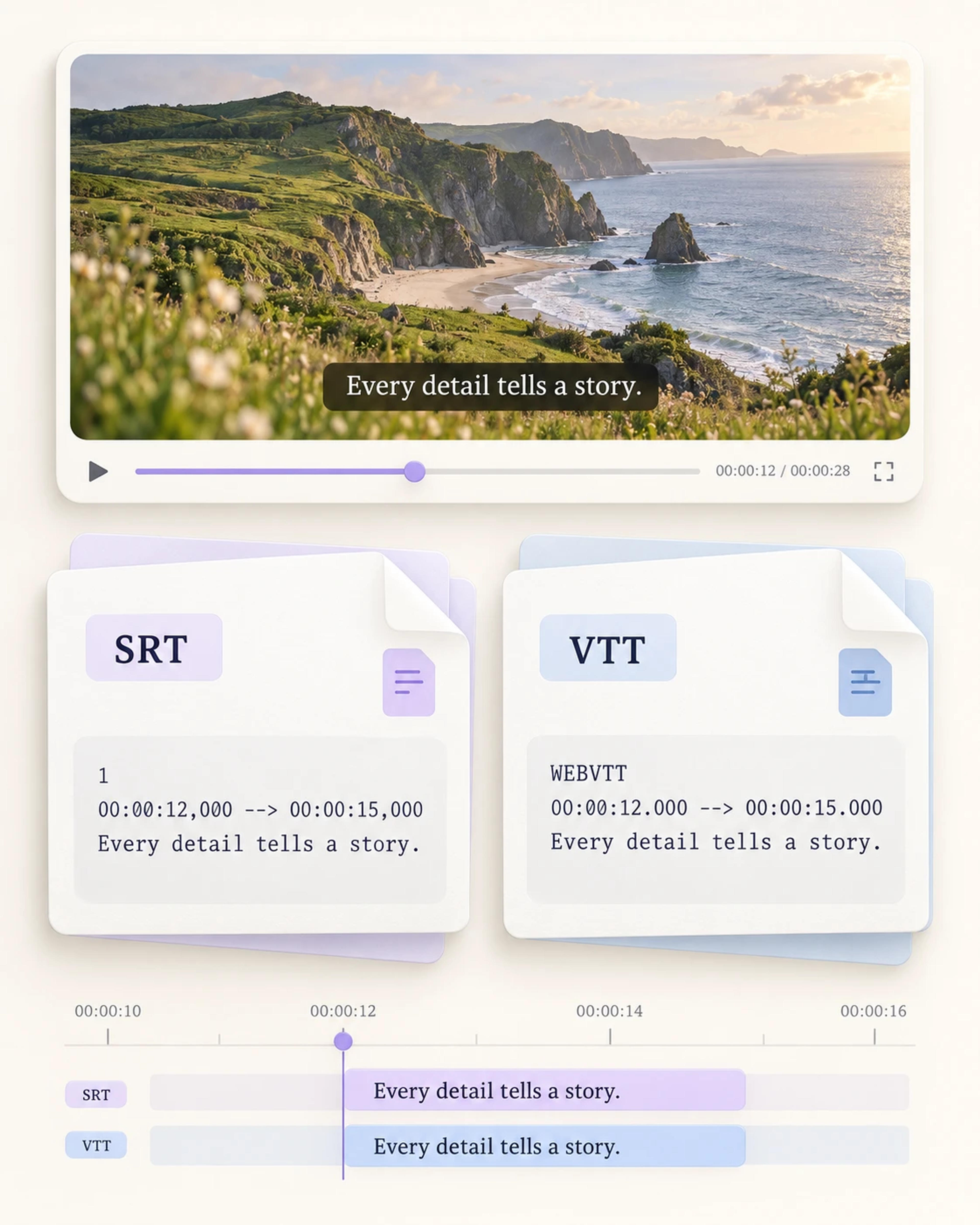
    Choose SubRip (SRT) when you need a straightforward subtitle file for an editing or captioning workflow. Each entry contains a sequence number, a start and end time, and the subtitle text. That familiar structure makes the file practical to open in a subtitle editor and keep alongside your project.

  • Save WebVTT captions for web video

    Choose VTT when your next step uses a WebVTT caption track. The file stores timed text cues in a web-oriented format, so you can take the captions into a compatible player or publishing workflow. Downloading VTT gives you the text and its timing as a separate asset.

SRT and WebVTT file examples showing the same caption and matching start and end times

Keep the caption file ready for real work

Download the subtitle asset you need and organize it around the way you edit, publish, teach, or study.

Bring subtitles into an editing project

Save an SRT file with the other assets for a video project. Open it in your preferred subtitle editor to continue working with the caption text and timing. Keeping the subtitles as their own file gives them a clear place in the editing handoff.
Prepare a web caption track

Download a VTT file when your web video setup uses WebVTT. You can keep the caption track beside the associated video and carry it into a compatible publishing workflow. The text remains a separate resource that belongs with the recording.

Build a useful lesson resource

Keep a subtitle file alongside a recorded explanation used in a course or workshop. The timed text provides another way to follow the spoken material and gives your learning team a caption asset to include with the lesson’s resources.

Keep video and caption assets organized

Download the captions for a webinar or recorded talk and store the file with that session’s materials. A separate subtitle file makes the handoff more concrete: colleagues can see which text belongs to the recording and which format is ready for their workflow.

Read the wording before downloading

Open the transcript and use Show timestamps to see the text in its video context. This view is useful when you want to understand the conversation before taking its subtitles into another task. You can read the passage on screen and then choose the download format.

Keep a text copy as well

Choose TXT or Markdown when you also want the transcript in a document-based workflow. A plain-text copy is convenient for reading, while an MD file fits Markdown notes. Keep the subtitle file for timing and the reading copy with your research or writing.

A subtitle file that fits the project

From an editing handoff to a learning resource, the right format keeps the next step straightforward.

Alex

Video Editor

“I needed an SRT version of the captions for a recorded tutorial we were working with. I pasted the YouTube link, opened the transcript, and downloaded the subtitle file. Having the text and timestamps together made it easy to bring that asset into my subtitle editing workflow.”

Sofia

Web Content Producer

“Our web video workflow uses VTT caption files, so format choice matters to me. The YouTube subtitle downloader lets me save a WebVTT file and keep it with the recording’s other assets. I like having a clear caption file to pass along with the rest of the publishing materials.”

Daniel

Course Developer

“We organize recordings, exercises, and supporting text for every lesson. Downloading YouTube subtitles gives me a caption file to keep in that lesson folder. I also save a TXT transcript when I want to read the explanation while writing the accompanying activity. The two formats serve different parts of the same job.”

Nina

Post-production Coordinator

“A clean handoff means making sure the video’s supporting files are easy to identify. I use SRT downloads for the subtitle asset and keep them beside the project notes. Opening the transcript first gives me a useful view of the conversation before I send the material into the next stage of production.”

Ethan

Language Tutor

“I use short recorded conversations as learning material. The timestamps give the words a place in the video, and a downloaded caption file lets me keep that material with the lesson. When I am preparing an exercise, I also appreciate being able to read the full transcript in one place.”

YouTube subtitle downloads: your questions answered

Paste the YouTube link into SlidesPilot and open its transcript. Select Download, then choose SRT or VTT to save a timed subtitle file. You can read the text and show timestamps in the workspace before downloading. For a document-based copy, TXT and Markdown are available from the same download options.

Yes. SlidesPilot’s YouTube subtitle downloader is free to use. Start with a video link and choose the format you need from the transcript workspace. Download SRT or VTT for a caption workflow, or keep a TXT or Markdown version when your next task is reading, research, or note-taking.

Choose the subtitle format used by the editor, player, or publishing workflow you are working with. SRT is widely used for subtitle editing and video projects. VTT, also called WebVTT, is designed for web text tracks. SlidesPilot offers both, so you can save the format that fits the next step.

Yes. SRT and VTT are timed-text formats: subtitle entries include timing information together with the words. That structure connects each caption to a part of the video. In the transcript workspace, Show timestamps also lets you see the relationship between the text and the recording before you download a file.

Yes. Open the video’s transcript, select Download, and choose SRT. The SubRip file keeps the caption text in numbered entries with start and end times. Save it with your project materials and open it in a subtitle editor when you want to continue working on the caption track.

Yes. Choose VTT from the download options to save a WebVTT file. It is useful when your next step calls for a web caption track. Keep the file with the video’s other resources so the text and timing are ready for the compatible player or publishing setup you use.

Yes. Download TXT for a plain-text reading copy or Markdown for an MD file. Those options are useful when you want to read the spoken material, collect passages in your notes, or keep a transcript with a research project. SRT and VTT remain available for tasks where subtitle timing is central.

A downloaded SRT or VTT file gives you a separate text-and-timing asset. You can open it in a compatible subtitle editor, include it in a video project, or keep it with a lesson’s resources. Select the format your next tool uses and organize the file alongside the recording it belongs to.

YOUR NEXT STEP

Bring the key ideas into focus

Have the subtitle file you need? Use the YouTube Summarizer to turn the video into a concise overview of the main ideas and takeaways.

Summarize a YouTube Video
  • Key points in one place
  • A shorter reading view
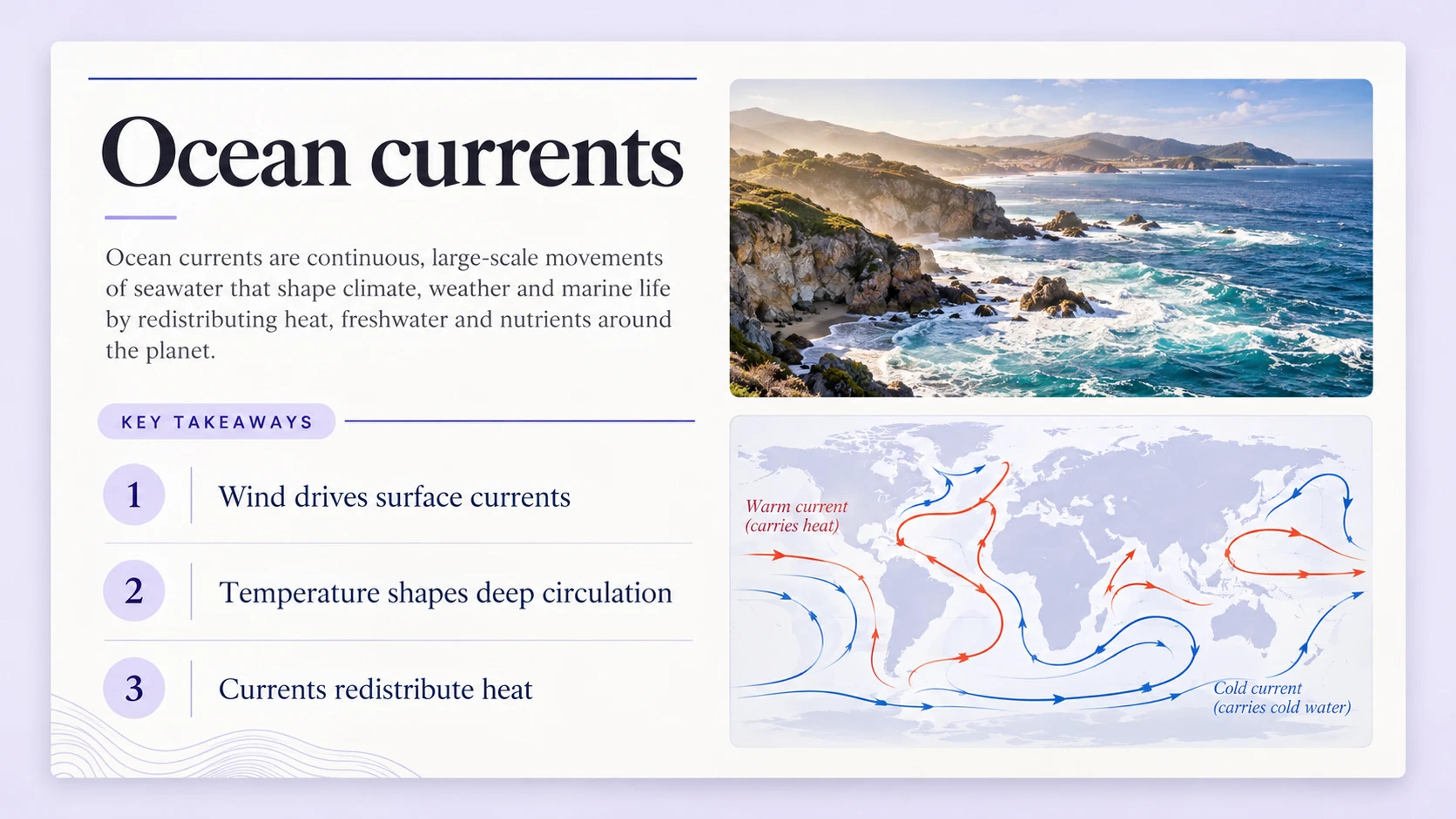
Example ocean currents summary with three key takeaways and an ocean illustration

A focused overview for your next read.

TAKE THE IDEAS FURTHER

Give those ideas a beautiful presentation

Turn the same video into a polished slide deck with YouTube to PPT. Shape the story for a lesson or meeting, then make the slides your own.

Turn a YouTube Video into PPT
  • Beautiful slide designs
  • Fully editable PowerPoint
YOUR SOURCE
VIDEO
YOUTUBE

A lesson worth sharing

The ideas from your video
AIOrganize + design
YOUR PRESENTATION
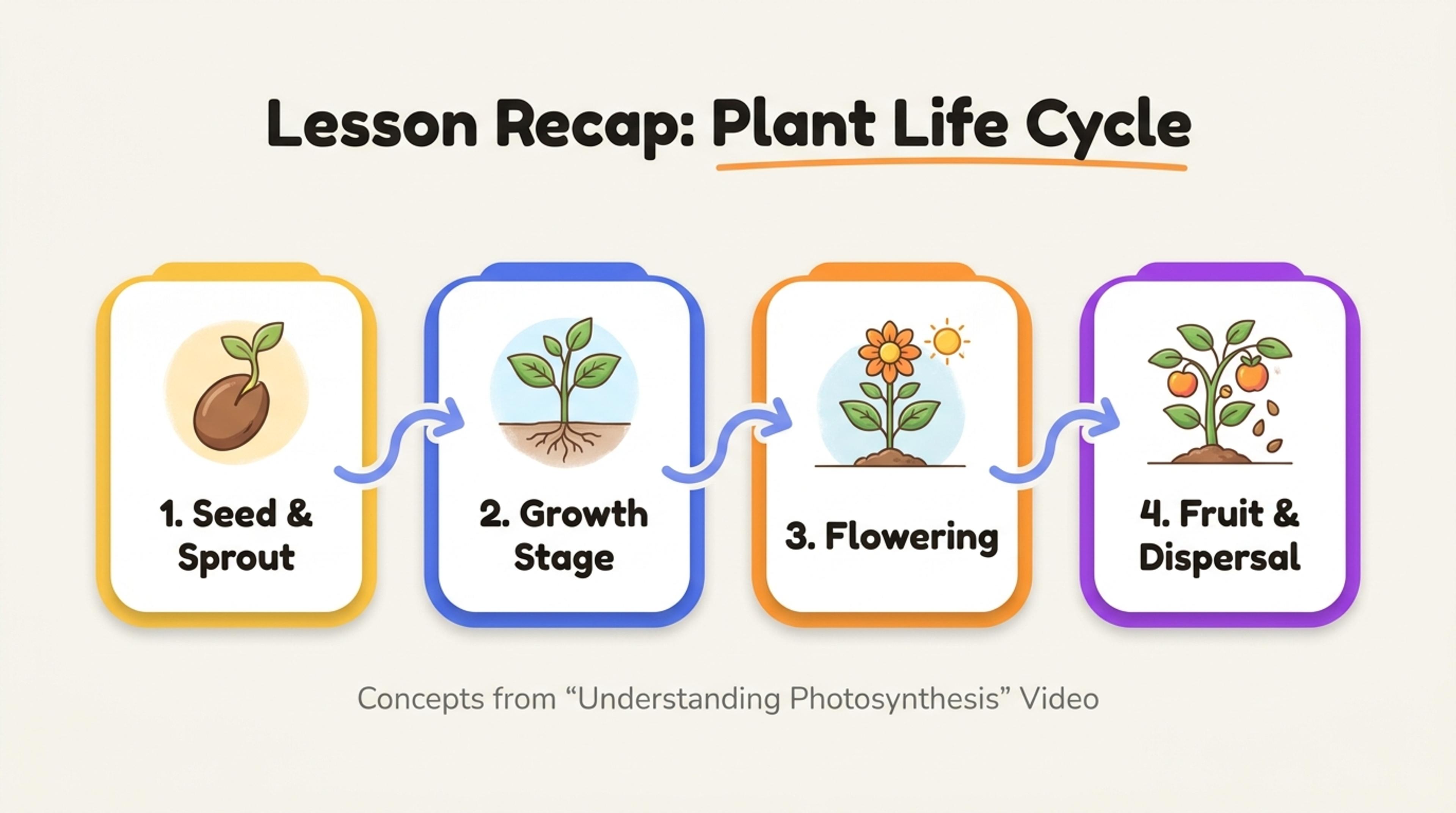
Example video lesson transformed into a designed presentation
A beautiful, editable slide deck

From a useful video to a presentation of your own.

Get the subtitle file for your next project

Paste a YouTube link, open the transcript, and choose SRT or VTT. Keep the words and timing together in a file that is ready for your caption workflow.

Free to useStart with a YouTube link
Download YouTube Subtitles