


Questions that invite students to explain
Present a prompt before revealing its answer. Ask students to name a concept, explain a process, or connect two ideas from the video.
Turn a YouTube lesson into illustrated cards for discussion and follow-up practice.
Drag and drop your files here.
Paste a link from YouTube, TikTok, X/Twitter, Instagram, Facebook, or any website.
Create illustrated questions and explanations from a video you have selected for teaching. Put the ideas to work in your next lesson.
Turn a video on forces, cells, or the water cycle into questions about how things work. Request everyday examples so the visual answers support your explanation.
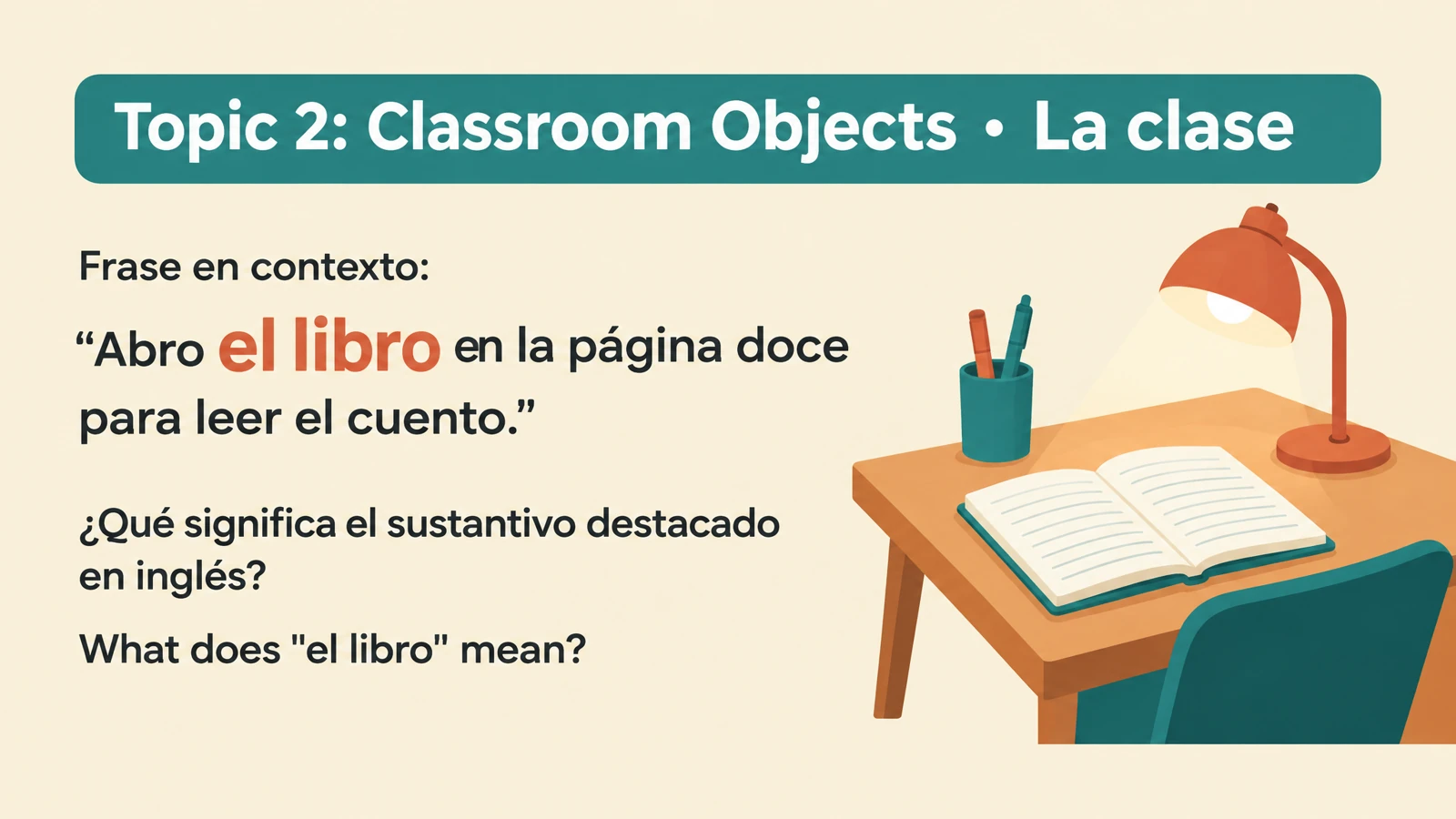
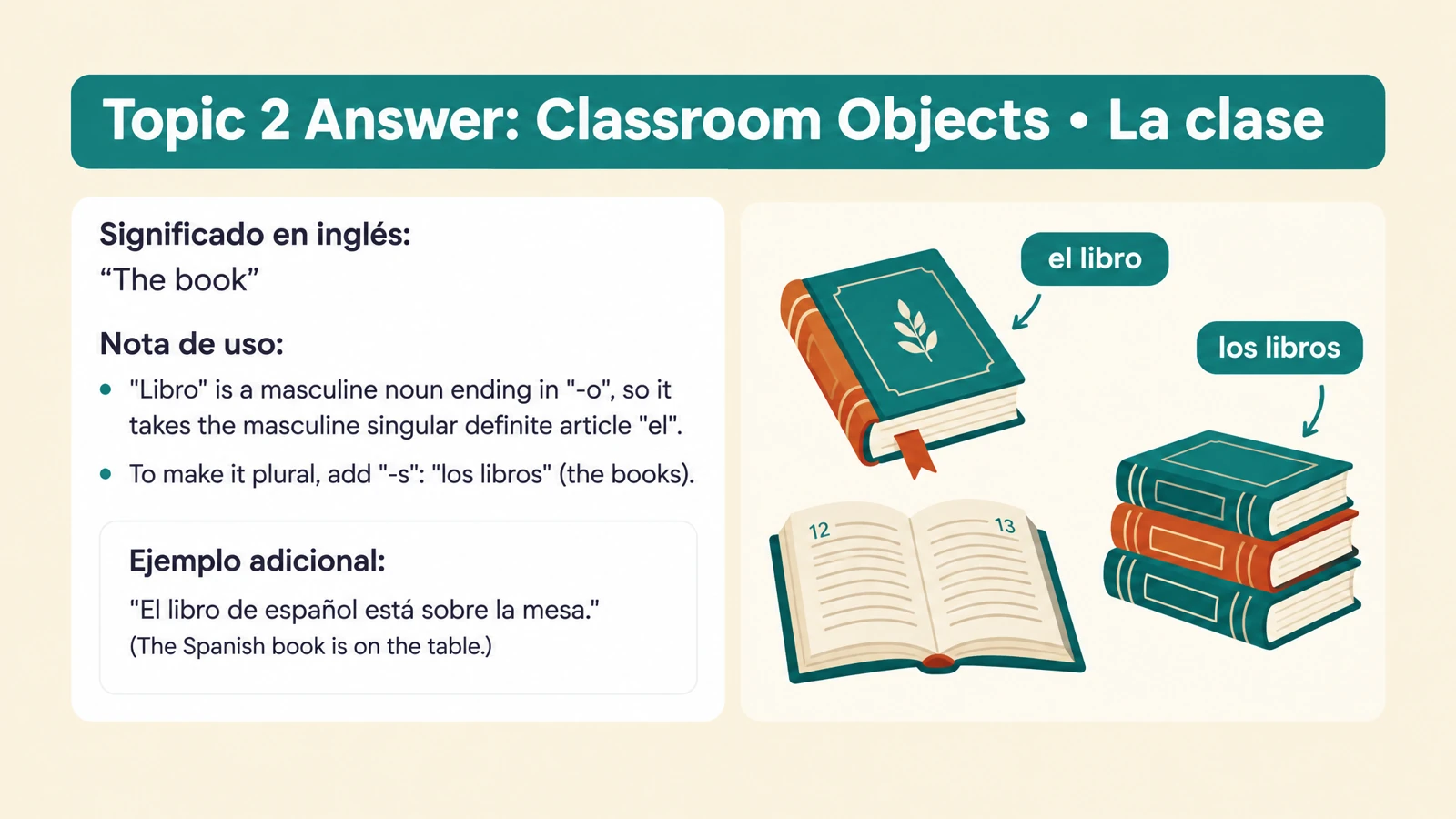
Build cards around expressions from a language video. Set your students’ level and request meanings, example sentences, or situations they can discuss together.
Choose the terms, processes, and relationships your class should revisit. Use the cards to move from watching an explanation to students explaining the ideas themselves.
Start with the video you want to teach from. Shape the cards around your students and learning objectives.
Paste the YouTube URL of the educational lecture, tutorial, or explanation you want to use with your students.
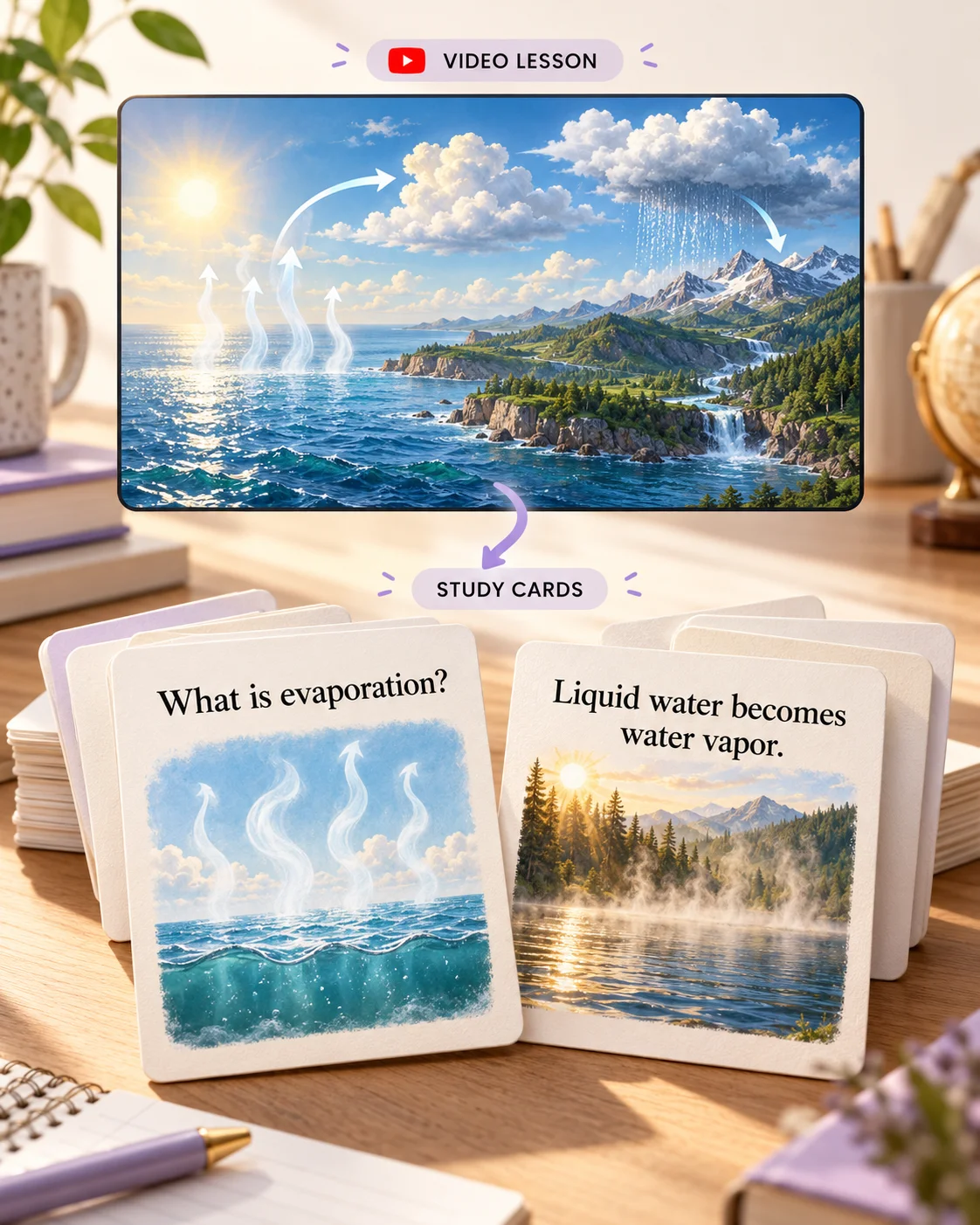
Choose the student level, language, length, and visual style. Ask for a focused task, such as explaining evaporation and condensation with everyday examples.
Use the questions for a post-video discussion, print cards for paired practice, or save a PDF for students. Export editable PowerPoint to fit the set into your lesson.
Bring the questions, visual explanations, and practical formats together in a resource you can teach with and give to students.
Present a prompt before revealing its answer. Ask students to name a concept, explain a process, or connect two ideas from the video.
Use illustrations and diagrams to connect the answer with the video’s explanation. Give a science concept a picture or a new word a recognizable situation.
Specify the concepts and depth your lesson needs. Create an introduction for younger learners, a course recap, or a focused workshop activity.
Choose the output language and describe the vocabulary level. Adapt the same source video for different classes or groups.
Bring printed cards to a tutoring session or classroom table. Save a PDF for students to revisit independently after the video activity.
Change a question, personalize an example, or arrange cards beside your teaching slides. Reuse the resource for another group or the next lesson.
Paste the YouTube lesson URL, choose the student level, language, length, and visual style, and name your learning objectives. SlidesPilot creates illustrated questions and explanations you can use in class, print, or export as editable PowerPoint.
You can start directly with the YouTube link. The link workflow lets you use the video as your source without preparing a separate text document. If you already have a transcript or selected notes, switch to Paste in text to build the set from that material.
Use educational lectures, subject tutorials, language lessons, and explanations of concepts or processes. Specify what your students should understand after watching. A biology video can become questions about cell functions; a history lecture can become prompts about events and their consequences.
Yes. Add instructions naming the concepts, vocabulary, or learning objectives you want the set to cover. For example, ask for cards about Newton’s three laws with everyday examples, or focus a language lesson on expressions used when ordering food. You can also set the audience and level of detail.
A summary brings the explanation together for reading. Flashcards give students questions to attempt and visual answers you can reveal and discuss. Use the set for a lesson recap, paired practice, or independent revision after teaching.
Yes. Select the output language and audience when creating your set, and use your instructions to describe the depth and vocabulary you want. Ask for a simple introduction, a course-level recap, or examples suited to a particular age group. The same video can support different learning goals.
Yes. SlidesPilot creates visual question-and-answer cards with illustrations, diagrams, and designed layouts. Use your instructions to request definitions, everyday examples, or explanations of how a process works. The preview above shows the kind of illustrated cards you can explore.
Yes. Print the completed set for a tutoring activity or classroom discussion. Choose Save as PDF in the print dialog to create a file students can use afterward, and select the question or answer pages that suit your activity.
Yes. Export editable PPTX to rewrite questions, add examples from your class, change the design, or reorder cards for your lesson. You can keep adapting the same resource for future classes.
Yes. Upload PDF, Word, PowerPoint, image, or audio files, paste teaching notes, or describe a topic. The link input also supports other video platforms and websites. Students and independent learners can also generate their own cards from a source they want to study.
Follow a YouTube explanation with questions learners can discuss.
Turn an educational video into illustrated cards for your students.
Turn assigned web reading into questions for your next lesson.
Turn lesson notes into illustrated cards for teaching and student practice.
Explain words, processes, and concepts through scenes and diagrams.
Make illustrated cards you can take to the study table or classroom.
Connect questions, variables, fair tests, and evidence.
Create illustrated study cards from your material or a topic.
Create illustrated cards you can present, print, and give to your students.