


Questions from your own source
Upload a document, paste notes or a link, or describe a topic. Turn the content you want covered into focused multiple-choice practice.
Build multiple-choice questions with visual answer explanations. Set the number of options and the level.
Drag and drop your files here.
Paste a link from YouTube, TikTok, X/Twitter, Instagram, Facebook, or any website.
Build an MCQ set around the level and material you teach.
Upload a document, paste notes or a link, or describe a topic. Turn the content you want covered into focused multiple-choice practice.
Choose multiple choice and set the number of choices in the generator. Add instructions about the level and kinds of distinctions learners should recognize.
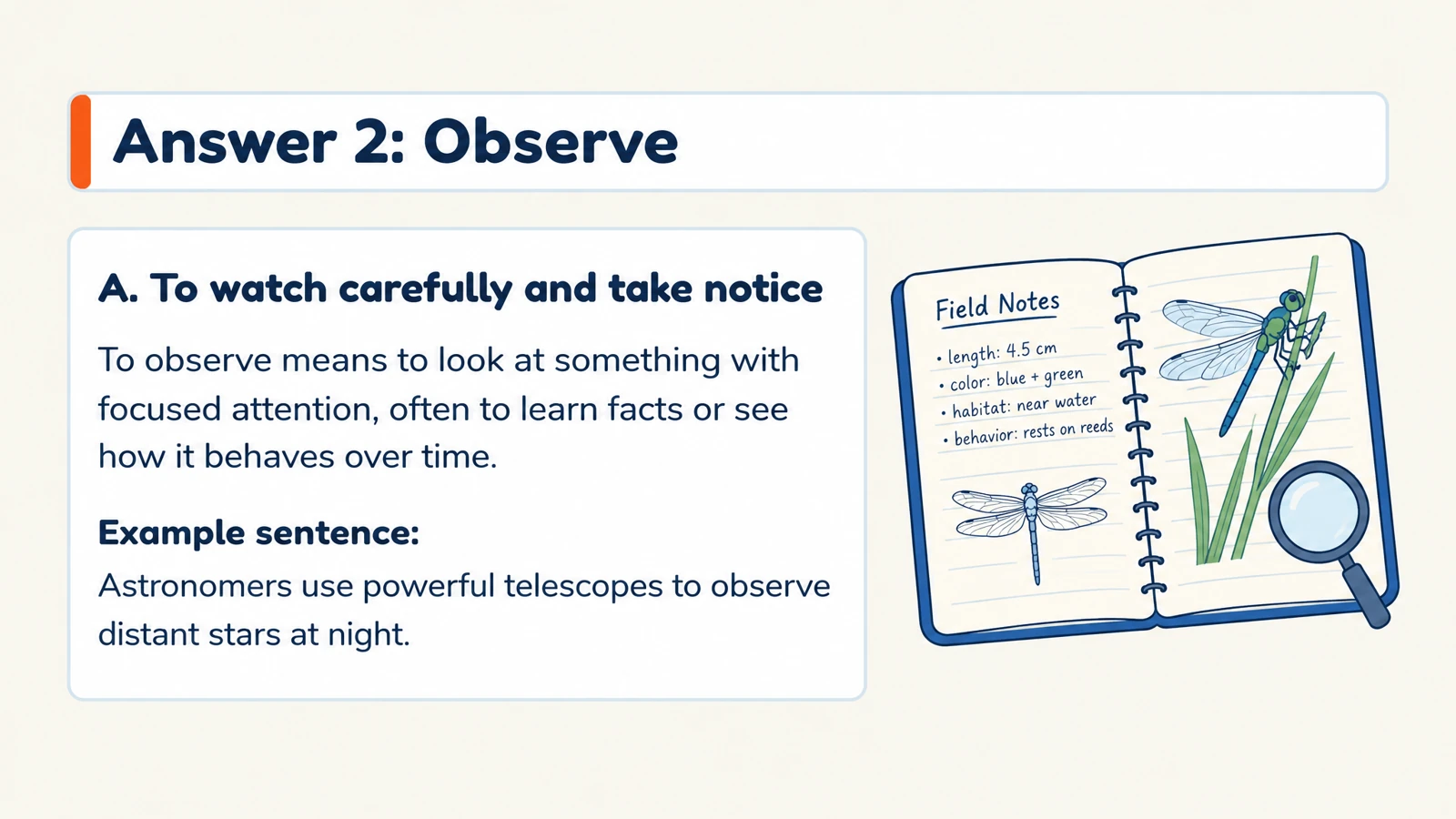
Generated answer pages explain the correct choice. Use them to discuss a question after learners have made their selection.
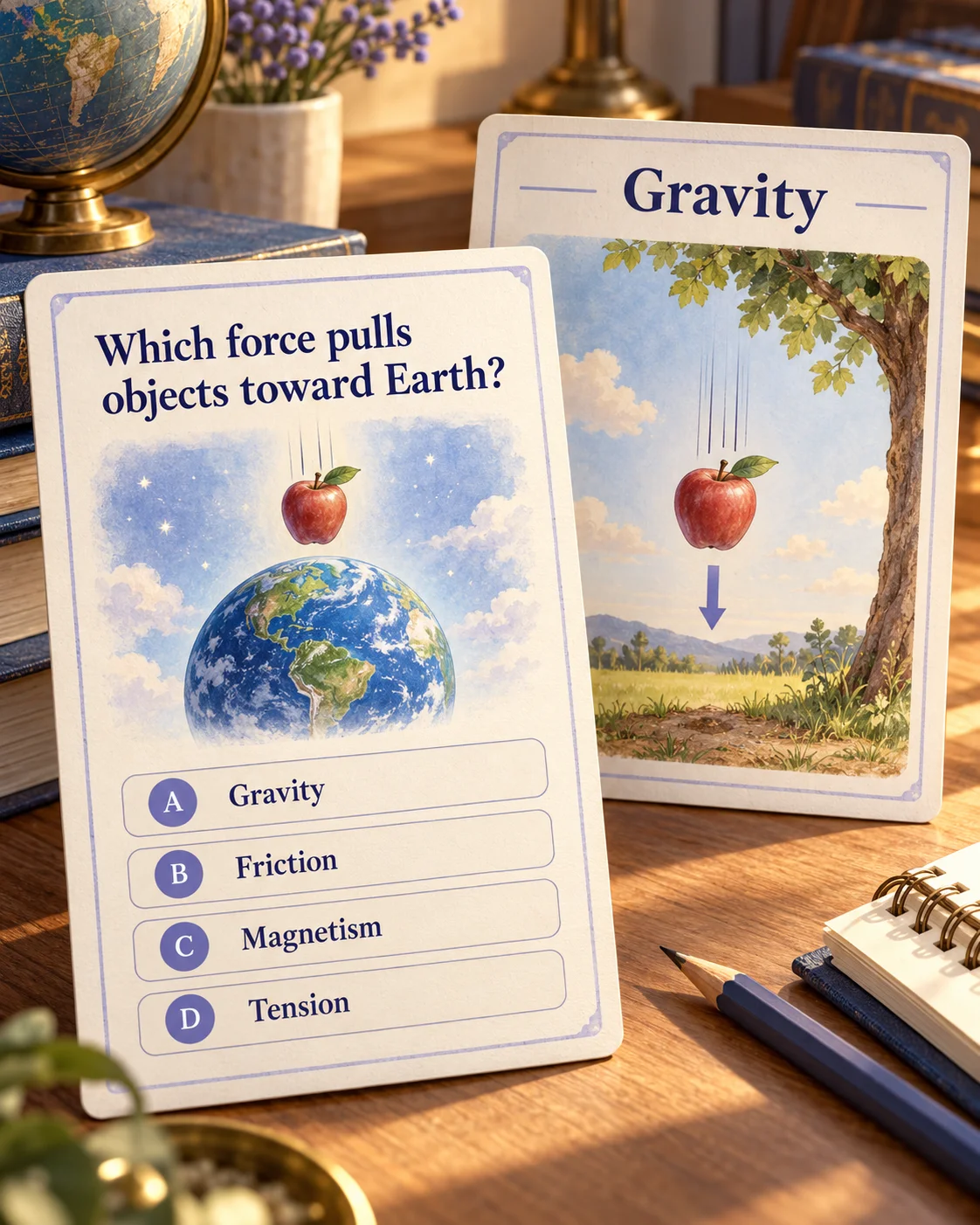
Combine a clear question with visual context and an explanation that carries the learning forward. Create practice around the distinctions your learners need to understand.
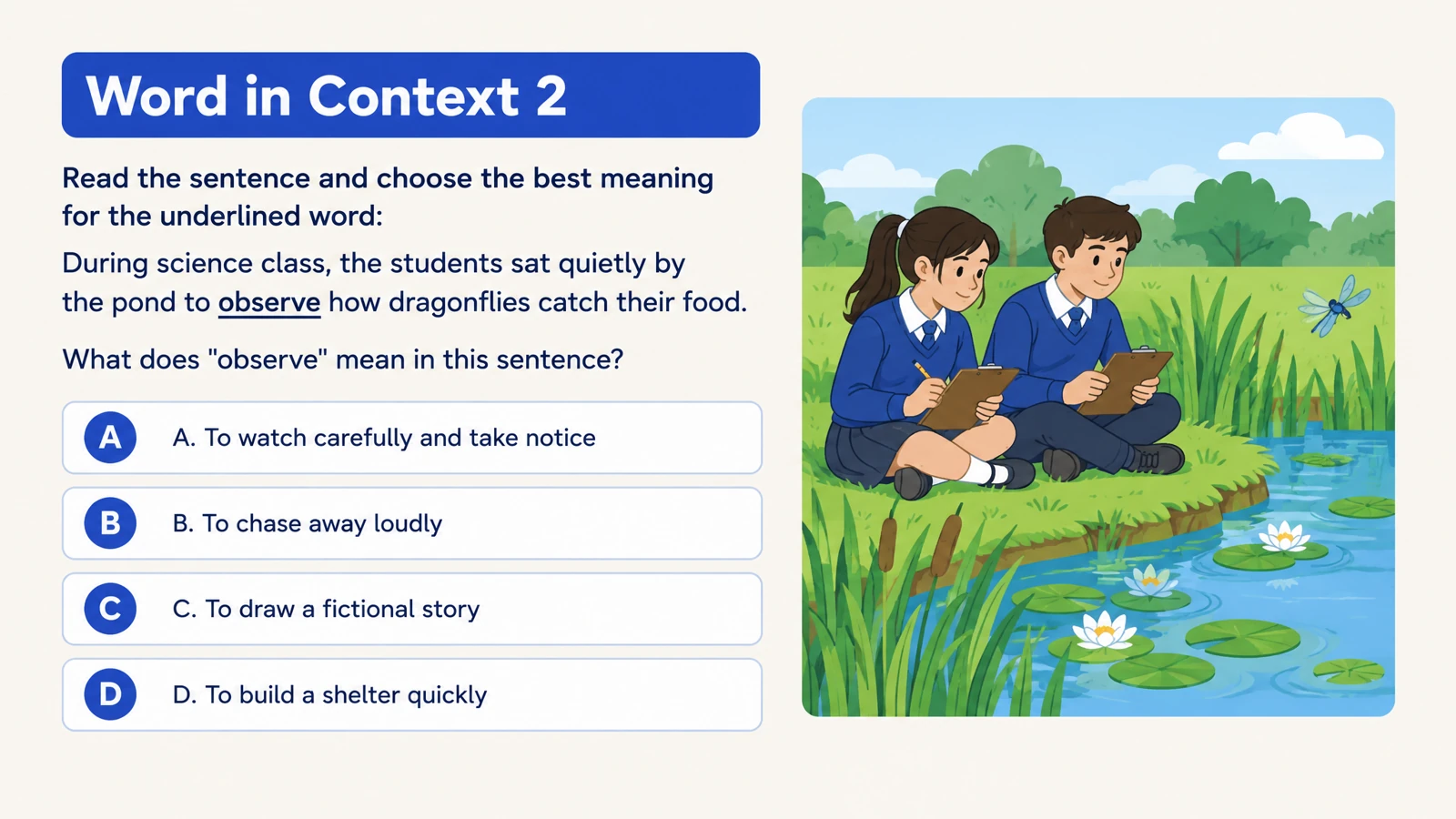
Ask learners to interpret a scene, explain a science diagram, or choose a word that fits a sentence. Specify the context in your instructions so the question asks them to use what they know.
Set the audience and number of choices, then describe the concepts you want to distinguish. A first lesson can focus on a clear definition; a revision session can compare related ideas or apply them to an example.
Reveal the illustrated explanation after learners choose. Print the question pages for independent work or edit the PPTX to build a discussion around a particular option and its meaning.
Choose the material the MCQs should cover.
Select the question type and number of choices. Specify the audience and language.
Use the designed questions and answers, print the set, or export editable PPTX to revise it in PowerPoint.
Add a document, notes, a link, or a topic, then select multiple choice in the generator. Choose the audience, language, and number of answer choices, and describe the concepts you want to test. SlidesPilot creates designed questions with corresponding answer explanations.
Yes. Upload the PDF, PPT, or PPTX that contains your teaching material and choose multiple-choice questions. You can also use a Word document, pasted text, or a video link. Add instructions about the chapter, concepts, or learning objectives the quiz should emphasize.
Yes. Use the number-of-choices setting when generating your quiz. Pair that setting with instructions about the audience and the distinctions learners should recognize. This helps you shape a clear introductory exercise or a more detailed review of related concepts.
Yes. Answer pages identify the correct choices and explain the reasoning. Reveal an answer after learners make a selection, then use the explanation for discussion. The resulting set supports both independent revision and a teacher-led walkthrough.
Yes. Describe the context and the understanding you want to check. Ask learners to interpret a science diagram, choose a word that fits a sentence, or apply a concept to an everyday example. SlidesPilot combines the question, options, and visual context in a designed layout.
Yes. Select the output language and audience, and use your instructions to describe the depth and vocabulary level. You can ask for a straightforward recap, course-level practice, or questions that distinguish between similar ideas. Set the challenge around what your learners have covered.
Yes. Open Print and select the question pages using the print dialog’s page-range controls. Keep the answer pages separate for your own reference or a later discussion. You can also save the chosen pages as a PDF through the print dialog.
Yes. Download editable PPTX and revise the question text, options, explanations, images, and layout in PowerPoint. Add an example from your course or reorder the set for another lesson. The editable deck remains a resource you can reuse.
Use a focused statement to start a clear explanation of the answer.
Connect terms with definitions, examples, and related concepts.
Practice vocabulary and subject terms inside meaningful sentences.
Organize a practice set around your revision topics and goals.
Prepare question pages and answers for a paper-based activity.
Create an editable quiz presentation for the shared classroom screen.
Create practice questions from a PDF reading or course document.
Build visual questions and answer explanations for your next lesson.
Start with your material and finish with visual questions, clear answers, and a resource you can reuse.