


Open with a question
Introduce a topic by asking what the audience already thinks. Return to the answer after a brief discussion.
Generate visual question-and-answer slides for a classroom recap, workshop, or training session.
Drag and drop your files here.
Paste a link from YouTube, TikTok, X/Twitter, Instagram, Facebook, or any website.
SlidesPilot creates a visual quiz deck from your topic or material. Take the editable PPTX into PowerPoint to finish the lesson in your own teaching style.
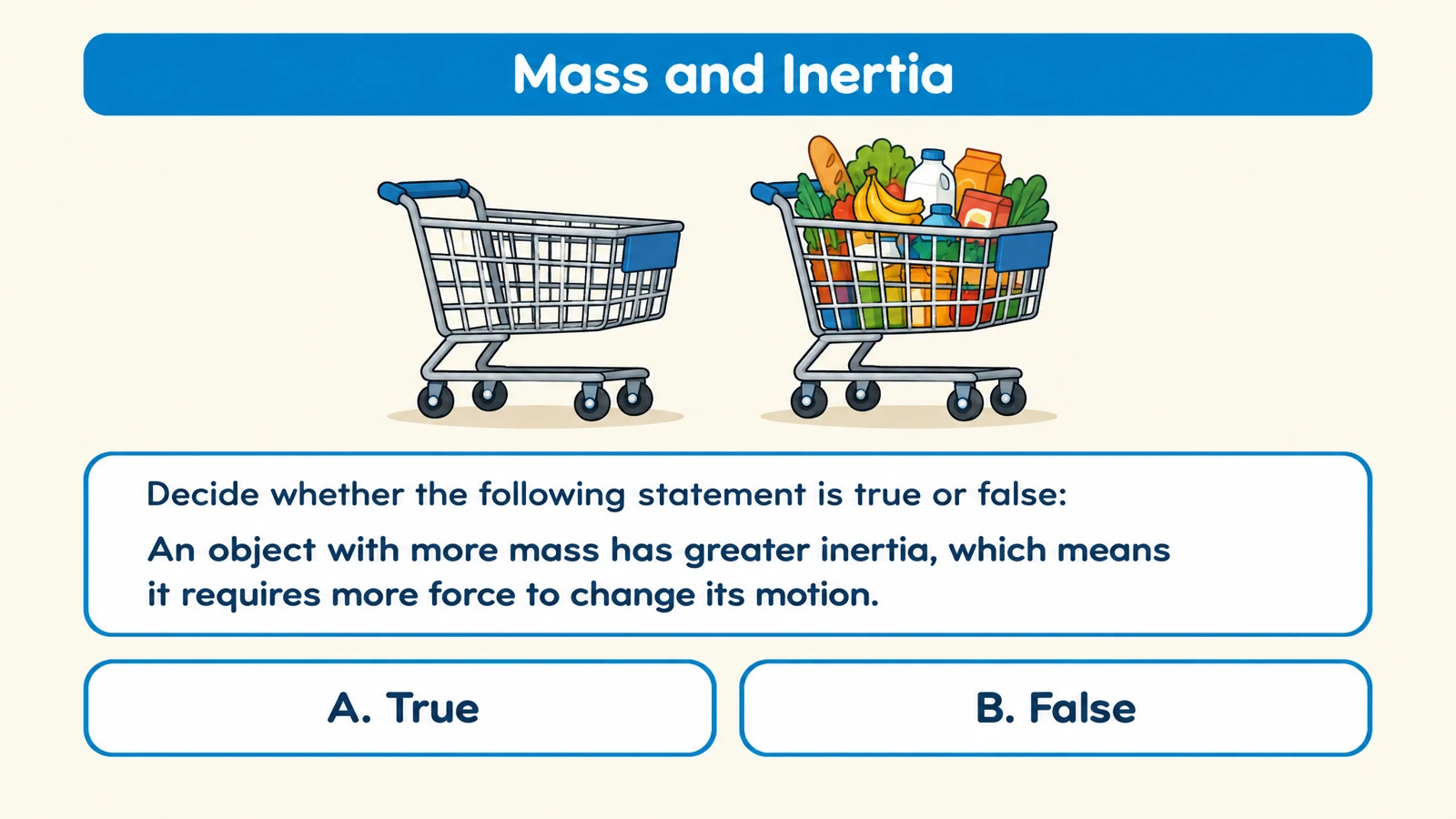
Use a designed question slide to invite an answer from the room. Multiple-choice, matching, and other formats give your audience a clear task.
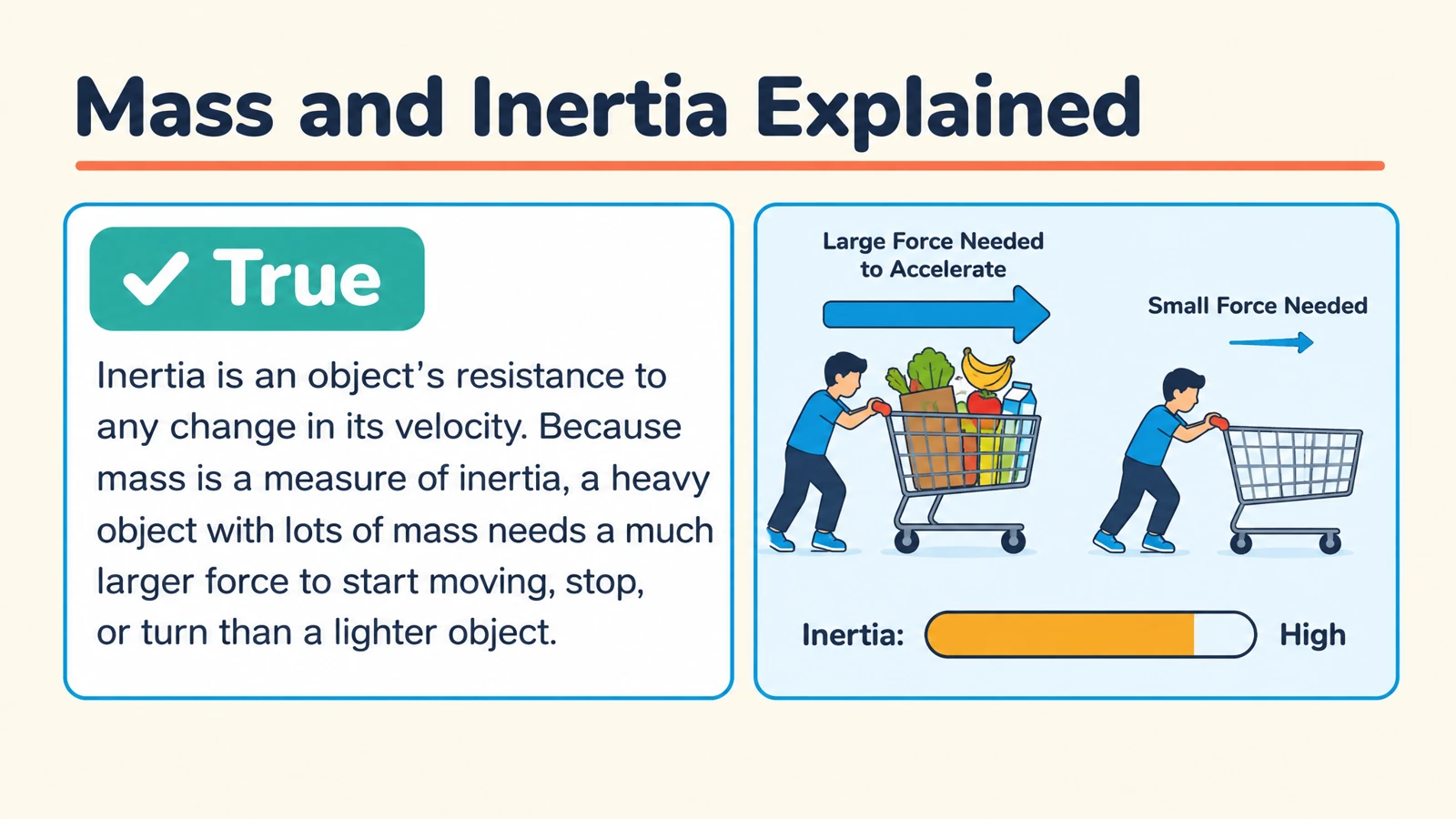
Follow the question with its answer explanation. Use the reveal to discuss the reasoning, connect ideas, or introduce a new example.
Edit text and visual elements in PowerPoint. Reorder the activity, combine selected slides with your lesson, or add your own discussion prompts.
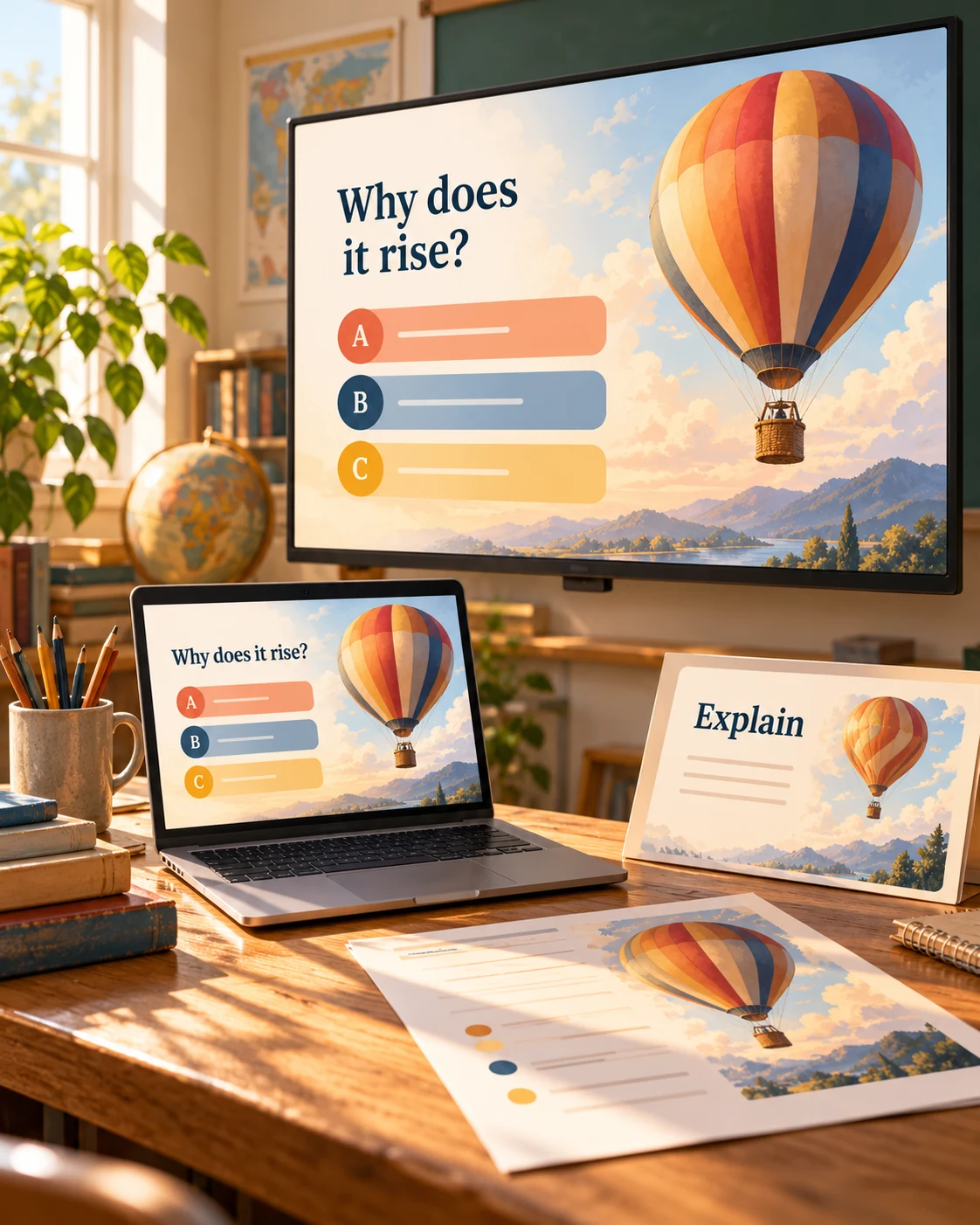
Use Generate for a new topic, or choose files, links, or text when the content is already prepared.
Specify question type, audience, language, and length. Describe the knowledge or skill you want to check.
Generate the quiz, download editable PPTX, and personalize it in PowerPoint before teaching.
Use the same output format for a short check or a longer discussion.
Introduce a topic by asking what the audience already thinks. Return to the answer after a brief discussion.
Add selected questions between teaching sections. The quiz becomes a way to revisit ideas while the lesson is still fresh.
Print the question pages for participants to take away. Keep the edited PPTX as a resource for your next group.
Describe your topic or add source material in SlidesPilot, choose quiz settings, and generate. Export the result as editable PPTX and open it in PowerPoint.
SlidesPilot generates a complete question-and-answer deck from your instructions. The exported PPTX gives you an editable starting point to customize for your lesson.
This page focuses on a PowerPoint quiz as the output. PowerPoint to quiz uses an existing presentation as the source for a new set of questions.
Yes. Choose formats such as multiple choice, matching, true or false, and fill in the blank. Describe the level and learning goals in your instructions.
Yes. The quiz includes answer pages with explanations. Present them after learners respond to support a discussion of the reasoning.
Yes. Download editable PPTX and adjust the wording and visual elements. You can also move slides into an existing presentation.
Yes. Print from SlidesPilot or the exported PowerPoint file. Choose the question and answer pages you need for the activity.
Yes. Add your training material and describe the audience and objectives. Generate questions about the concepts or procedures you want the session to reinforce.
Turn teaching slides you already have into a quiz on the same material.
Generate cards, then edit and arrange the exported PPTX in PowerPoint.
Prepare question pages and answers for a paper-based activity.
Create a clear question, answer options, and a useful explanation.
Connect terms with definitions, examples, and related concepts.
Practice meanings, relationships, and words in context.
Use a focused statement to start a clear explanation of the answer.
Build visual questions and answer explanations for your next lesson.
Create a quiz deck you can shape around your audience.