

How to Convert an Image to Editable PowerPoint
Turn a screenshot or diagram into a slide you can revise, and download it as a PowerPoint presentation.
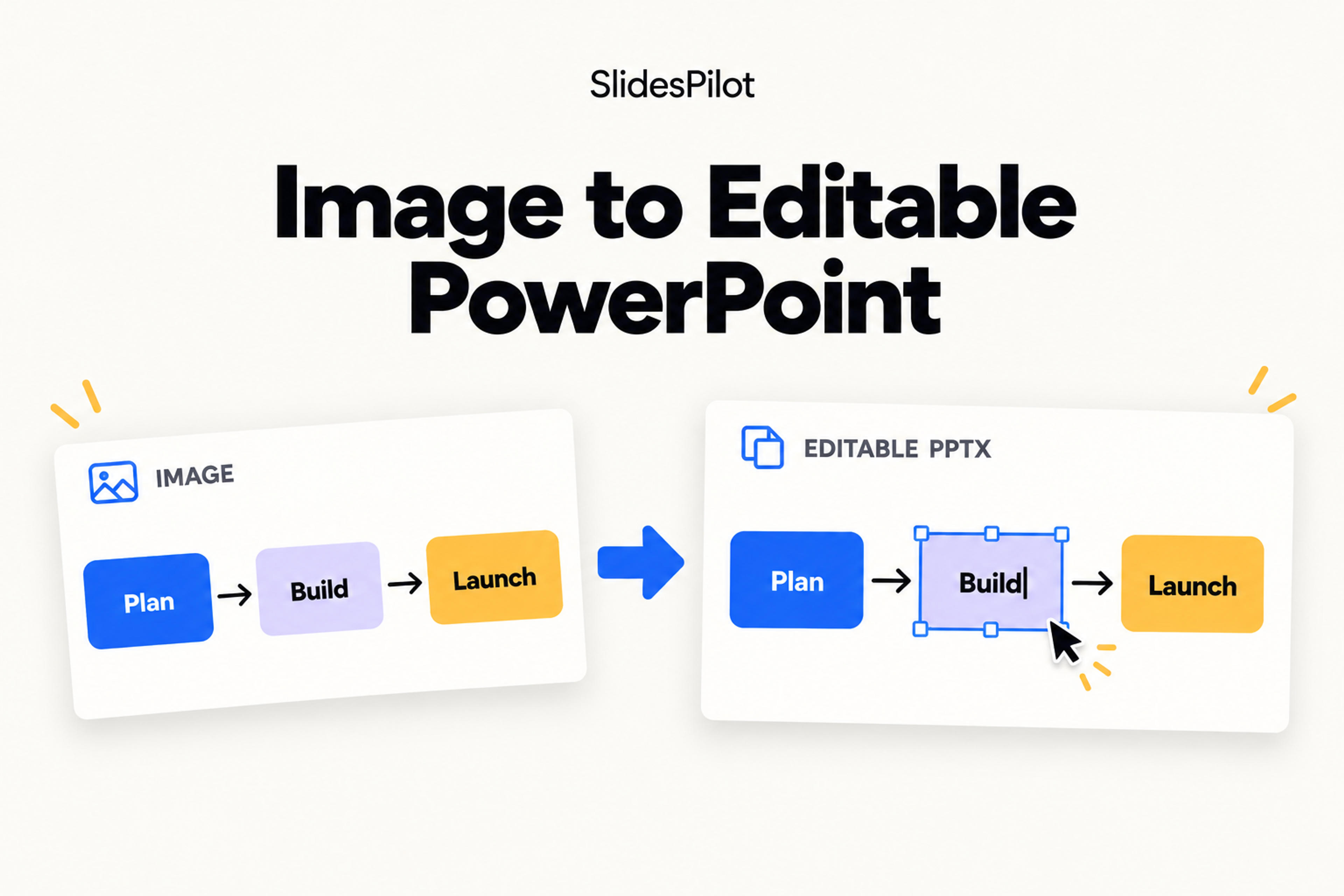
Turn a screenshot or diagram into a slide you can revise, and download it as a PowerPoint presentation.
To convert an image to editable PowerPoint, open SlidesPilot’s Image to PPT converter, upload your image, and choose Convert to Editable PPT. You can then open the result, make changes in SlidesPilot, and download the presentation to continue working in PowerPoint.
This tutorial follows a diagram from upload to the result screen, then shows an optional AI edit that removes the side annotations and adds a title. You can follow the same steps with a slide screenshot, a JPG diagram, or a PNG exported from another presentation.
A screenshot captures a finished design, but its words and graphics are stored together as pixels. Inserting that image into a slide lets you move or resize the whole picture. Changing a label inside it requires another step.
SlidesPilot reconstructs image content as editable PowerPoint elements. That gives you a starting point for updating the wording, adjusting the design, and reusing the visual in a new presentation.
For the example in this guide, the goal is to reuse a five-level pyramid in a teaching slide. The existing diagram provides the structure; the next task is to adapt its presentation for the lesson.
Have your source image ready before you begin. The upload screen accepts PNG, JPG, and WebP, with a maximum of 50 files and 10 MB per file.
In your SlidesPilot workspace, find More PowerPoint AI Tools and select Image to PPT. This opens the screen titled Image to editable PPT.
If you already have the converter open, continue to the upload step.
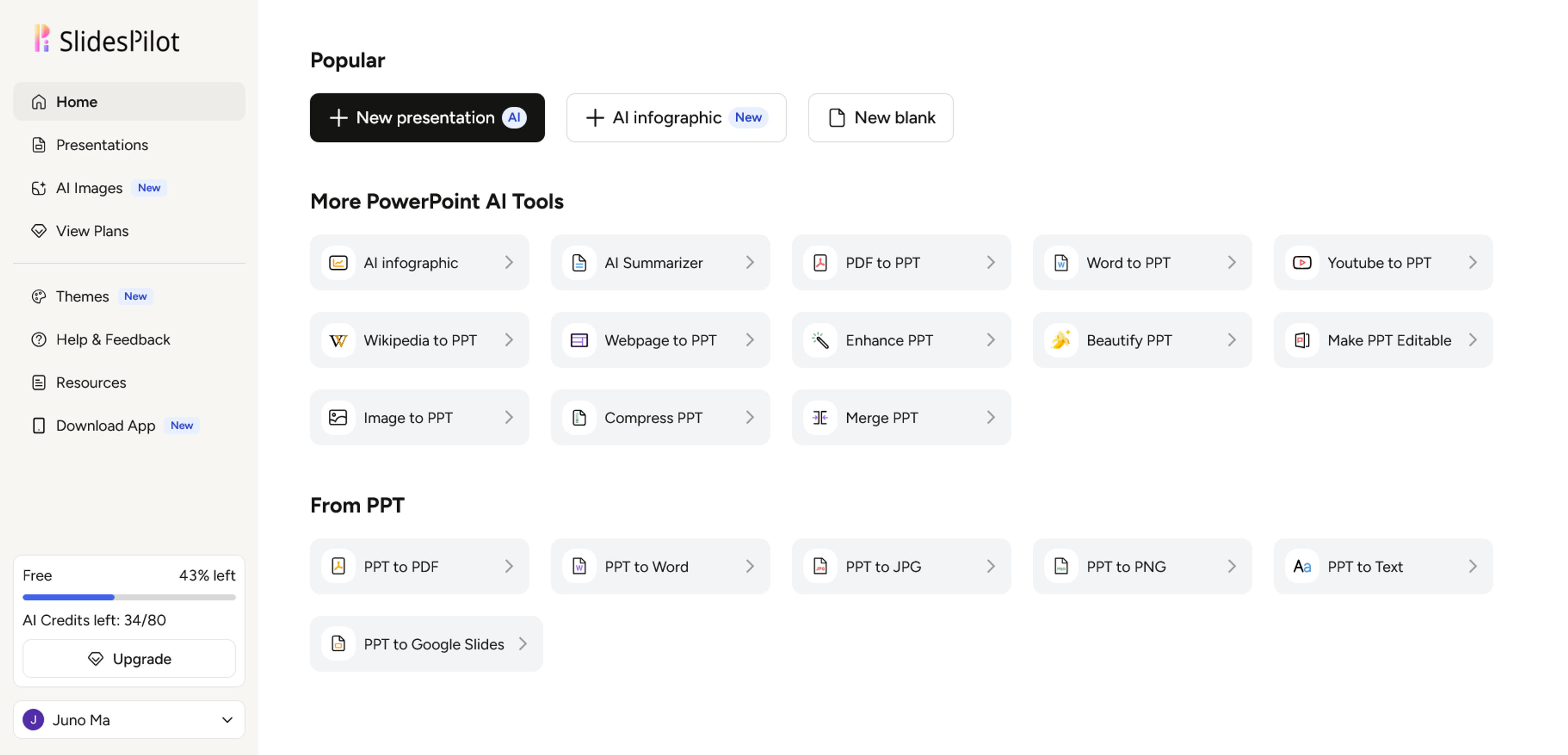
Choose Upload Images, or drag your image into the upload area. Select the saved image file containing the diagram or slide you want to convert.
For this example, the source is the pyramid diagram itself. You do not need to recreate its colored levels or type out its labels before uploading it.
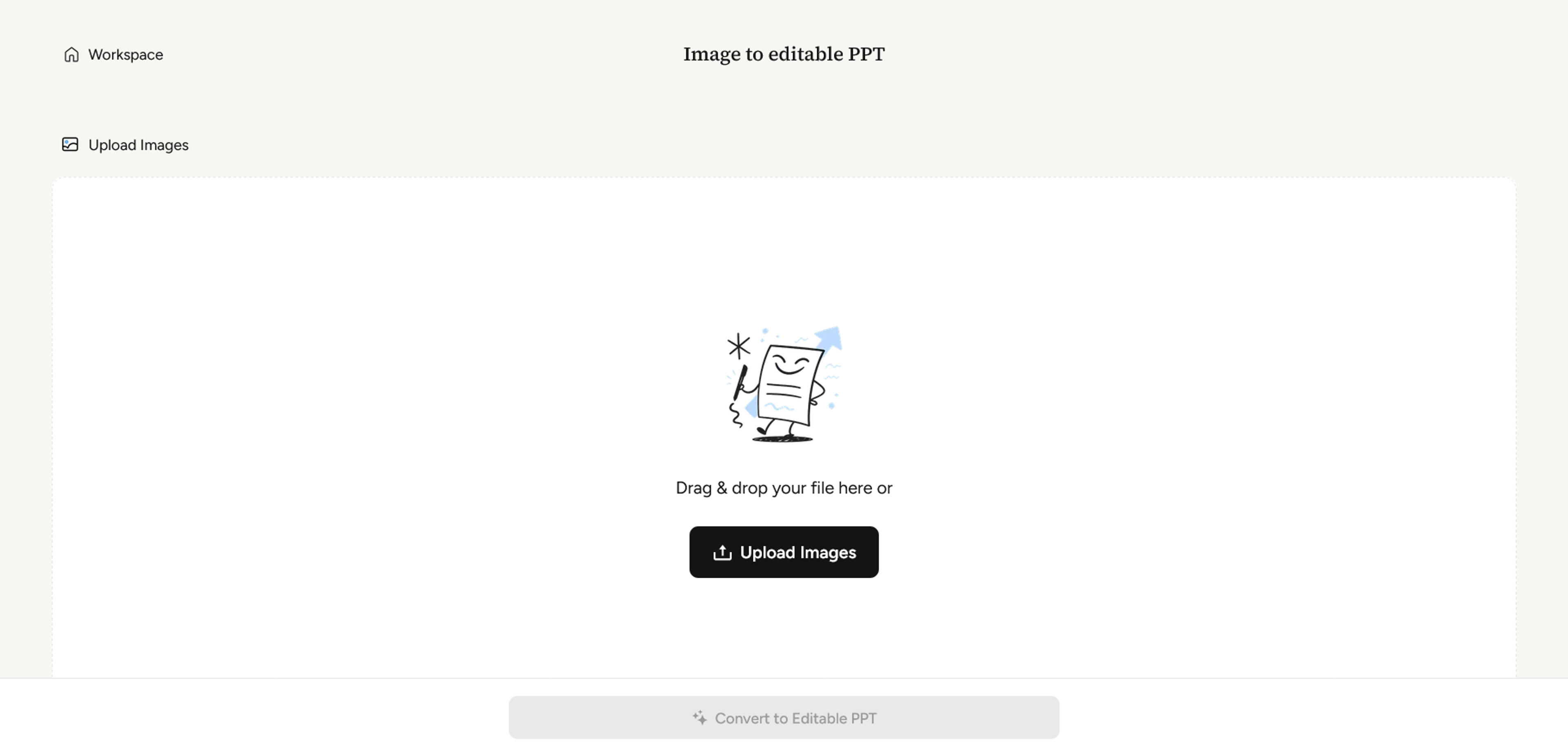
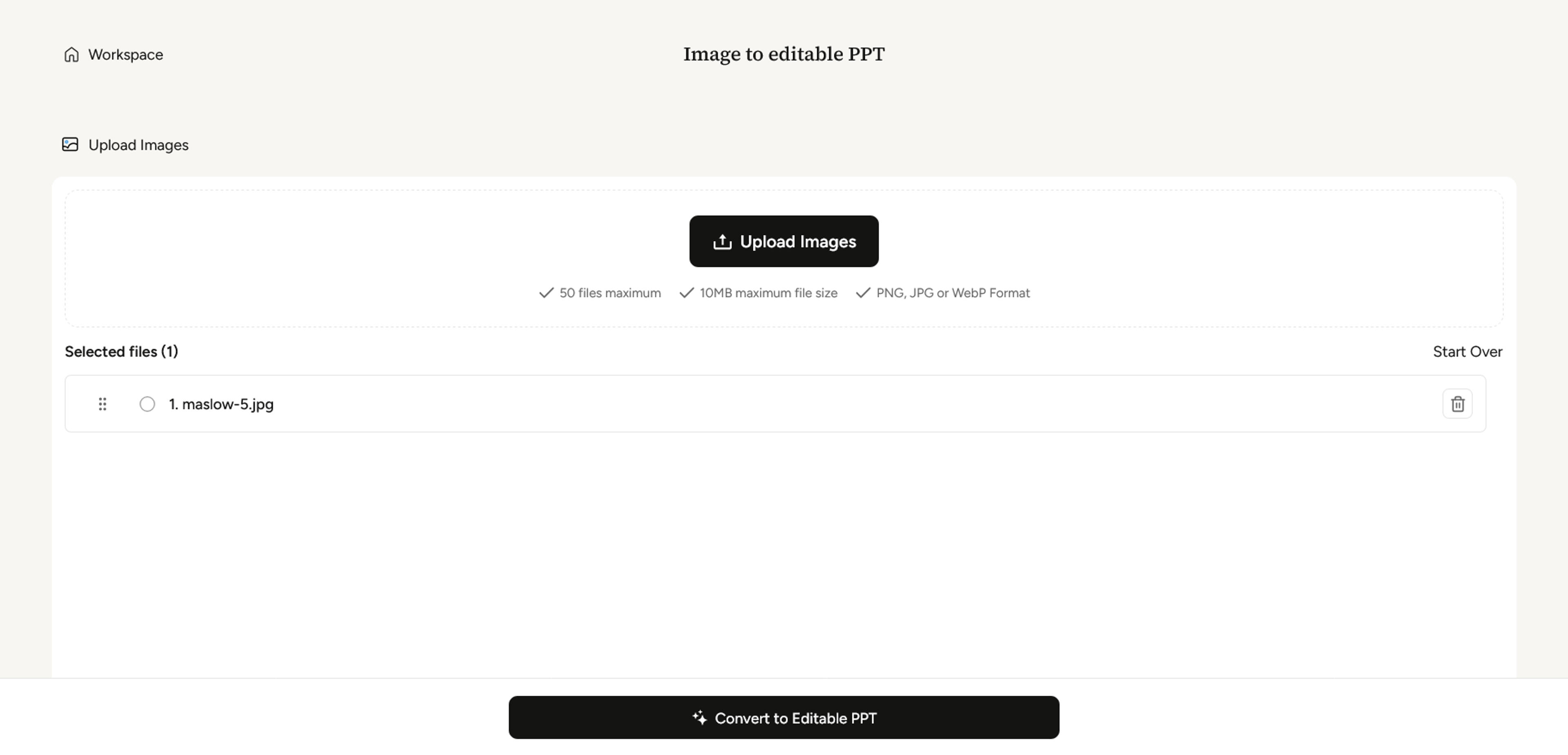
After uploading, look under Selected files. In the example, the list contains maslow-5.jpg. Confirm that the file shown is the one you want to use, then select Convert to Editable PPT at the bottom of the screen.
If you selected the wrong image, use the trash icon beside that file to remove it. Upload Images lets you add a replacement, while Start Over gives you a fresh start.
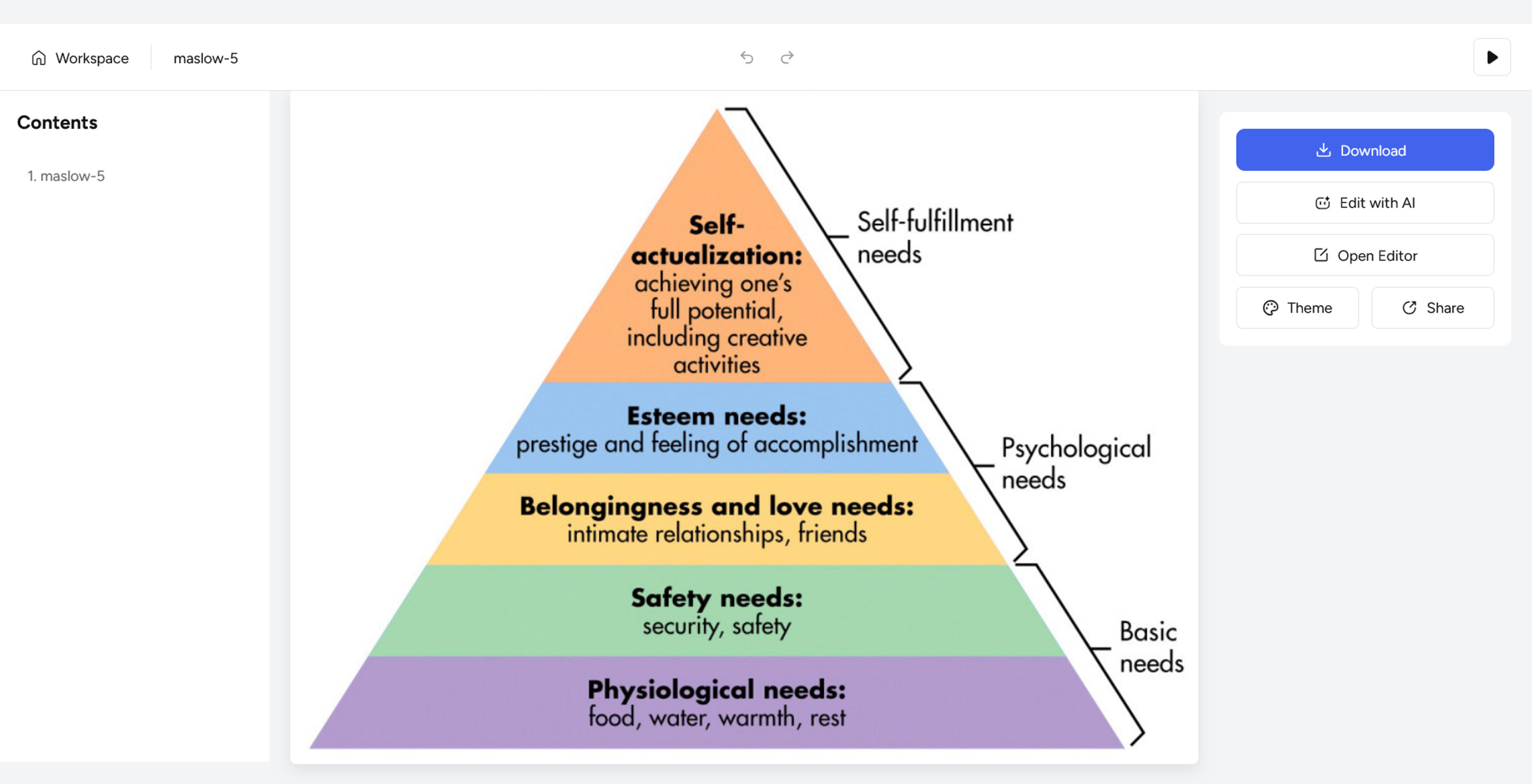
Once the result is available, SlidesPilot displays the slide with its presentation controls. In this example, the pyramid appears in the center, and Download, Edit with AI, and Open Editor appear on the right.
Choose your next action according to the change you want to make. If you are ready to continue in PowerPoint, click Download and choose the export option that suits your needs:
Upload your diagram or screenshot and turn it into a presentation you can adapt and reuse.
Convert Image to PowerPointSuppose your lesson only needs the five colored levels, and you want a short title above them. From the result screen, select Edit with AI and describe those changes in a single focused request.
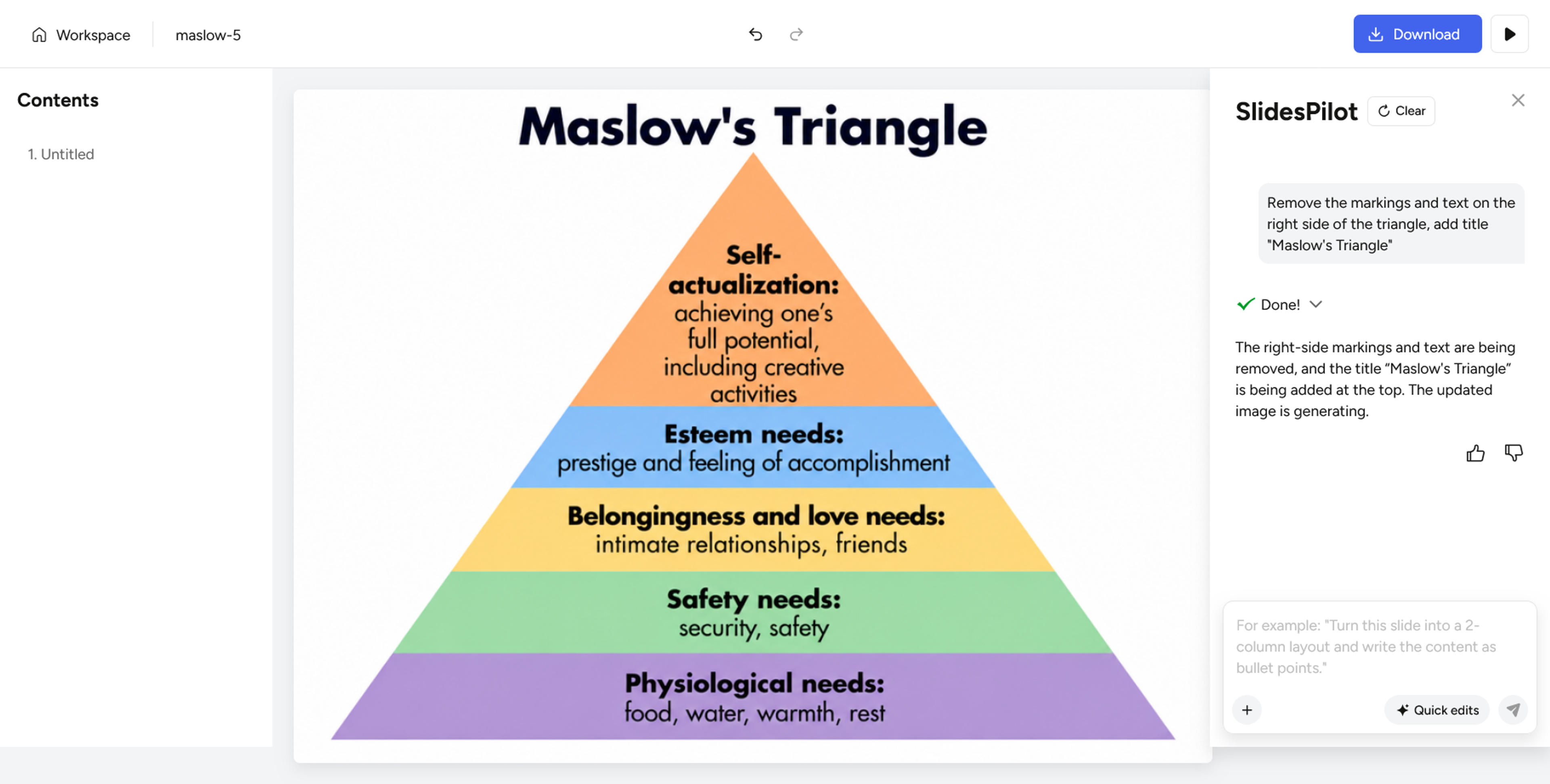
The example uses this instruction:
Remove the markings and text on the right side of the triangle, add title "Maslow's Triangle"
The revised visual shown in the example has the title above the pyramid and no right-side bracket annotations. The five colored levels remain the focus of the slide.
Use the same approach to express your own design goal: name the element, say what should change, and identify anything you want to retain. For example, you could ask to keep the five levels while replacing the title with the name of your lesson. This is a suggested follow-up prompt, rather than a change shown in the example.
AI-assisted visual revision and direct PowerPoint editing serve different moments in the workflow. Use the AI request to describe the overall change you want to see, then continue in PowerPoint when you want to work with the downloaded slide elements.
Use Download to export the presentation as an editable PowerPoint file, then open the PPTX in Microsoft PowerPoint.
Start with one concrete change for your audience. For a teaching slide, that might be a shorter label or a lesson-specific title. For a business diagram, it might be replacing a department name or changing a color to match the rest of the deck.
To work with the slide content, select a text element and place the cursor inside it to change the wording. Select a shape to adjust its fill or position. These actions also let you see the difference between editing individual slide objects and selecting one picture that covers the whole slide.
Save the presentation under a descriptive name, such as maslow-classroom-slide.pptx, so you can find and reuse the adapted version later.
Yes. Save the screenshot as a supported image file and upload it through the same Image to PPT workflow. A screenshot of a slide or diagram can be your starting material.
Yes. The converter accepts JPG, PNG, and WebP. The example in this tutorial uses a JPG, and the upload steps are the same for PNG.
Yes. You can upload up to 50 images, with each file no larger than 10 MB. SlidesPilot combines them into one presentation, with each image reconstructed as its own slide.
No. The result screen offers Download alongside the editing controls. Use the AI-edit step when you have a specific revision in mind; otherwise, continue to the PowerPoint download.
Choose a diagram or screenshot you want to adapt and convert it to editable PowerPoint with SlidesPilot. Follow the upload steps, make the changes your presentation needs, and download the PPTX to continue editing.
Upload your diagram or screenshot and turn it into a presentation you can adapt and reuse.