

How to Merge PowerPoint Presentations with SlidesPilot
A practical guide to SlidesPilot’s Merge PowerPoint tool, from choosing your files to arranging one presentation with clear sections and next steps.

A practical guide to SlidesPilot’s Merge PowerPoint tool, from choosing your files to arranging one presentation with clear sections and next steps.
To merge PowerPoint presentations online, use SlidesPilot's Merge PowerPoint tool: upload your files, merge them, and download one editable PPTX. It keeps the original slide layouts, backgrounds, colors, and images together in the combined presentation.
Whether you are bringing several teammates' updates into a meeting or assembling a client presentation, start with the PowerPoint files you already have. This guide walks through the merge, then shows how to organize the result without redesigning every contribution.
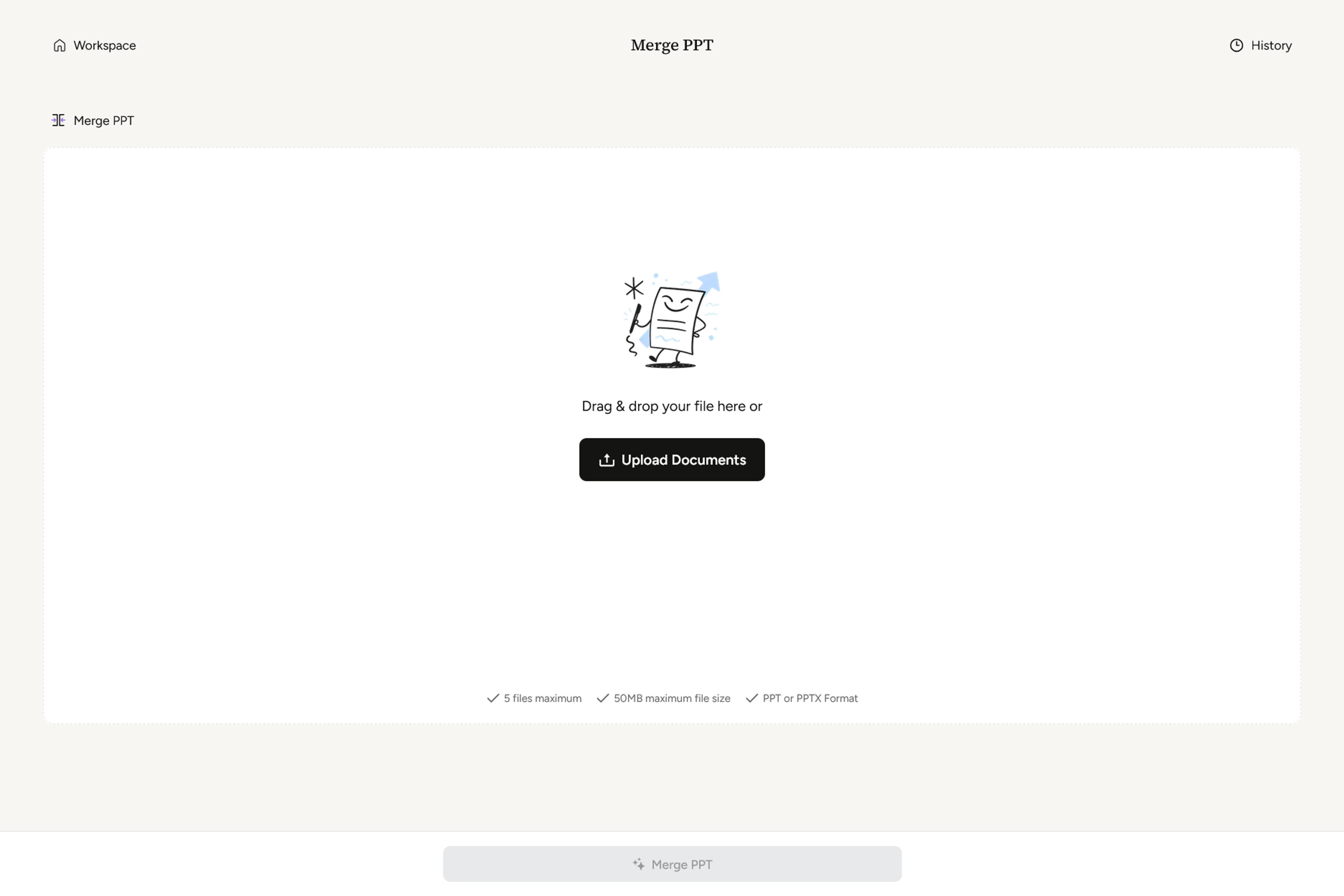
On the Merge PPT screen, drag your files into the upload area or click Upload Documents. The screen lists support for PPT and PPTX files, a maximum of five files, and a 50 MB maximum file size.
Choose the versions intended for the meeting. A descriptive filename such as Sales-update-October.pptx makes it easier to distinguish a finished contribution from an earlier draft.
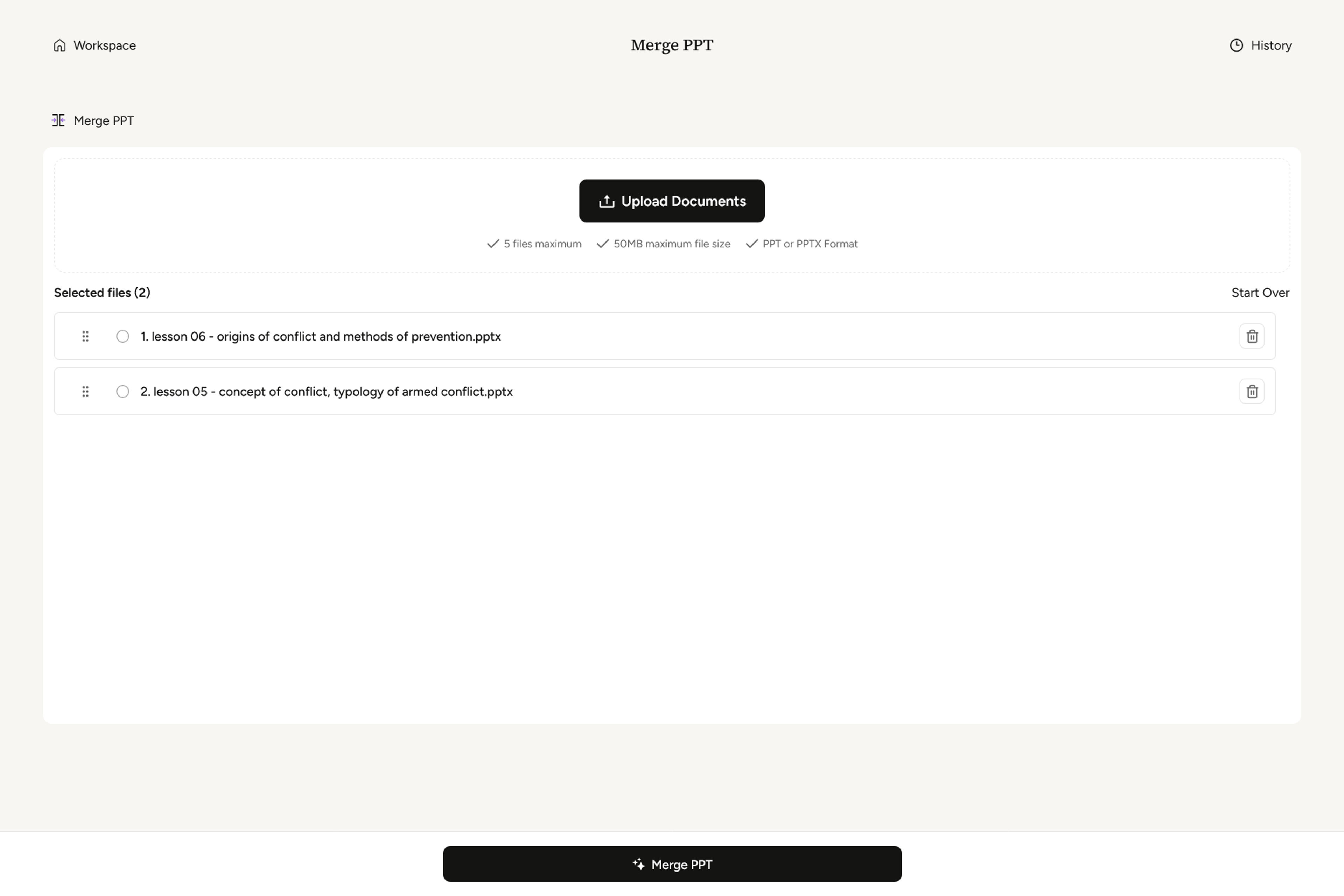
Your presentations appear under Selected files, with each filename listed in a numbered row. Check that the list contains the presentations you want to combine. Use the trash icon beside a file to remove it, or Upload Documents to add another. Start Over lets you begin the selection again.
For a quarterly review, for example, select the sales update, product roadmap, and operations report. Keep the individual files available for their owners; use the combined presentation as the working copy for the meeting.
Once your files are selected, click Merge PPT in the bar at the bottom of the screen to start the merge.
The finished output is an editable PPTX. After downloading it, open it in PowerPoint to arrange the slides for your audience. Start with the meeting's purpose: should people hear each team's update in sequence, or see results from all three teams before discussing next steps?
Bring the files for your next meeting together with SlidesPilot.
Merge Your PowerPoint FilesThe practical benefit of merging is having everyone's material in one place. You can plan the handoffs between speakers and build a shared opening and closing around their contributions.
Here are three ways to use the Merge PowerPoint workflow:
| Presentation | Files to bring together | How to arrange the result |
|---|---|---|
| Quarterly review | Sales update, product roadmap, operations report | Open with the review objective, follow with team updates, and close with decisions |
| Client proposal | Company introduction, solution presentation, project plan | Keep the introduction brief, explain the proposed solution, then show delivery steps |
| Training session | Introductory lesson, specialist modules, practice activities | Introduce the learning objective, group related modules, and finish with an exercise |
Treat the table as a planning aid. The right order depends on what your audience needs to understand before taking action.
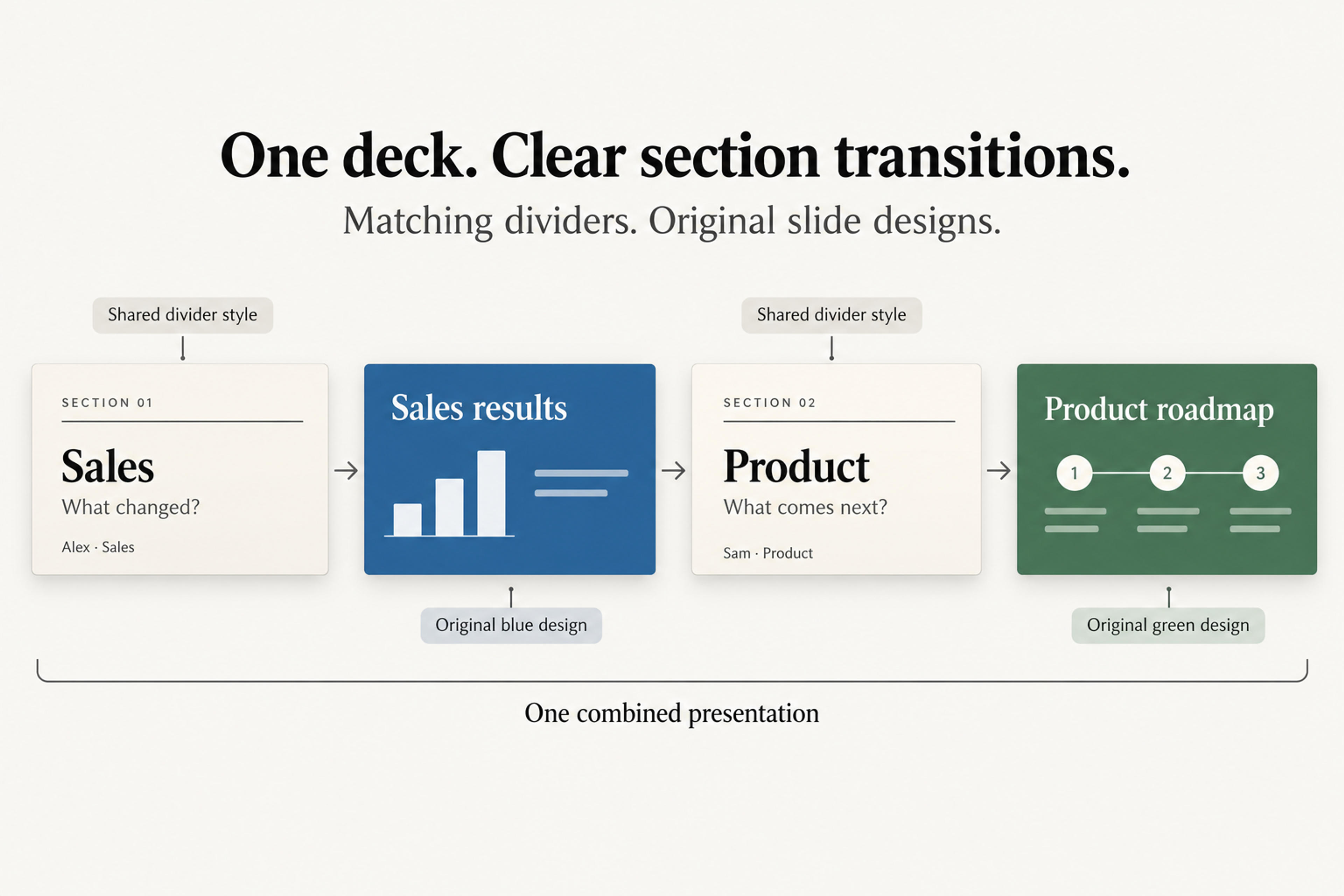
A combined presentation can feel organized while retaining different slide styles. If the sales slides are blue and the product slides are green, use that distinction to help the audience recognize each contribution.
Add one simple section-divider style between contributions. Each divider can name the topic, state the question it answers, and identify the presenter. That gives the audience a consistent navigation system while allowing each team's slides to retain their own design.
In the example below, matching neutral dividers introduce the sales and product sections. The blue and green slides keep their respective designs.
Slide dimensions are a separate choice from colors and themes: PowerPoint uses one slide size throughout a presentation. If your files mix 4:3 and 16:9 slides, choose the final dimensions and adjust copies in Design > Slide Size before merging.
For a later design refresh, SlidesPilot's PowerPoint beautifier offers a separate way to refine existing slides. Keep that step for presentations where you want a new look.
After downloading your file from Merge PowerPoint, make a focused editing pass in PowerPoint. You are deciding what belongs in the meeting, so work from the audience's questions.
For an illustrative quarterly review with eight sales slides, ten product slides, and six operations slides, begin with the 24-slide combined presentation. Then make these edits:
Save the finished file with a clear name, such as Quarterly-review-combined.pptx. Your teammates can continue maintaining their individual presentations, while you have a single version prepared for the meeting.
For combining whole files, follow the SlidesPilot workflow above. If you need just two or three slides from a much larger presentation, PowerPoint's built-in options let you select them individually.
Copy and paste: Open both presentations. Select slide thumbnails in the original file, copy them, and paste at the desired position in the receiving file. Choose Keep Source Formatting in Paste Options to retain their theme, or Use Destination Theme to adopt the receiving presentation's theme.
Reuse Slides on Windows: Open Home > New Slide > Reuse Slides, select a local PowerPoint file, and insert the slides you need. Select Keep source formatting before insertion to retain their design. If that command is unavailable in your version, use copy and paste.
Yes. The online merger is free to use.
Yes. Both formats are supported together, and the output is an editable PPTX.
Yes. Use SlidesPilot in a browser on Mac or Windows.
Use the manual copy-and-paste method above to select those slides. For complete presentations, return to the three-step SlidesPilot workflow.
SlidesPilot preserves the original designs. Use the matching divider approach above to connect sections visually, or make a separate design pass when your presentation calls for one shared style.
Now you know how to merge PowerPoint presentations and prepare the result for your audience. Choose the files for your next meeting and bring them together with Merge PowerPoint.
Start with your PowerPoint files and make one presentation for your audience.