

How to Turn Otter Meeting Notes into Slides
Otter transcribes and summarizes meetings. Follow this tutorial to turn those notes into slides, then refine your presentation and share it with your audience.
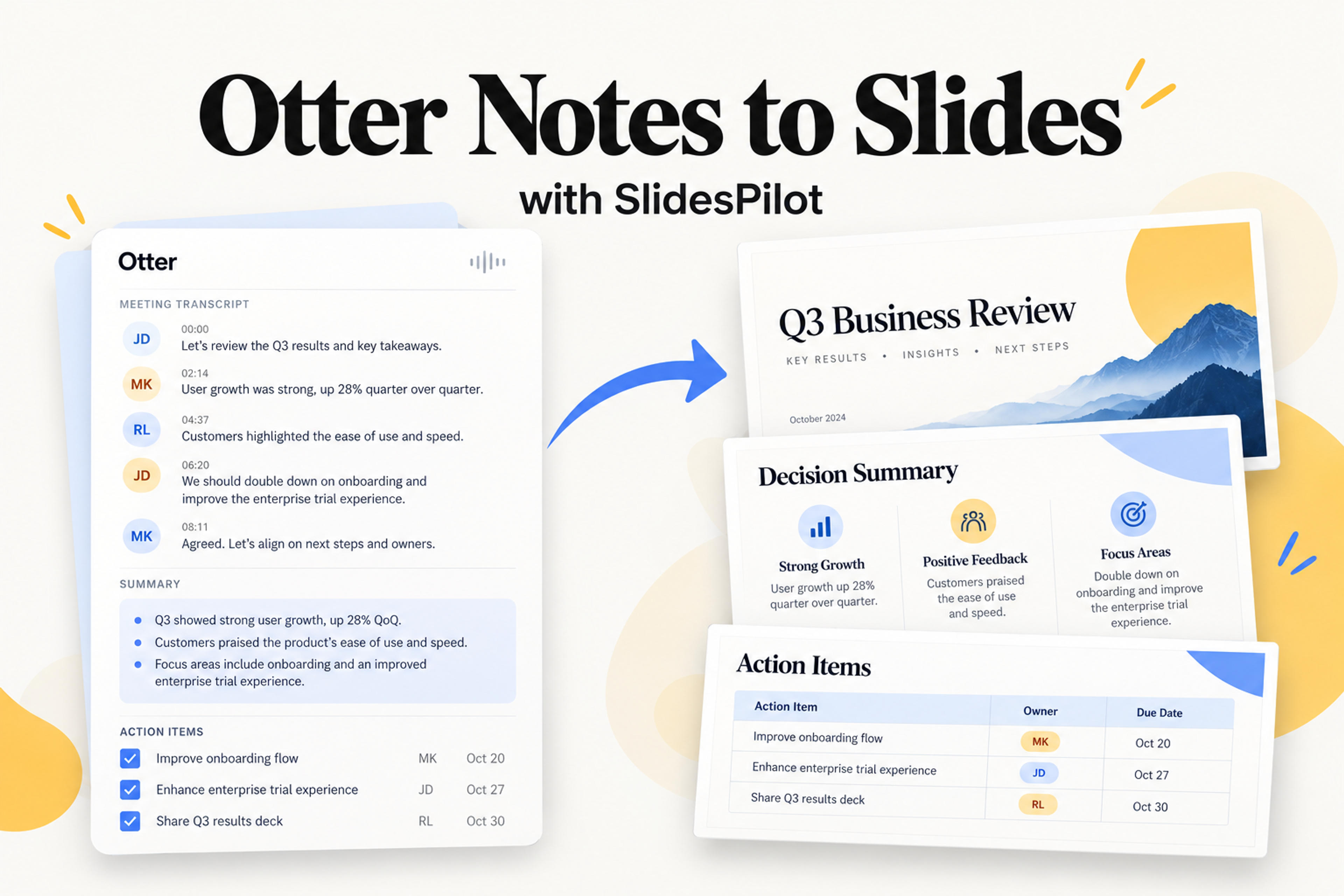
Otter transcribes and summarizes meetings. Follow this tutorial to turn those notes into slides, then refine your presentation and share it with your audience.
Otter records and transcribes meetings, then summarizes what was discussed. You get a searchable transcript and a shorter account of the main points and action items, so you can catch up without listening to the whole recording.
If you need to present that discussion to a client or your team, though, there’s still a deck to make. Otter gives you the notes, but it doesn’t generate slides from them.
Here’s a solution: copy the Otter summary into SlidesPilot, tell it who the presentation is for, and generate the slides. You can then adjust the wording and design before sharing the deck.
Otter is an AI meeting-notes tool that handles the recording, transcription, and summary. Its transcript keeps the detail of the conversation, while the summary pulls together the topics and follow-up work. You can return to either when you need to check what was said or agreed.
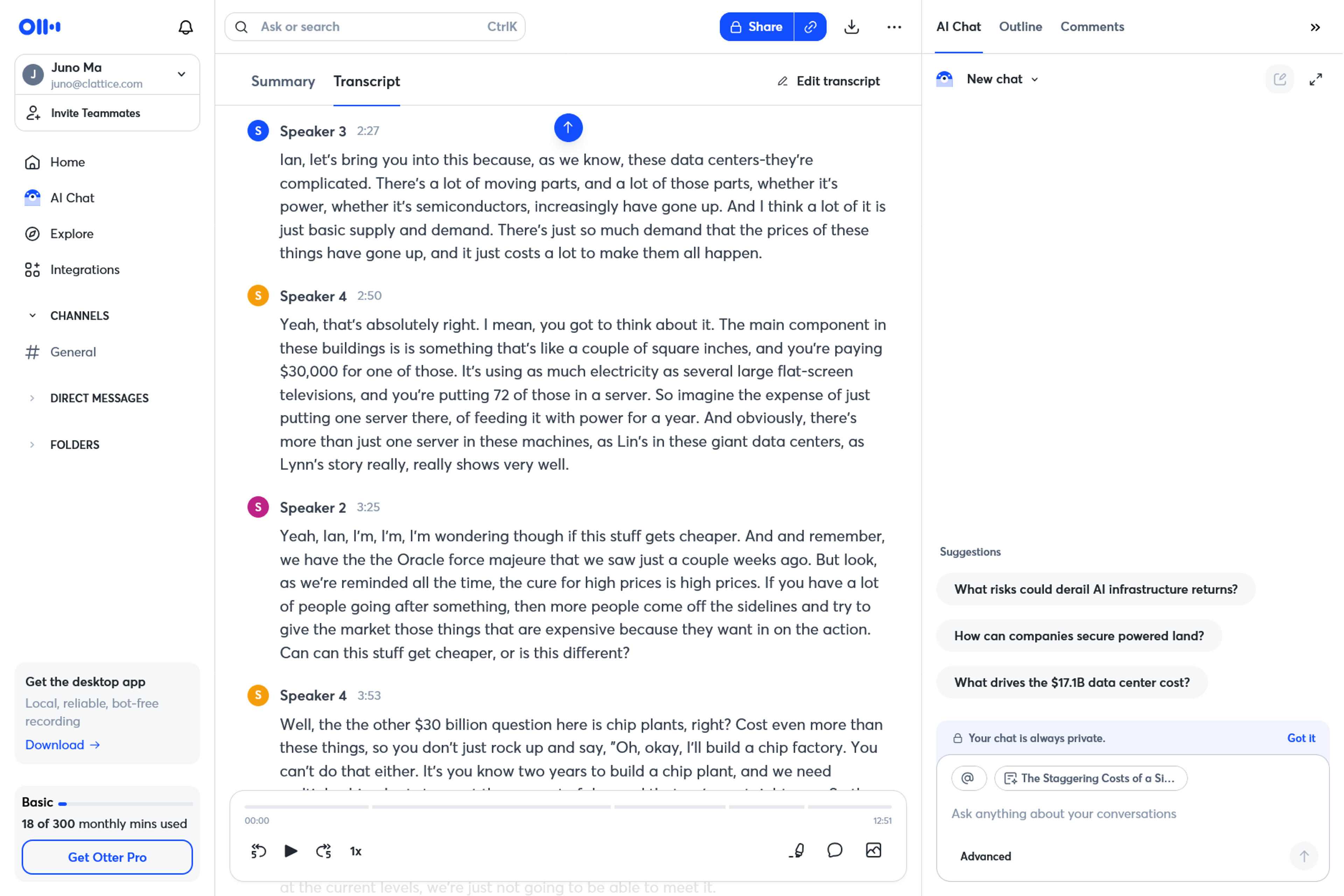
For a meeting recap, start with the summary. If the presentation needs more detail about how a decision was reached, add the relevant passages from the transcript. There’s no need to bring over the entire conversation just to explain one point.
SlidesPilot uses that text to build the presentation: it groups the ideas, writes the slide content, and adds the design. You don’t have to turn the notes into a slide outline first.
Open the meeting you want to use in Otter.
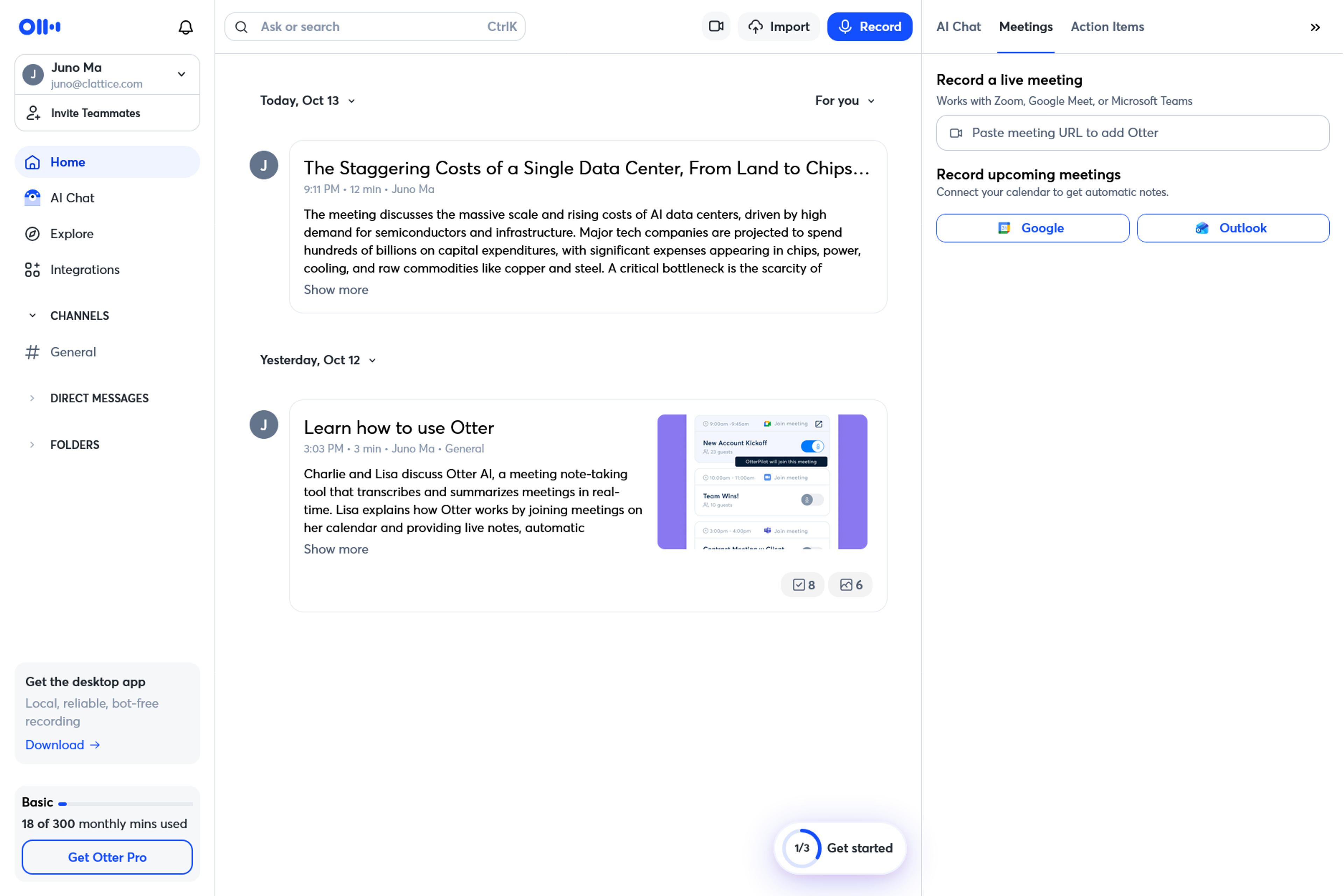
Select the Summary tab and click Copy summary beside the meeting details.
Read through the summary before pasting it. Keep what your audience needs: agreed scope and next steps for a client, tasks and deadlines for your team, or project status and approval requests for leadership.
Add a transcript passage if the summary leaves out an explanation you want to include. Keep the project name, meeting date, figures, and commitments, and remove anything that shouldn’t appear in the deck.
Paste your summary into SlidesPilot and create a presentation for your audience.
Create My PresentationIn SlidesPilot, select Paste in text and paste your Otter summary. In Instructions, say who will see the deck and what you want to cover.
Something like “Create a short project update for leadership, focusing on progress, risks, and decisions needed” is enough to give it a direction. For a more specific structure, try:
Turn these meeting notes into a short project update for leadership.
Cover the main outcome, progress, confirmed decisions, risks, and next
steps. Put action items in a table with owners and deadlines.
Use concise, professional language and preserve the facts in the notes.
For a client recap, change the prompt to focus on agreed scope, responsibilities, and the next checkpoint.
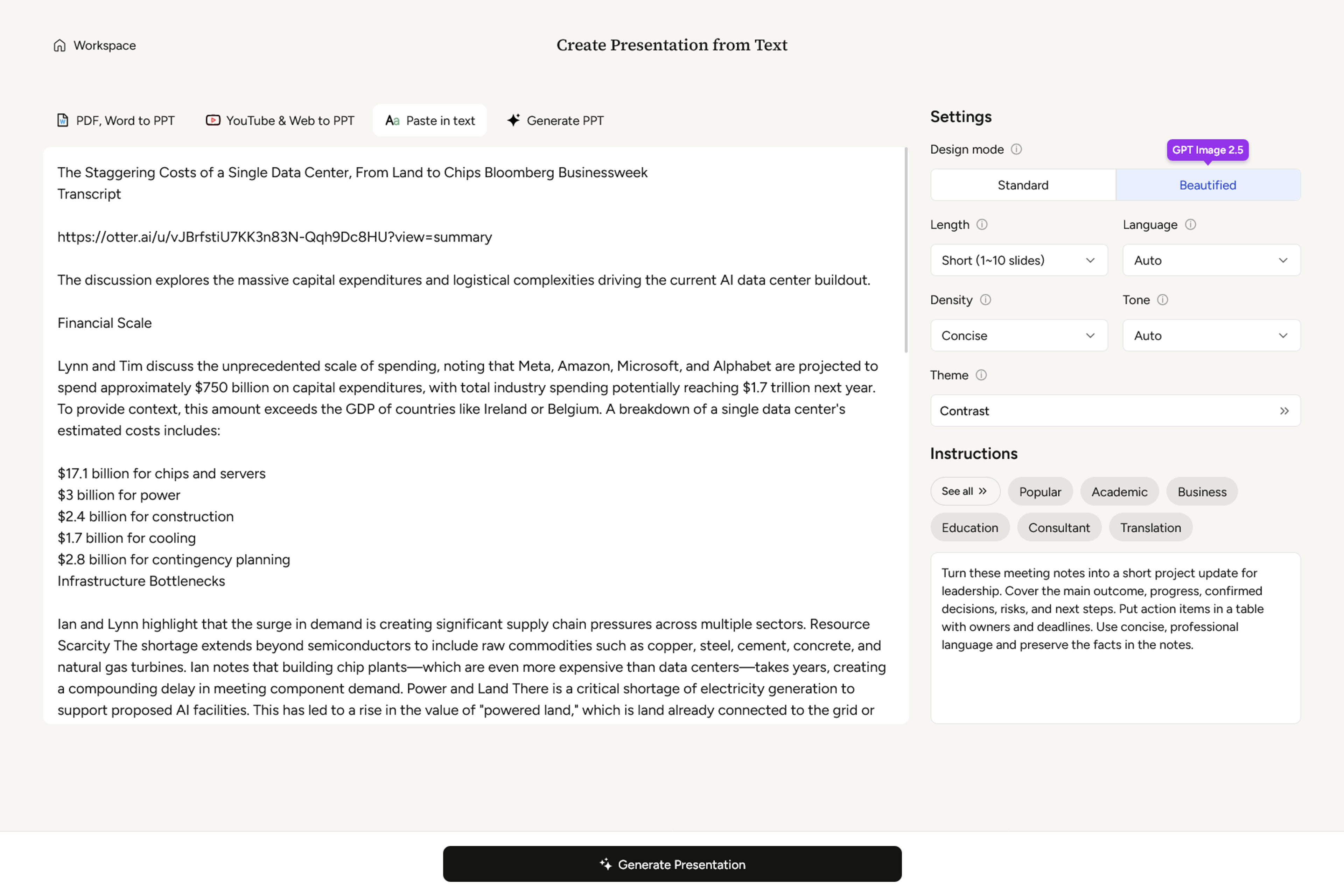
Choose the language, length, density, and tone, or leave them on Auto. For a quick recap, choose a short deck and concise text.
Choose Standard for editable, block-based slides, or Beautified for image-based slides you can refine with AI.
Click Generate Presentation, then choose a theme when prompted.
Read through the deck and check that the main outcome, decisions, and next steps are easy to follow.
Use AI editing to request changes such as “Shorten the introduction” or “Put the risks on one slide.” For Beautified slides, use Edit with AI. In Standard mode, you can also open the editor to change text and layouts directly.
Check that names, dates, figures, and commitments match your meeting notes, then make any final changes to the theme or wording.
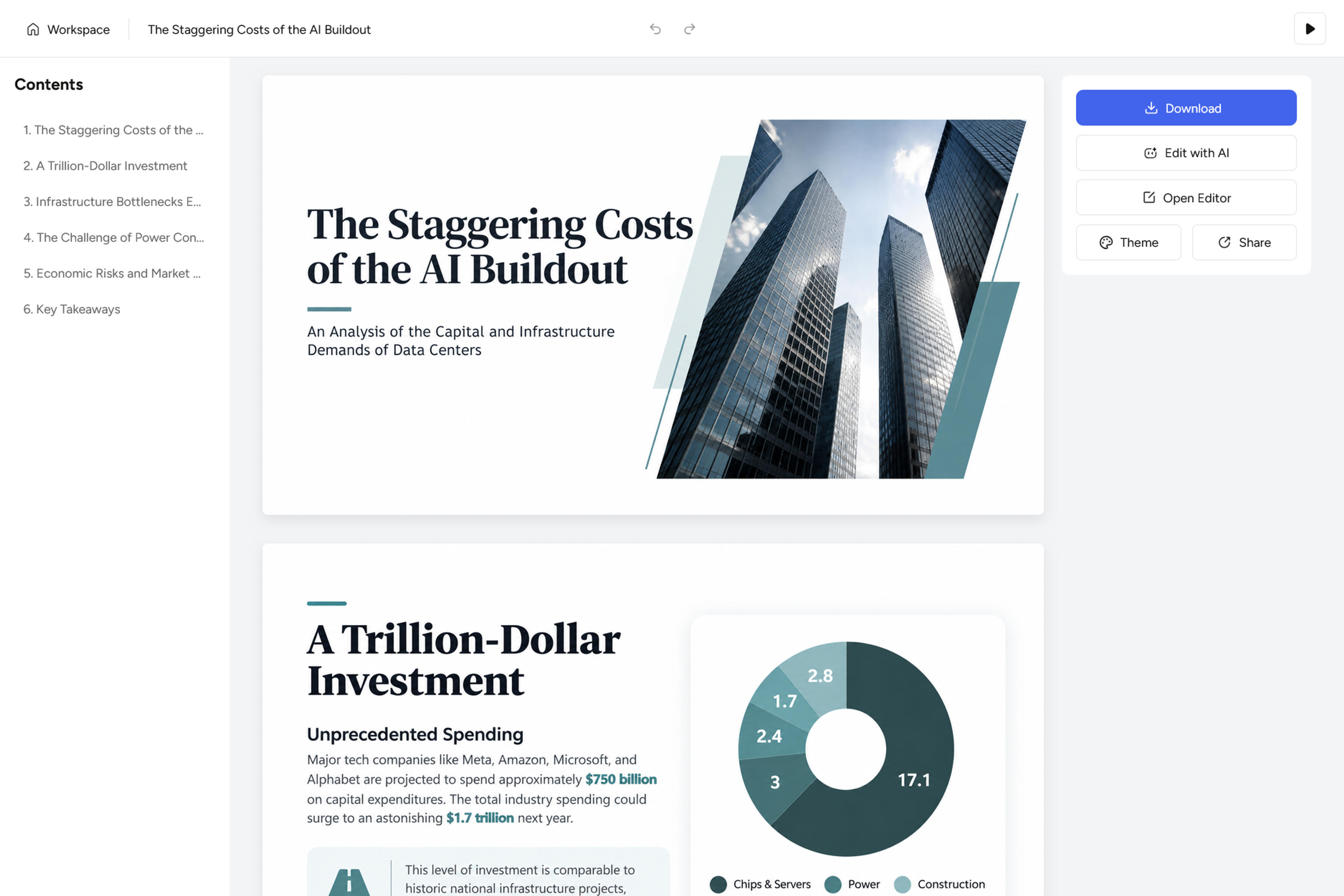
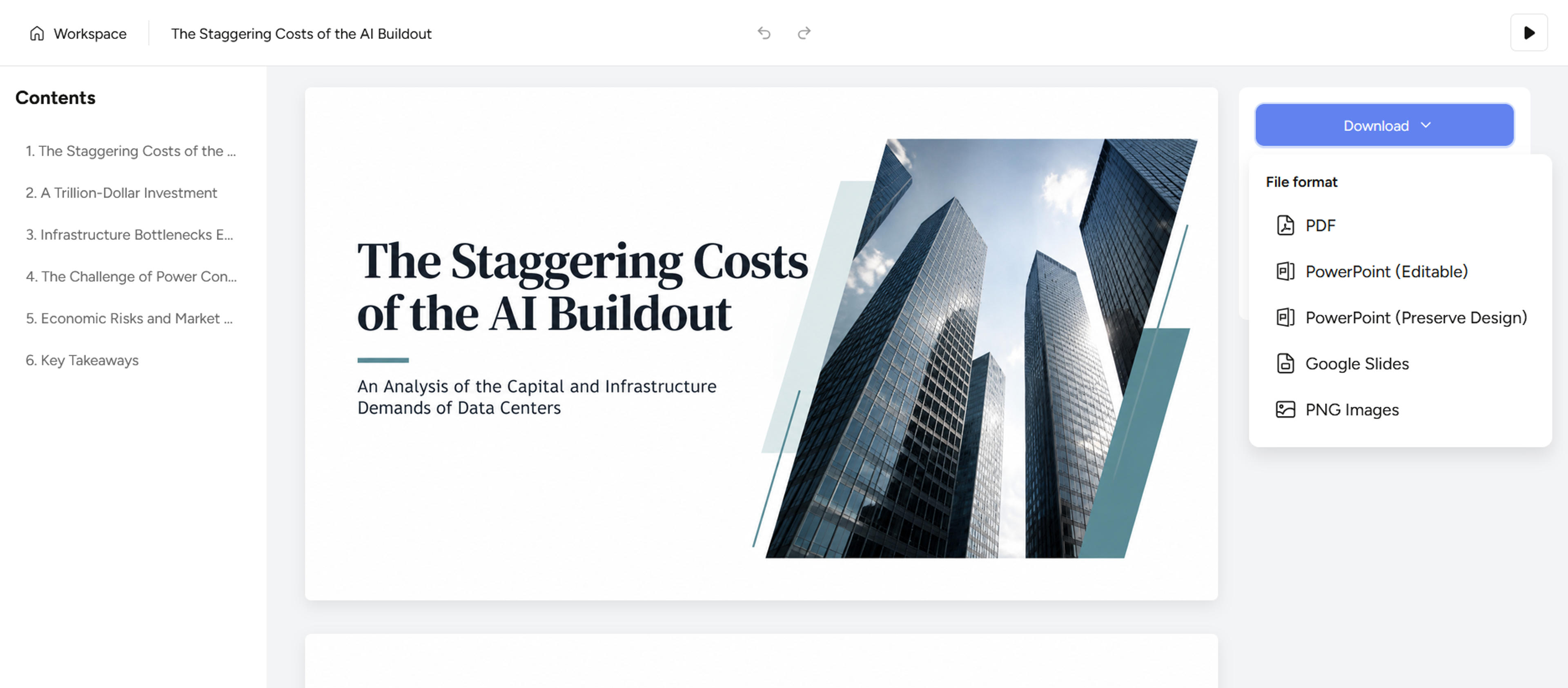
Present the deck in SlidesPilot, send a shareable link, or download it to PowerPoint or Google Slides.
Use the summary for a quick recap of the meeting’s outcomes.
Use the transcript when you need the reasoning behind a recommendation or the different views discussed. Paste the relevant passages alongside the summary.
A five-minute team update needs less detail than a briefing on a complex decision, so choose the material accordingly.
Otter provides the transcript and summary; this workflow uses SlidesPilot to generate the presentation. Copy the written content from Otter and paste it into SlidesPilot to create your deck.
If you want an editable PowerPoint, use Standard mode and the available PowerPoint export option. Beautified is an alternative for a visually composed, image-based presentation that you refine with AI.
To make your deck, paste your summary into SlidesPilot’s Text to PPT tool and add a short instruction about the audience and purpose.
Paste your summary into SlidesPilot and create a presentation for your audience.