
How to Use GPT Image 2.5 to Create a Presentation
Use GPT Image 2.5 through SlidesPilot’s Beautified design mode, from source materials and instructions to generated slides and Edit with AI.
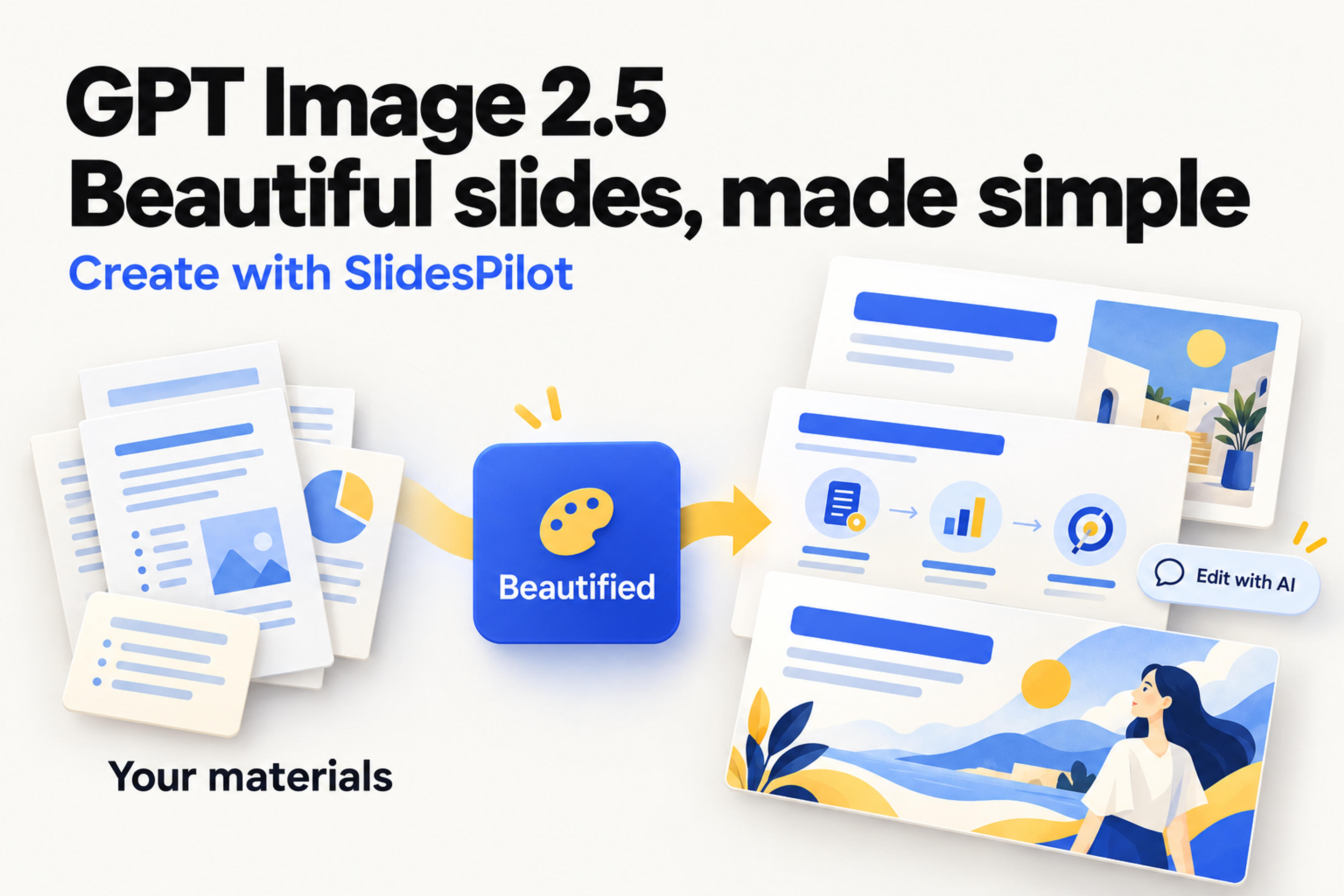
Use GPT Image 2.5 through SlidesPilot’s Beautified design mode, from source materials and instructions to generated slides and Edit with AI.
GPT Image 2.5's text-rendering capabilities make it a compelling tool for presentation design. It can bring headings, labels, diagrams, and imagery together in a single visual composition—the ingredients of a slide that communicates at a glance.
But creating a presentation by prompting individual images in ChatGPT leaves you managing the slide sequence, design instructions, revisions, and file assembly. The generated images also don't give you selectable PowerPoint text boxes.
SlidesPilot brings GPT Image 2.5 into presentation creation through its Beautified design mode. Add your source materials and instructions, select Beautified, and generate your slides. You can then request changes through Edit with AI. Here's how to use GPT Image 2.5 to create a presentation without managing a separate image prompt for every slide.
Text is part of a slide's design. A headline sets the message, a label makes a diagram understandable, and a short annotation tells the audience where to look. Image generation becomes much more useful for presentations when it can handle those words alongside the visuals.
OpenAI's GPT Image 2.5 guidance includes examples for exact text, labeled diagrams, and presentation slides. It also describes how to specify typography, hierarchy, and composition. That combination makes the model useful for exploring complete slide designs rather than only creating an illustration to place beside a bullet list.
Consider a slide explaining a three-stage process. A conventional first draft might contain three paragraphs. A stronger design gives each stage its own area, uses a clear reading order, and puts a short label next to a meaningful visual. The audience can see how the stages connect before you explain the details.
That is the opportunity with GPT Image 2.5: using text and imagery together to make the message easier to follow. Its text rendering supports the design; it doesn't turn the generated image into an editable slide file.
For a single visual concept, a chat prompt can be a useful starting point. For a presentation, the work extends beyond the first attractive result.
You need to describe the content, layout, aspect ratio, visual style, and exact wording. Then the next slide needs a different composition that still belongs to the same deck.
A prompt such as “make a professional presentation” leaves many decisions open. A more specific request might explain where the title goes, how three ideas should be grouped, which colors to repeat, and what the image should leave out. As the deck grows, you are managing a series of detailed design instructions inside the conversation.
Suppose a stakeholder asks you to shorten a heading and move a label. In an image-generation workflow, you describe the change and ask the model to preserve everything else. You then inspect the new version and decide which image to keep.
That loop adds work when the change is something you would normally make directly in a slide editor. It also leaves you keeping track of which image is the latest version of each slide.
Text rendered inside an image is part of that image. Placing the image on a PowerPoint slide doesn't make its headline, labels, or numbers individually selectable.
This matters whenever the presentation needs another update: a new date, a different client name, a revised recommendation, or a shorter title. The image can look finished while the presentation still needs an editing workflow.
SlidesPilot's Beautified design mode uses GPT Image 2.5 when you create a new presentation. Supply your source materials and instructions, and let SlidesPilot turn them into a presentation with a connected story and visual direction.
Your source materials provide the substance: the information, ideas, and examples the presentation should cover. Your instructions explain how to present that material to your audience. This keeps your attention on the message instead of the wording of a separate image prompt for every slide.
Start a new presentation in SlidesPilot and choose the input that matches your source materials. The creation screen offers PDF, Word to PPT, YouTube & Web to PPT, and Paste in text. For written notes or existing content, choose Paste in text and add the material in the large content area.
Use the Instructions field to explain how you want the presentation generated. For example: “Create a five-slide presentation for team leaders. Explain why we need a shared knowledge hub, outline the proposed pilot, and end with the decisions needed to start. Keep the wording concise and professional.”
Put the actual proposal details in your source materials. The instructions guide how those details become a presentation.
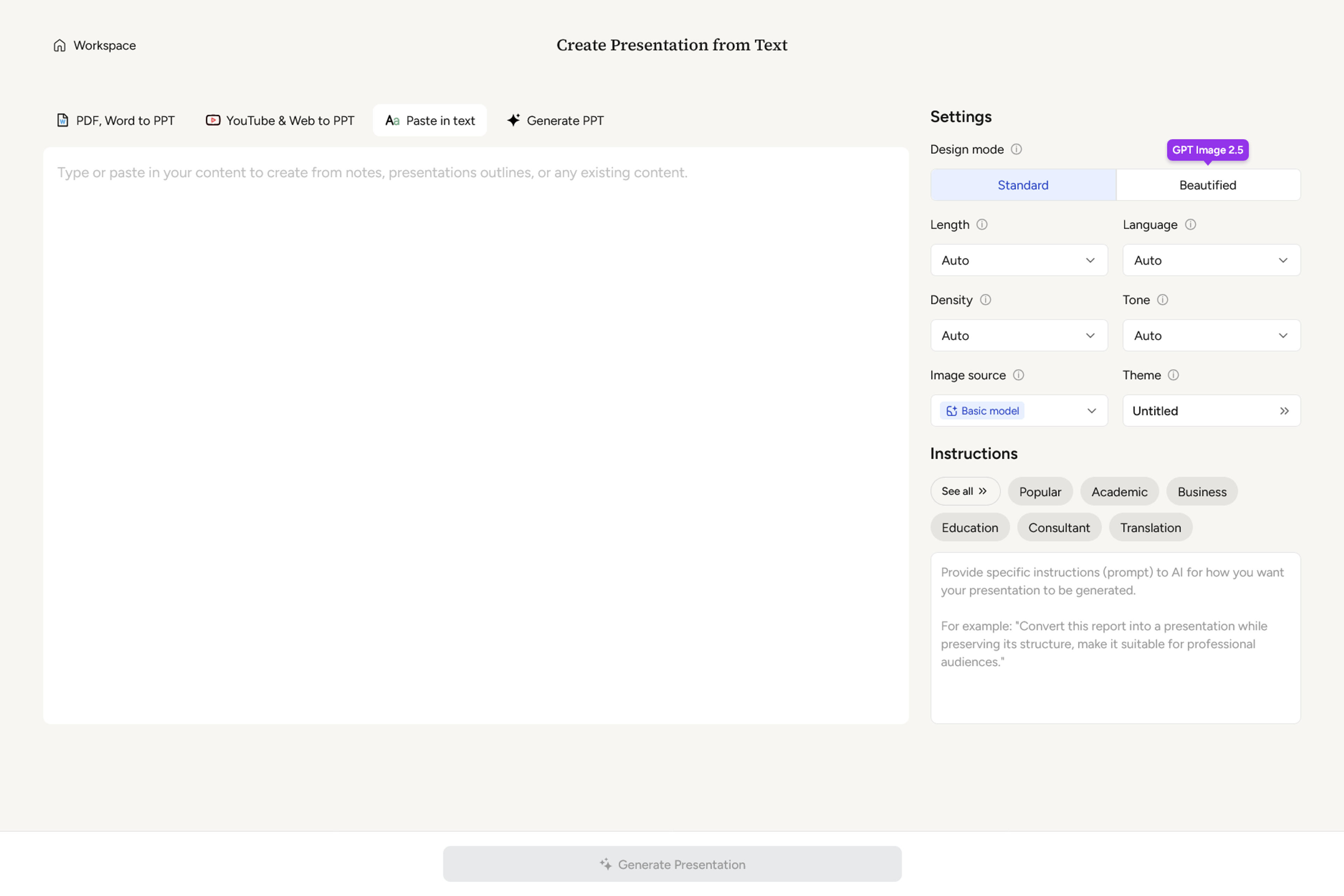
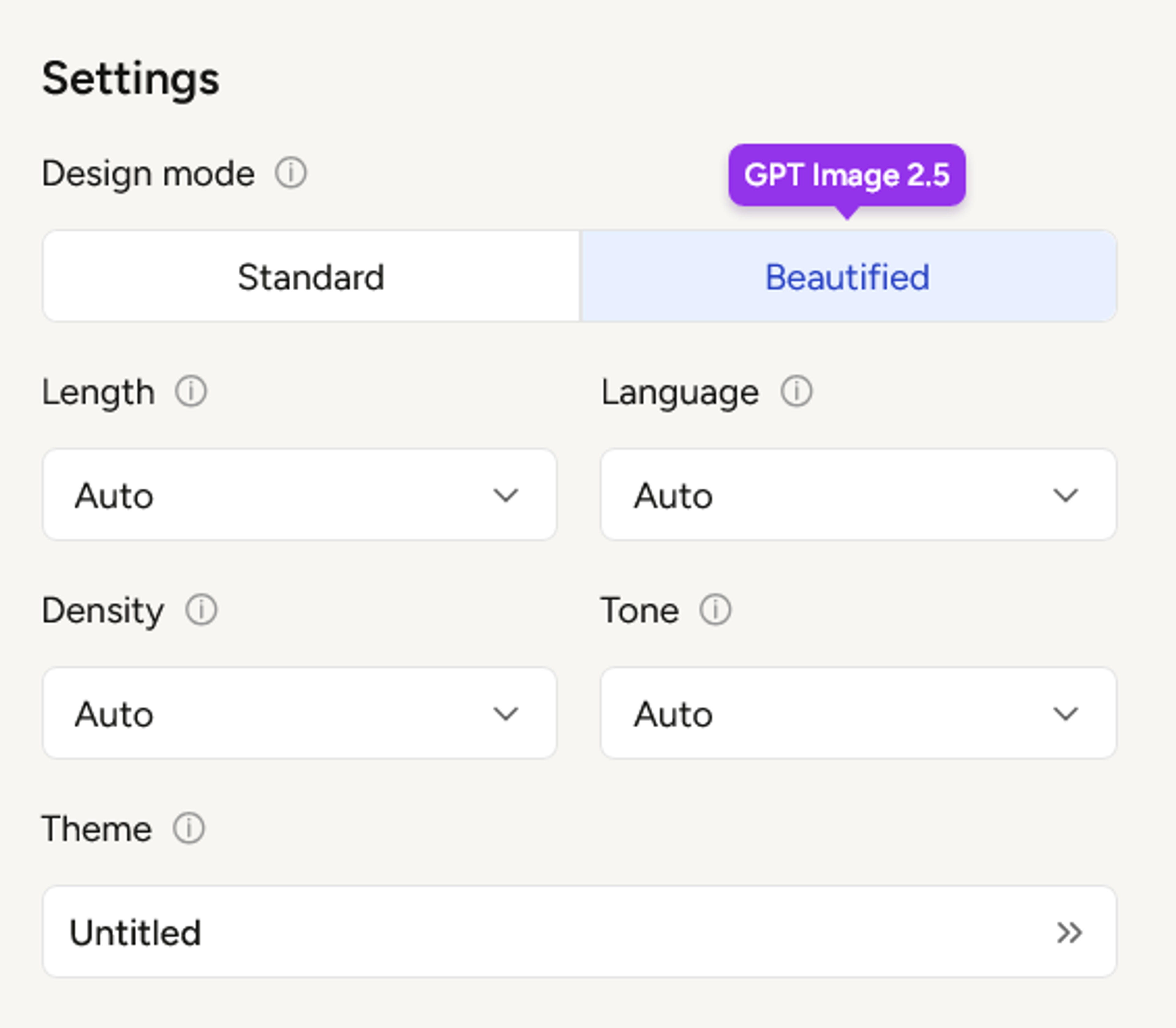
In Settings, find Design mode and choose Beautified. The GPT Image 2.5 label above the option identifies the model used for this mode.
Set the presentation's Length, Language, Density, and Tone to suit your needs, or leave them on Auto.
Add your source materials and instructions in SlidesPilot, then select Beautified design mode.
Create My PresentationClick Generate Presentation to create the slides from your source materials, instructions, and settings.
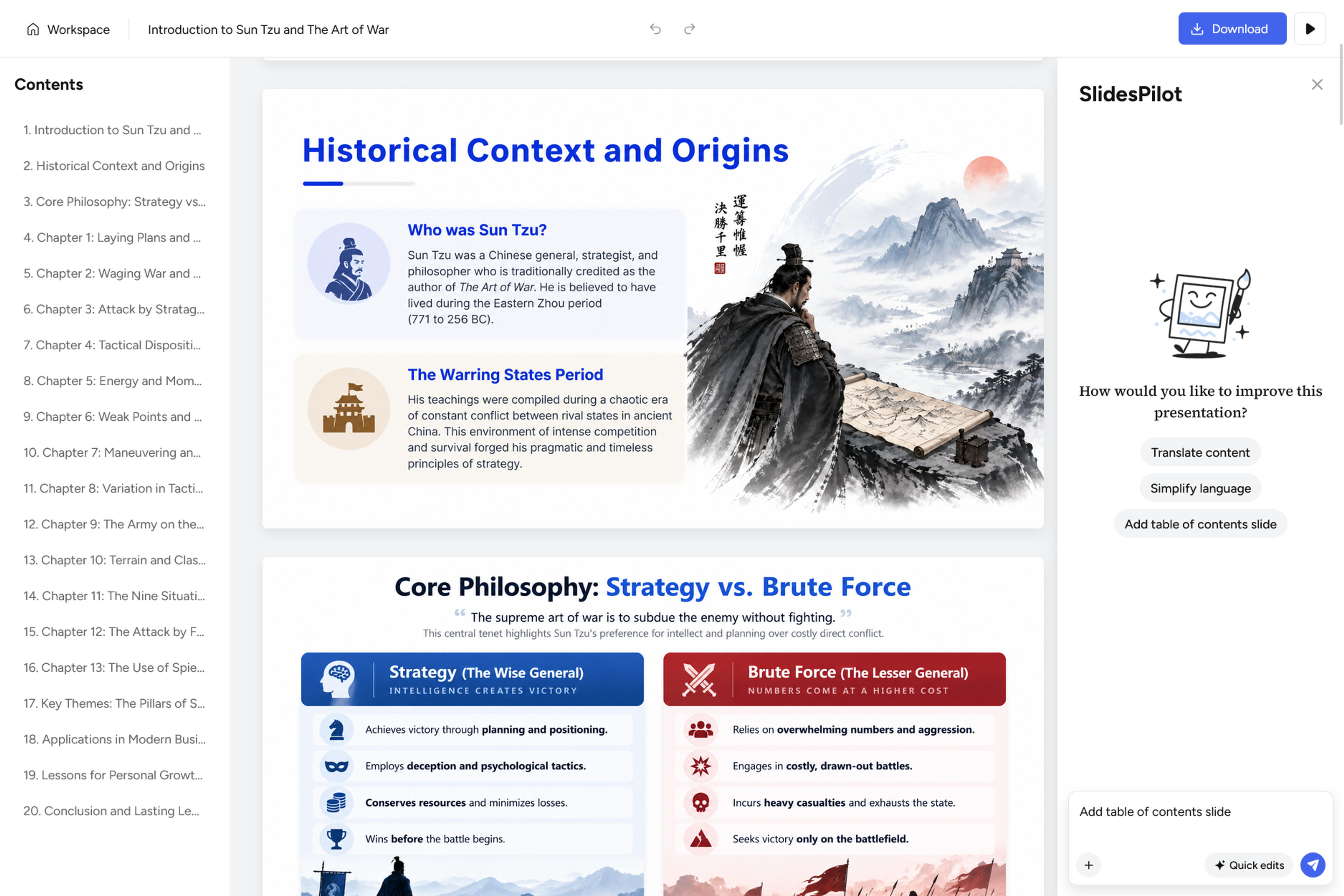
Review the result as a complete presentation. Follow the sequence in Contents and read through the slides: does the opening establish the subject, does the middle explain the key ideas, and does the ending give the audience a clear takeaway?
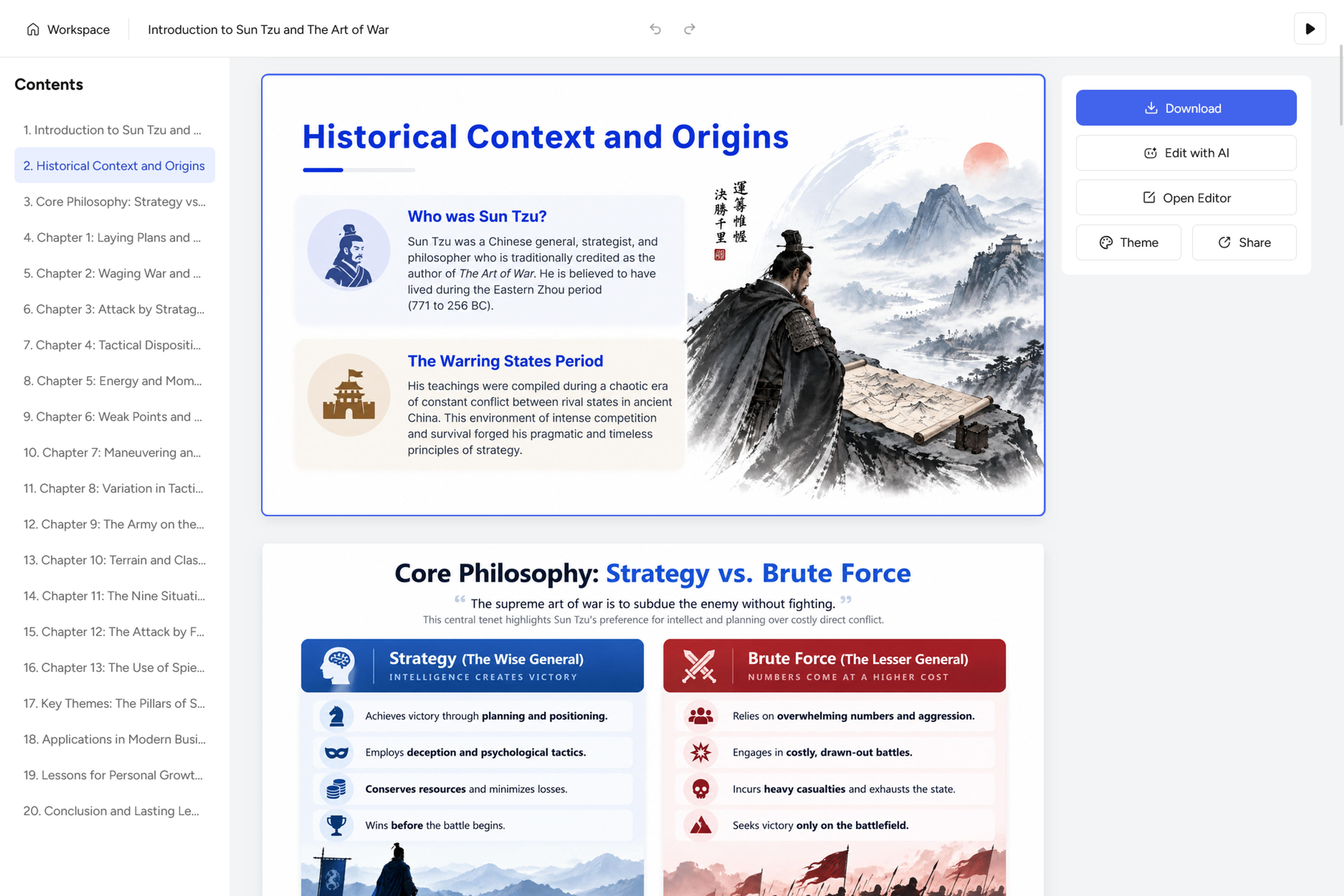
Choose Edit with AI on the presentation screen to request changes. Describe the slide you want to change and the result you want—for example: “Shorten the introduction on slide 2 to three key points while keeping its main message.”
This is where you refine the generated presentation for your audience. You can request a wording change or ask for a clearer explanation without returning to a separate ChatGPT conversation to manage another slide image. Keep each request specific so you can assess the revised result against the change you intended.
Click Download and choose the export option that suits your needs:
Its text-rendering and composition capabilities let it combine headings, labels, and visuals in a slide design. Those capabilities are useful when the audience needs to read and understand information within the visual itself.
On the new-presentation creation screen, go to Settings → Design mode → Beautified. The option is marked with GPT Image 2.5.
Source materials contain the information you want to present. Instructions tell the AI how to use that information: who the audience is, what to emphasize, and how to structure or phrase the presentation.
No. Provide your source materials and presentation instructions, then select Beautified. SlidesPilot handles the creation workflow for the presentation.
Use Edit with AI on the presentation screen and describe the changes you want.
GPT Image 2.5 brings text and visual composition together for presentation design. Start a new presentation in SlidesPilot, add your source materials and instructions, and choose Beautified. Generate your slides, then use Edit with AI to refine the result.
Choose Beautified to generate your slides with GPT Image 2.5, then refine them with Edit with AI.