
Free YouTube Transcript Generator

Turn a YouTube video into text you can read, revisit, and keep. Paste a link to get the full transcript, show or hide timestamps, and copy or download the words for your notes.

Turn a video into a source you can work with

A great explanation deserves more than a place in your watch history. SlidesPilot gives the spoken content a readable home, from the opening idea to the final example.

Read the whole explanation at your own pace

A lecture, interview, or tutorial often contains more detail than you can take in on the first watch. Transcribe the YouTube video to text and follow the explanation as a continuous document. Read ahead when the subject is familiar, slow down around a new concept, and return to the wording that matters. The transcript keeps the conversation available for a second look, so a useful example or thoughtful answer is easy to bring into your own work.

  • Keep the full explanation: Read the details, examples, and transitions that give each idea its meaning.

  • Choose your reading view: Show timestamps for video context or hide them for uninterrupted text.
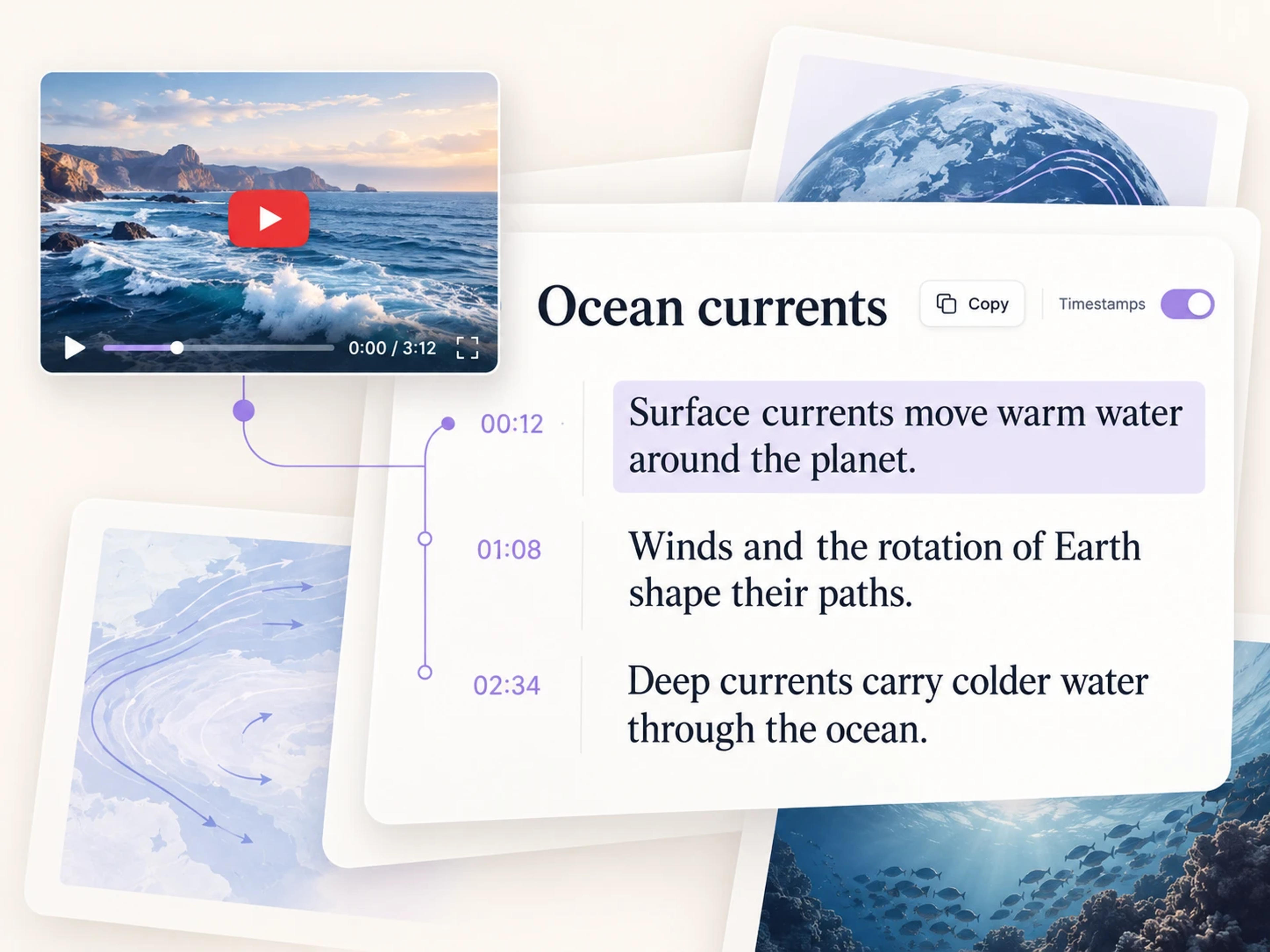
Lecture video becoming a readable transcript with timestamps beside three passages

Keep the words close to your notes

Once the transcript is open, use Copy to bring the text into a document or download a file you can keep alongside your research. TXT gives you a straightforward reading copy; Markdown fits a writing or knowledge-base workflow. For an interview, you might keep the passage that develops a central argument. For a tutorial, you might save the explanation beside your own practice notes. The useful material becomes something you can return to while you write, study, or prepare for a discussion.

  • Copy into your own workspace: Bring the transcript into a document, study guide, or research notebook.

  • Download a lasting reference: Save TXT or Markdown for reading, with SRT and VTT also available for timed text.

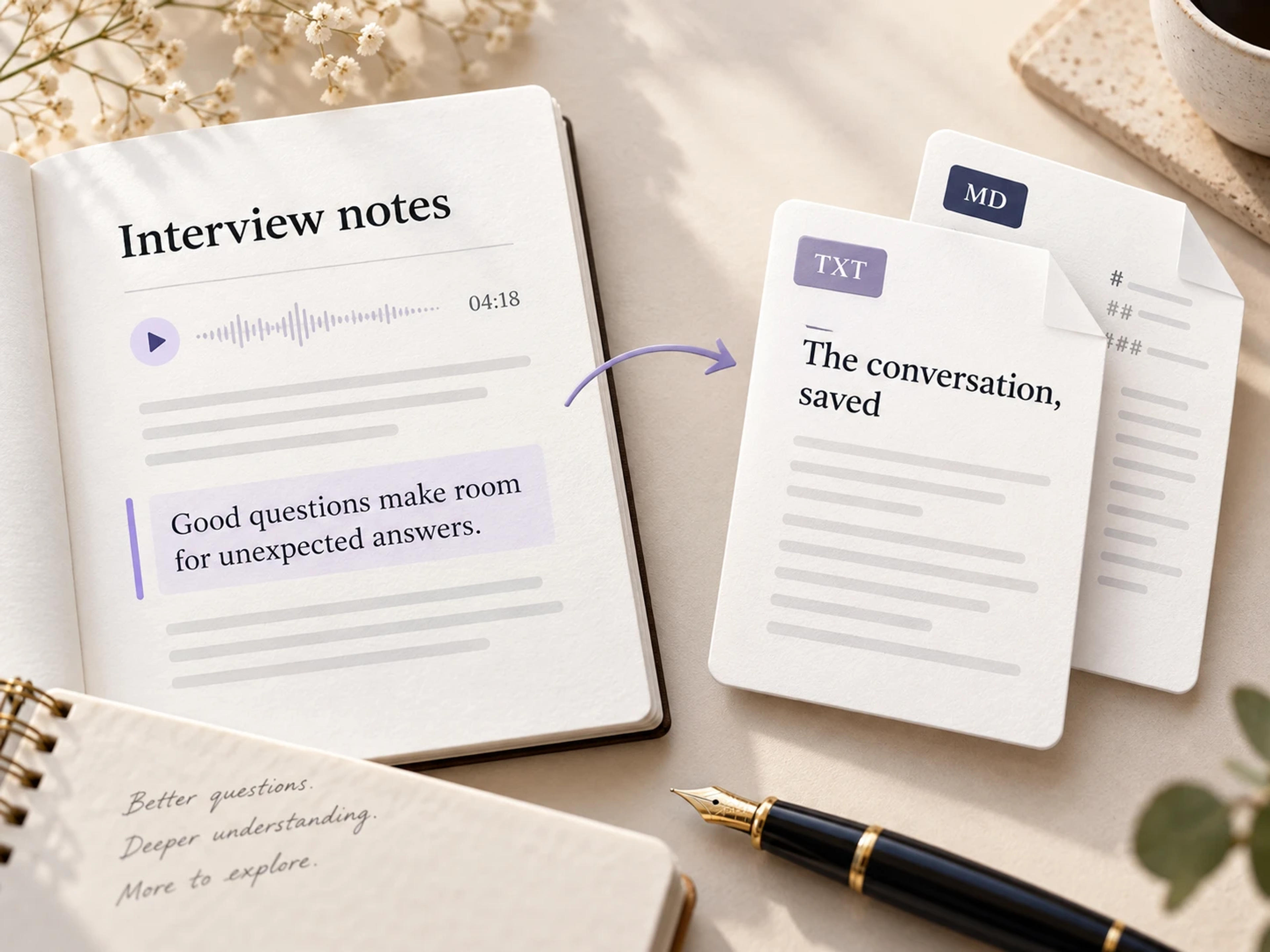
An interview transcript saved as TXT and Markdown beside a notebook

How to transcribe a YouTube video to text

Start with the video you want to understand. Your transcript gives you the words; you decide how to use them.

  1. Paste your YouTube link

    Copy the URL of a lecture, interview, webinar, or tutorial and paste it into the tool above. Open the transcript to turn the spoken material into a text-based reference.

  2. Read with the context you need

    Follow the transcript from the beginning or move to the passage you are interested in. Keep timestamps visible to see where the words belong in the video, or switch them off for a cleaner reading view.

  3. Copy the text or download a file

    Use Copy to take the transcript into your notes. Open Download to choose TXT, Markdown, SRT, or VTT, and keep the version that suits your writing, study, or caption workflow.

Make useful videos part of your everyday work

The value of a transcript is what it helps you do next: understand an explanation, capture a perspective, or keep a reference you can use again.

Study a lecture in more detail

Turn a recorded lecture into reading material for your study session. Keep definitions and worked explanations beside your own notes, then use the timestamps to find the part of the video you want to revisit. The spoken lesson becomes a reference you can work through at your own pace.

Bring interview material into your research

An interview transcript lets you follow how an answer develops across several sentences. Save relevant passages with the surrounding context, organize them around your research questions, and keep the speaker’s wording close while you write. It is especially useful when several conversations inform the same project.

Follow a tutorial while you practice

Get a text version of the instructor’s explanation and keep it beside the task you are learning. You can read a specific instruction again while you work through an example, then move back to the video when seeing the demonstration would help.

Keep a written record of a webinar

A webinar can contain useful advice scattered across a long session. Save its YouTube transcript with your project notes so the detailed explanation stays available after the event. Colleagues can read the passages relevant to their work and use timestamps for additional video context.

Collect wording for an editorial project

Read through a video interview or recorded talk to identify the ideas you want to develop in an article. Copy the source text into your working document and keep the surrounding discussion close. A readable transcript makes it easier to build on the substance of the conversation.

Read when listening is inconvenient

Open the video’s text while you are studying in a quiet space, working through references, or catching up between meetings. You control the pace of reading and can keep a downloaded copy with the other materials for your task.

From watching a video to working with the words

Lectures, interviews, tutorials, and webinars become material you can return to.

I use YouTube lectures to go deeper into topics from class. Having the full transcript beside my notes makes a big difference when a speaker explains something over several minutes. I can read the whole argument, copy the definition I need, and keep the timestamp for the part I want to watch again.

Maya

Graduate Student

I was working through a series of founder interviews and needed the detail behind each answer. This YouTube transcript generator gave me a readable version of the conversation to keep with my research. I downloaded the text and organized the relevant passages around the questions in my report.

Oliver

Research Analyst

A subject expert shared a helpful tutorial, and I wanted the spoken instructions alongside my own exercise notes. I used SlidesPilot to transcribe the YouTube video to text, then copied the explanation into my working document. Being able to read each instruction while trying it myself was exactly what I needed.

Priya

Learning Designer

Our editorial research often starts with a recorded talk. I like being able to read the transcript as a document and see the wording around an interesting point. The Markdown download fits neatly into my writing workflow, so the source material stays beside the article outline as it develops.

Ben

Content Editor

I save transcripts of webinars that are relevant to our team’s training. The timestamps help me point a colleague toward a particular explanation, while the clean text view is useful for reading the session afterward. It gives us a written reference we can keep with the rest of the learning material.

Leila

Professional Development Coordinator

YouTube transcription: your questions answered

Paste the video’s YouTube URL into SlidesPilot and open the transcript. The spoken content appears as readable text with timestamps. From that view, you can show or hide timing, copy the text, or download a transcript file. It is a direct way to turn a video you want to study into a reference you can read and keep.

Yes. SlidesPilot’s YouTube transcript generator is free to use. Start with the link to the video you want to transcribe, then read the transcript and use the copy or download controls to bring the text into your work. It is useful for a single explanation as well as a longer lecture or interview.

Yes. The transcript includes timestamps that connect passages to their place in the video. Leave Show timestamps on when timing helps your research or study notes. Switch it off when you want to read the text as a continuous document. You can choose the view that supports the task in front of you.

Use Copy in the transcript view, then paste the text into your preferred document or note-taking app. You can organize the material around your own questions, keep relevant explanations beside your notes, or use the transcript as a written reference while you work through a tutorial. Download is also available when you want a separate file.

SlidesPilot supports TXT, Markdown (MD), SRT, and VTT. Choose TXT for a plain-text document or Markdown for a writing workflow that uses MD files. SRT and VTT keep text in a timed subtitle format. You can choose a reading copy for your notes or a caption file for a subtitle workflow.

Yes. A transcript is especially useful when an explanation develops over a long conversation. You can read the complete discussion, revisit an earlier point, and keep the details around a useful example. Timestamps make it easier to connect the written material with the corresponding part of the lecture or interview.

A transcript presents the spoken content as text you can read as a document. Subtitles organize that text into timed segments for a video. SlidesPilot lets you read a transcript and download the format you need: TXT or Markdown for text-based work, and SRT or VTT when you want a timed subtitle file.

YOUR NEXT STEP

Bring the key ideas into focus

Finished reading the full transcript? Use the YouTube Summarizer to turn the video into a concise overview of the main ideas and takeaways.

Summarize a YouTube Video
  • Key points in one place
  • A shorter reading view
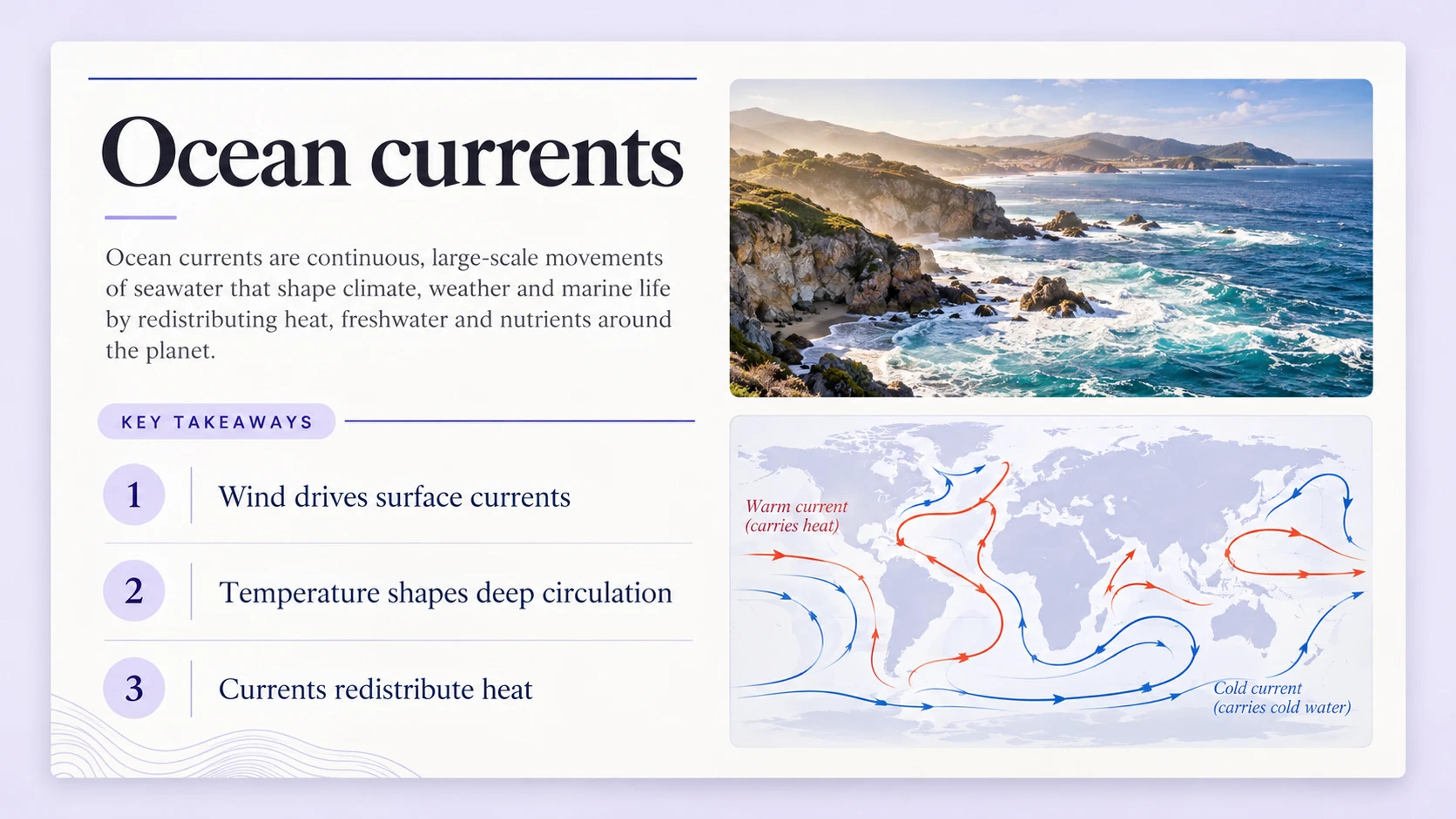
Example ocean currents summary with three key takeaways and an ocean illustration

A focused overview for your next read.

TAKE THE IDEAS FURTHER

Give those ideas a beautiful presentation

Turn the same video into a polished slide deck with YouTube to PPT. Shape the story for a lesson or meeting, then make the slides your own.

Turn a YouTube Video into PPT
  • Beautiful slide designs
  • Fully editable PowerPoint
YOUR SOURCE
VIDEO
YOUTUBE

A lesson worth sharing

The ideas from your video
AIOrganize + design
YOUR PRESENTATION
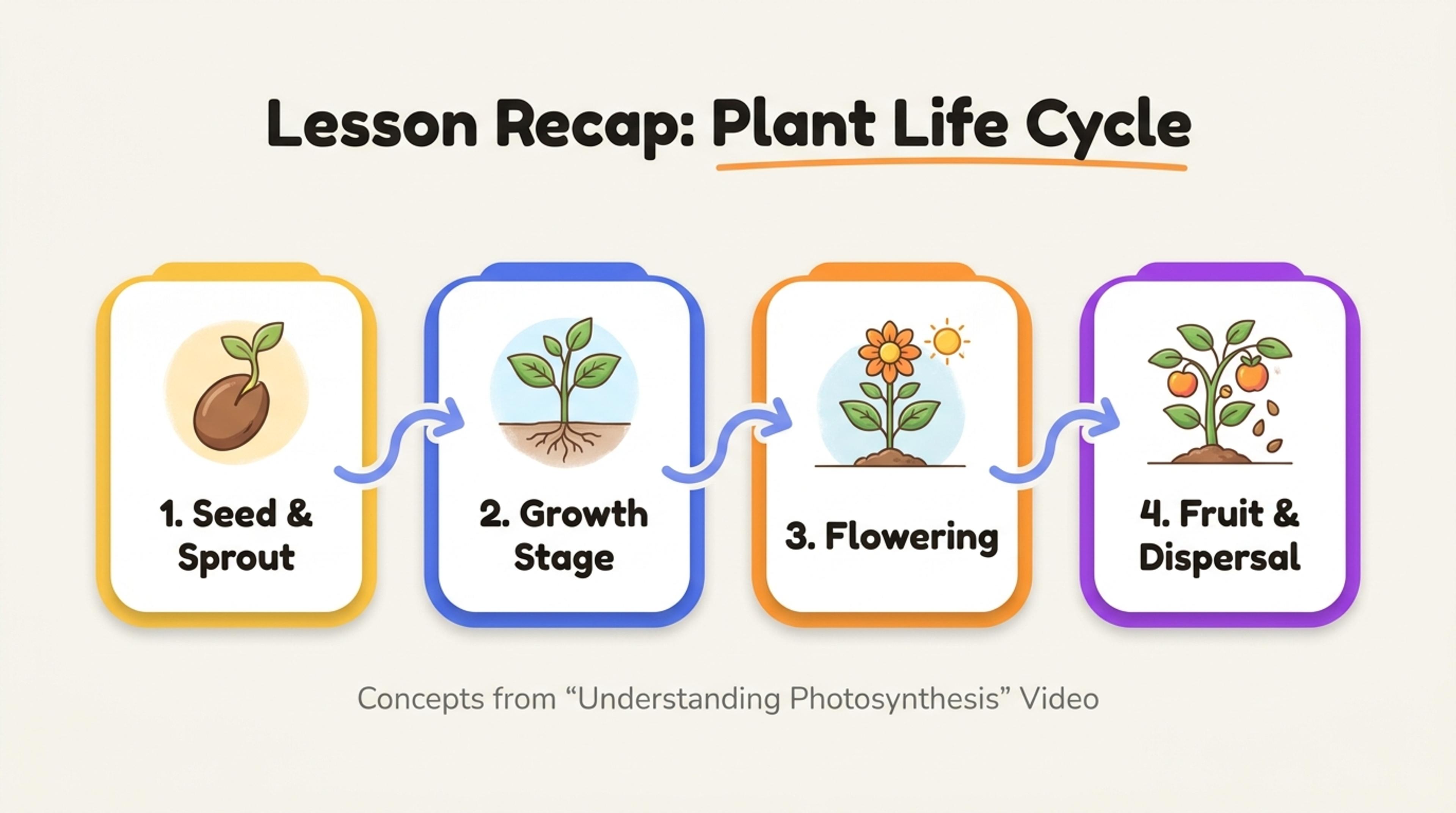
Example video lesson transformed into a designed presentation
A beautiful, editable slide deck

From a useful video to a presentation of your own.

Turn your next YouTube video into readable text

Keep the explanation, the examples, and the words you want to return to. Paste a YouTube link and get a transcript you can read at your own pace, copy into your notes, or download for later.

Free to useStart with a YouTube link
Get My YouTube Transcript