

How to Convert Canva to Google Slides
Move a Canva deck into Google Slides and choose the right workflow for full-deck editing, selected slides, or an image that keeps its layout.
Move a Canva deck into Google Slides and choose the right workflow for full-deck editing, selected slides, or an image that keeps its layout.
To convert Canva to Google Slides, download your Canva presentation as a PowerPoint file (.pptx). Upload it to Google Drive, open it with Google Slides, then choose File → Save as Google Slides. Google creates a native copy you can edit and share.
Use the PPTX route when people need to revise the deck. If you only need a slide to look the same on screen, you can use a PNG from Canva as its background.
If the PowerPoint option is missing, check that the Canva design is a presentation. Canva offers PPTX export for presentation designs.
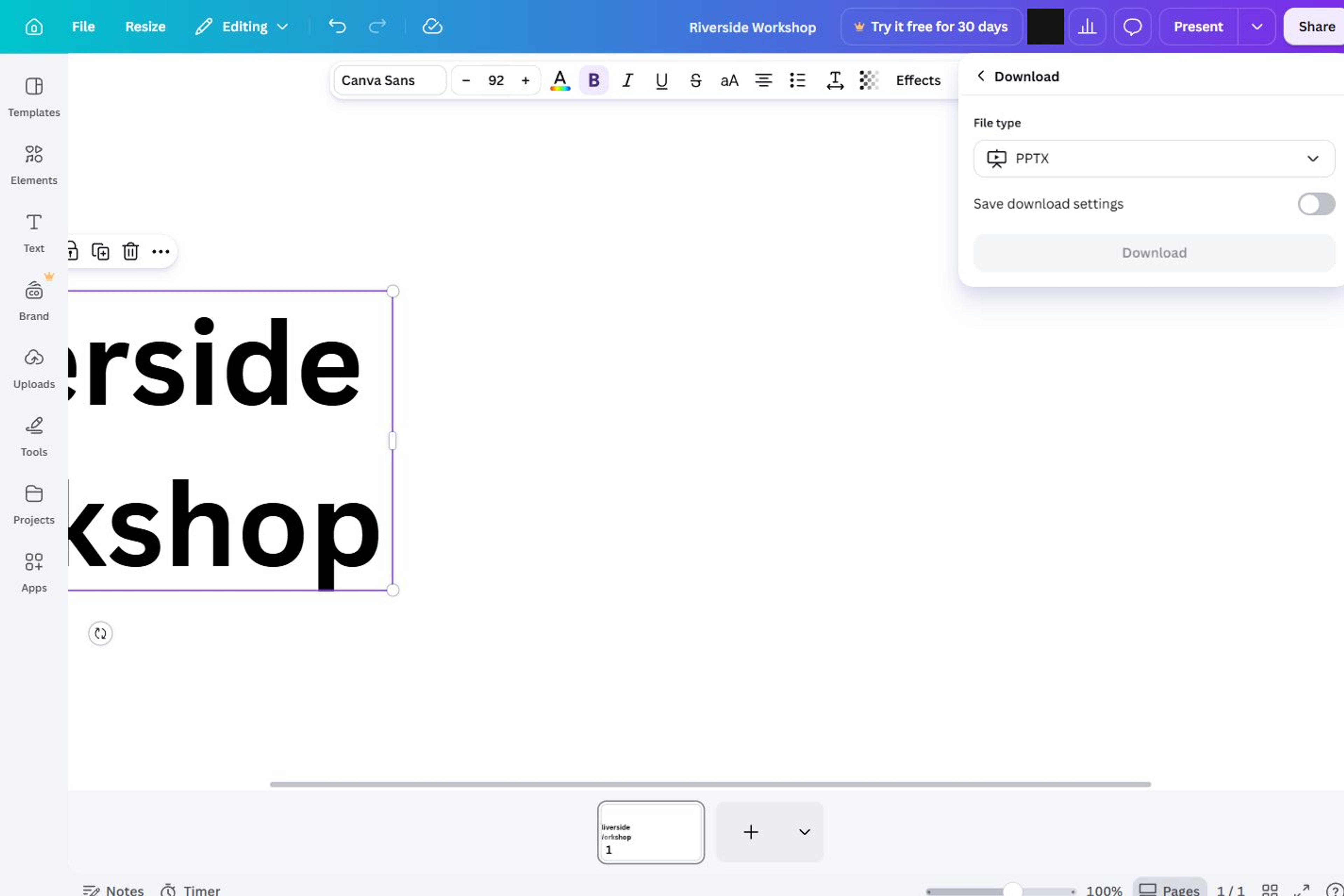
Upload the PPTX you exported from Canva. Open the converted file in Google Slides and save a copy to your Drive.
Convert your PPTX to Google Slides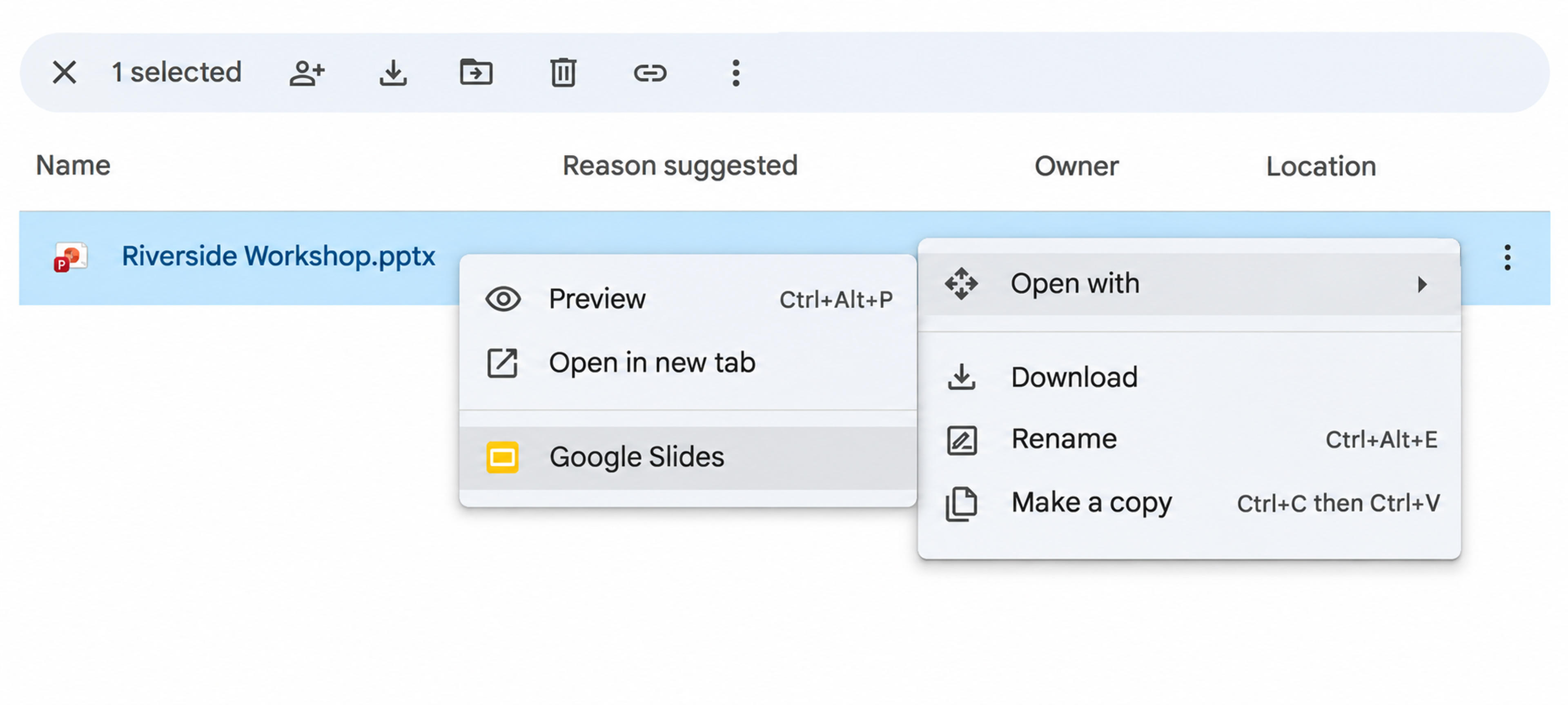
When Google Slides shows a PPTX badge beside the title, edits are saved to the PowerPoint file. Look for the new Google Slides copy as a separate file in Drive.
When you only need a few slides, open the destination presentation in Google Slides. Choose File → Import slides, select the exported presentation from Drive or upload the PPTX, then select the slides you need. Leave Keep original theme checked if you want to carry over the source theme. Clear it to apply the destination deck’s theme. Select Import slides, then check the imported slides in context.
Start with a slide that uses a custom font, overlapping elements, or embedded media. Open the Canva original next to the Google Slides copy. Check the exported PPTX too if you need to see where a change first appeared. For a deck with shared layouts, fix one representative slide before adjusting the rest. If several headings wrap at the same point, compare their text box widths before changing the font size throughout the deck.
| What you see in Google Slides | What to do |
|---|---|
| A heading wraps onto an extra line | Double-click the heading. If you can place the cursor inside the words, choose an available font and adjust the text box width. For example, widen a two-line title box before shrinking the font so the title stays readable. |
| A slide looks right, but clicking a label selects the full image | If the label sits on a solid background, cover it with a matching shape and add a new text box. If you need to edit several elements, try getting the Canva original or a fresh PPTX export. |
| A cropped image or layered graphic shifts | Compare it with the Canva slide and reset the crop or position. For a complex slide that only needs to be shown, use a PNG background. |
| An animation or embedded video does not play | Canva flags playback limits for PPTX exports. Recreate the animation or insert the original video in Google Slides, then check it in slideshow mode. |
For a finished title slide or illustration, download the page as PNG from Canva. In Google Slides, select the destination slide and choose Slide → Change background. Under Image, choose the PNG and select Done. Match the slide’s aspect ratio to the Canva original to avoid stretching or cropping. The design stays together as one image, and you can add new text or shapes on top.
If you’ll update the title or date regularly, add it as a Google Slides text box. When you have access to the Canva original, hide the old text before exporting the PNG so it doesn’t show through.
A Canva link opens the Canva design. To move the presentation, download it as a PPTX and use that file to create a native Google Slides copy.
Ask for the original presentation or a PPTX export if you need to move the whole deck into Google Slides. If you only need to show the PDF pages, save them as PNGs and add them as backgrounds.
Convert your Canva-exported PPTX into a Google Slides presentation you can open and edit.