

SlidesPilot: A Napkin AI Alternative for Editable Presentations
A comparison of SlidesPilot and Napkin AI covering source-to-slide workflows, practical strengths and tradeoffs, and the cost of each subscription tier.
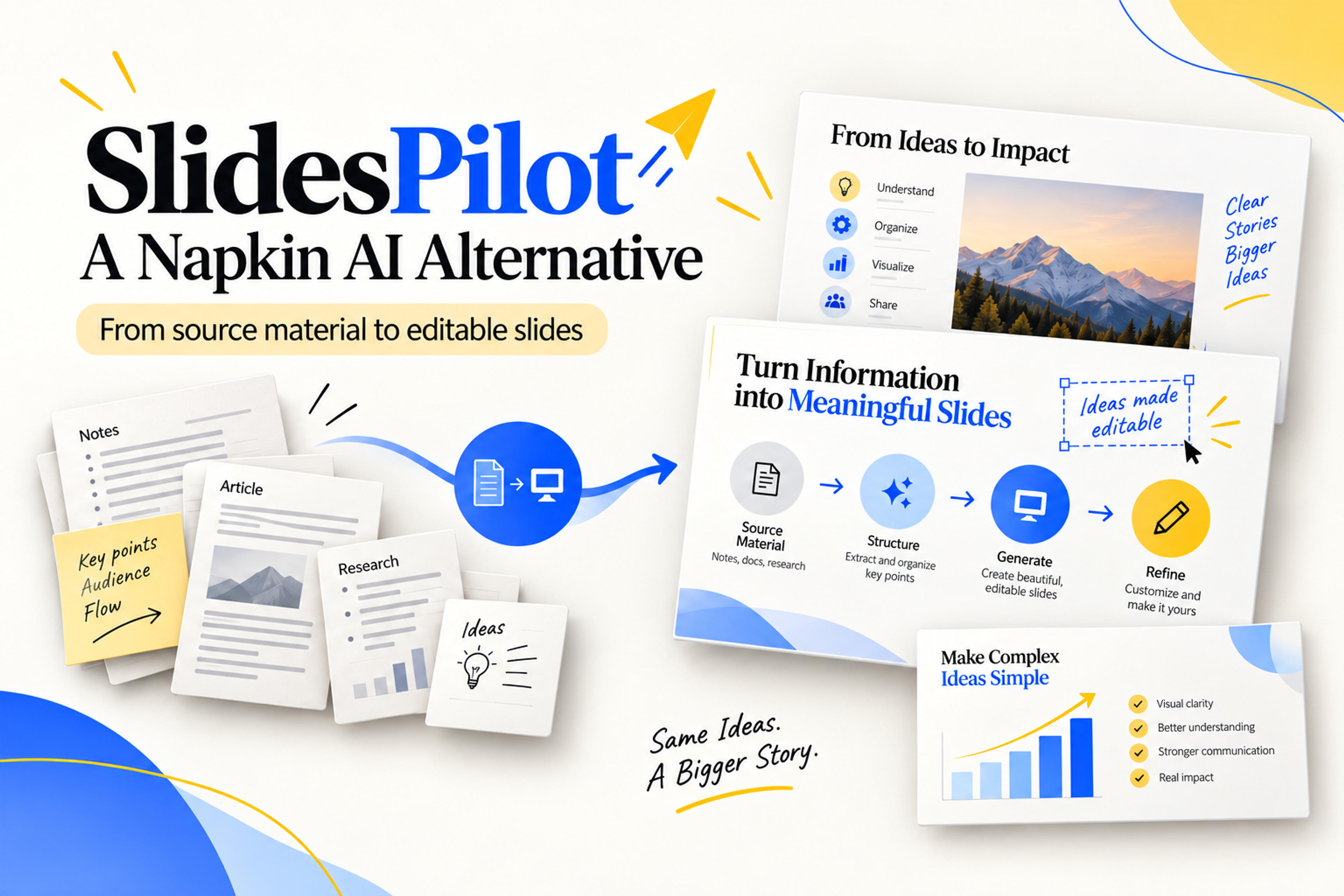
A comparison of SlidesPilot and Napkin AI covering source-to-slide workflows, practical strengths and tradeoffs, and the cost of each subscription tier.
SlidesPilot is a strong Napkin AI alternative when your main job is turning source material into a complete, editable presentation. It combines document and link inputs, controls for length and detail, and an AI agent that helps refine both the content and the design. For research, teaching, and business reporting, that makes it a more rounded presentation workflow.
Napkin approaches the work through visual explanations: turning text into diagrams, infographics, and slides. Its visual selection and customization tools are central to the experience. It also supports full presentations and PowerPoint export, so the difference is no longer simply “diagrams versus decks.”
The more useful question is where you want the software to do the work: interpreting and organizing source material, selecting a visual treatment, revising the explanation, or preparing an editable file for your team. This comparison examines both workflows, their strengths and tradeoffs, and what the different plans cost.
| What matters | Napkin AI | SlidesPilot |
|---|---|---|
| Main emphasis | Text to visual explanations, with separate Visuals and Slides workflows | Source material to structured presentations, with supporting visual and content tools |
| Starting material | Text, prompts, and uploaded files | Documents, pasted text, topics, webpages, and YouTube links |
| Presentation setup | A guided Slides conversation establishes audience, scope, and length | Dedicated controls for length, density, tone, language, and image source |
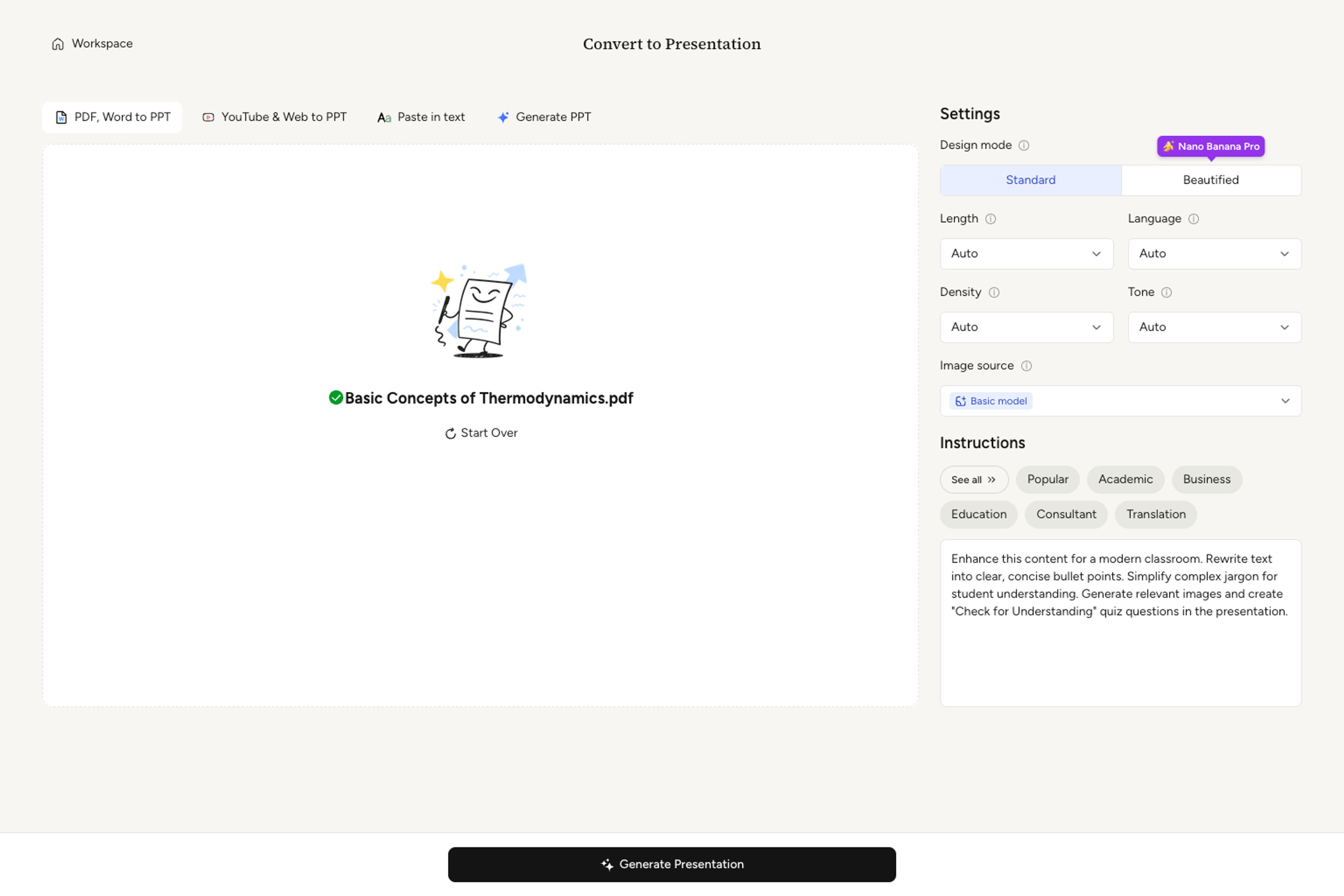
| Visual creation | Suggested visual layouts, category browsing, and brand styles | Infographics and diagrams from source content, plus slide design and image tools |
| Refinement | Visual selection and customization, plus agent-led slide refinement | Content and design requests through the agent; direct block editing in Standard mode |
| Editing after export | PowerPoint export supports continued editing | Standard slides can continue in PowerPoint or Google Slides |
| Related work | A more focused visual-creation environment | Summarization, presentation enhancement, and file conversion |
Our verdict: SlidesPilot is the better fit when the presentation depends on substantial source content and will go through several rounds of revision. Its advantage is the combination of content preparation, explicit generation settings, and editable delivery in the same workflow.
Napkin has two related experiences. In Visuals, text acts as the starting point for a diagram or infographic. A passage becomes a selection of visual interpretations, and the user chooses a layout, adjusts the treatment, and applies a style. The appeal is the close connection between a written idea and its visual expression.
Slides extends that approach into presentations. In the supplied product walkthrough, an agent conversation establishes the audience, scope, and length before the deck takes shape. Visual choices can be selected for individual slides or picked automatically. Brand styles help carry colors and typography across the result.
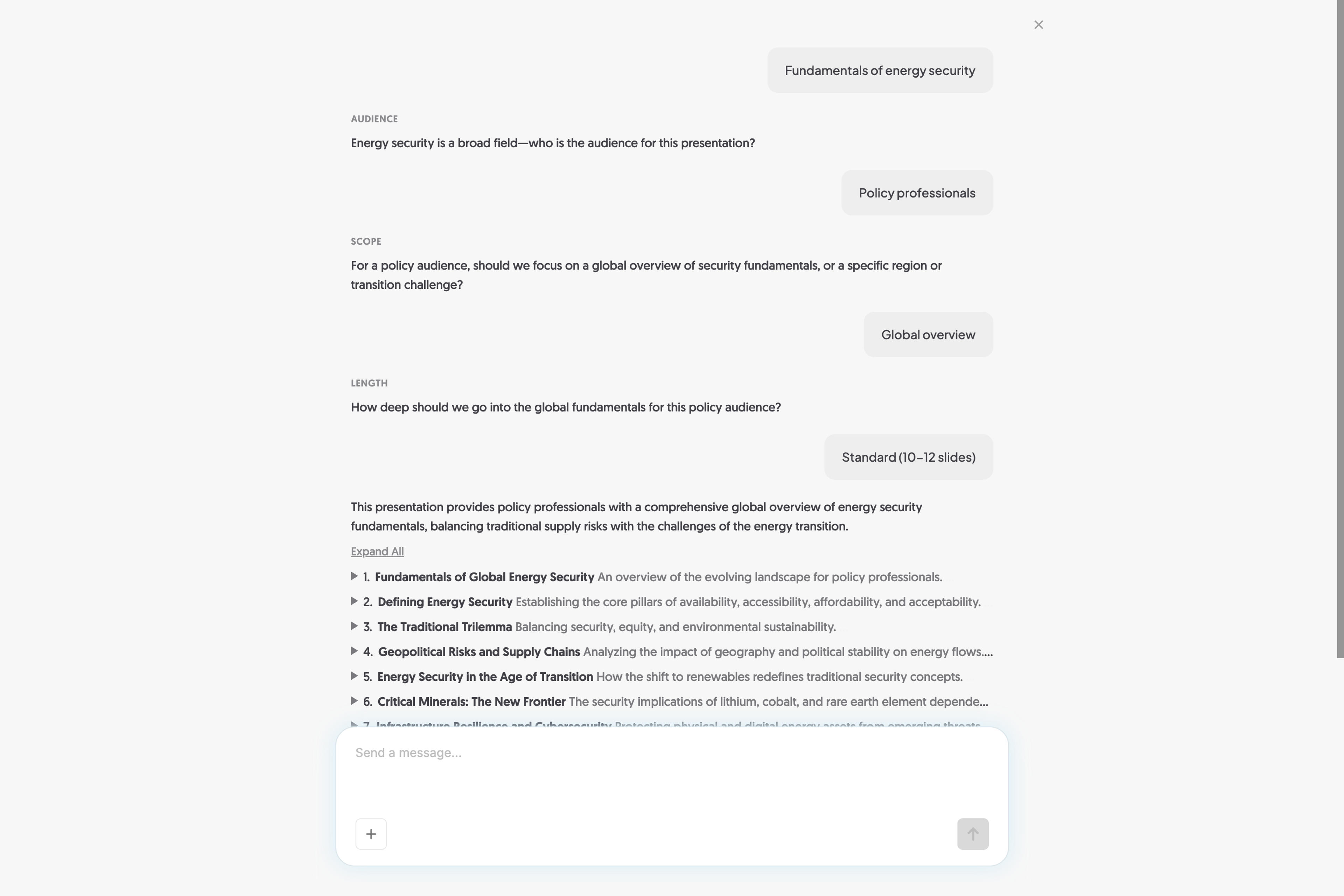
That makes Napkin feel conversational during setup and visual during refinement. It is easy to see the attraction when the main task is finding a diagram that expresses a paragraph. For a substantial report or lesson, however, visual selection is only part of the work. The explanation still needs the right amount of evidence, context, and detail across the deck.
Napkin’s presentation capability should be included in any current comparison. So should PowerPoint export. The stronger case for SlidesPilot is its broader source-processing and revision workflow, rather than a claim that Napkin cannot produce slides.
For a source-heavy presentation, these tradeoffs support choosing SlidesPilot: the work calls for deliberate content selection, control over detail, and revision of the argument as well as the graphics.
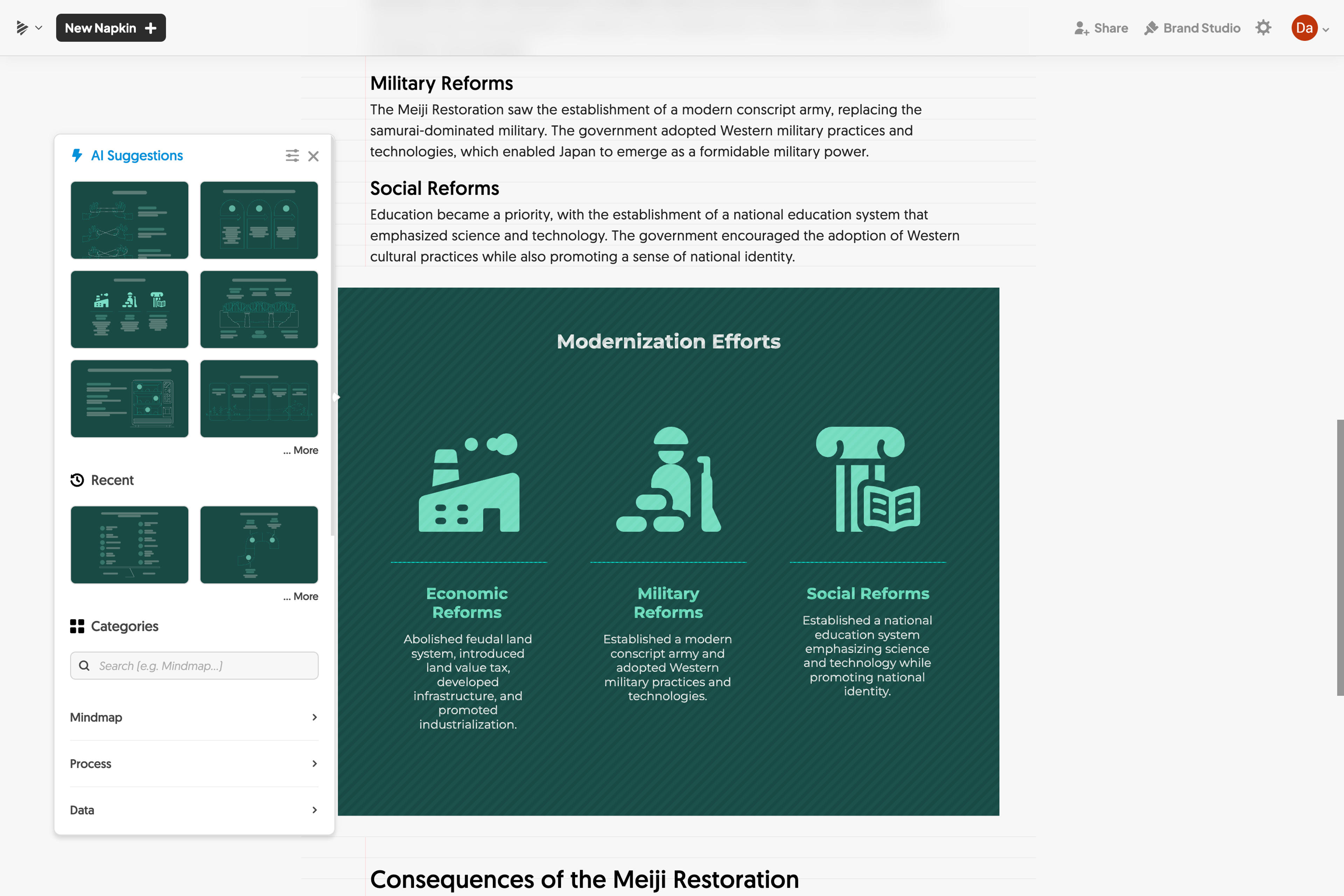
SlidesPilot starts with the material behind the presentation. That might be a research paper, a business report, lecture notes, or an online resource. The platform uses that material to develop the slide narrative, rather than requiring you to prepare every point in presentation form first.
The generation controls are visible together. Length establishes the scale of the deck; density controls the amount of information on each slide. Tone, language, and image source influence how the content is presented. Additional instructions supply context such as the audience, argument, or desired emphasis.
This approach is useful when you already know the assignment. A consultant can prioritize a recommendation and supporting evidence. A teacher can request explanations with examples. A student can organize a paper around its research question, method, and findings. The settings give those choices a clear place in the workflow.
Once the deck exists, the work moves into a preview and editing environment. The agent handles requests such as simplifying an explanation, translating content, or changing a slide’s design. Standard slides also have a block editor for direct changes. PowerPoint and Google Slides export let the presentation continue in the tools used by the audience or team.
The main tradeoff is the structured editor. It makes content organization straightforward, but it offers less freedom than a freeform slide canvas. There is also a meaningful difference between design modes: Standard produces editable slide elements, while Beautified uses image-based slide designs. Standard is the stronger choice when detailed manual editing is part of the job.
These are manageable tradeoffs for someone whose priority is a useful presentation draft with a clear editing path. SlidesPilot puts more of the source-to-presentation work into one environment, while still allowing the finished file to move elsewhere.
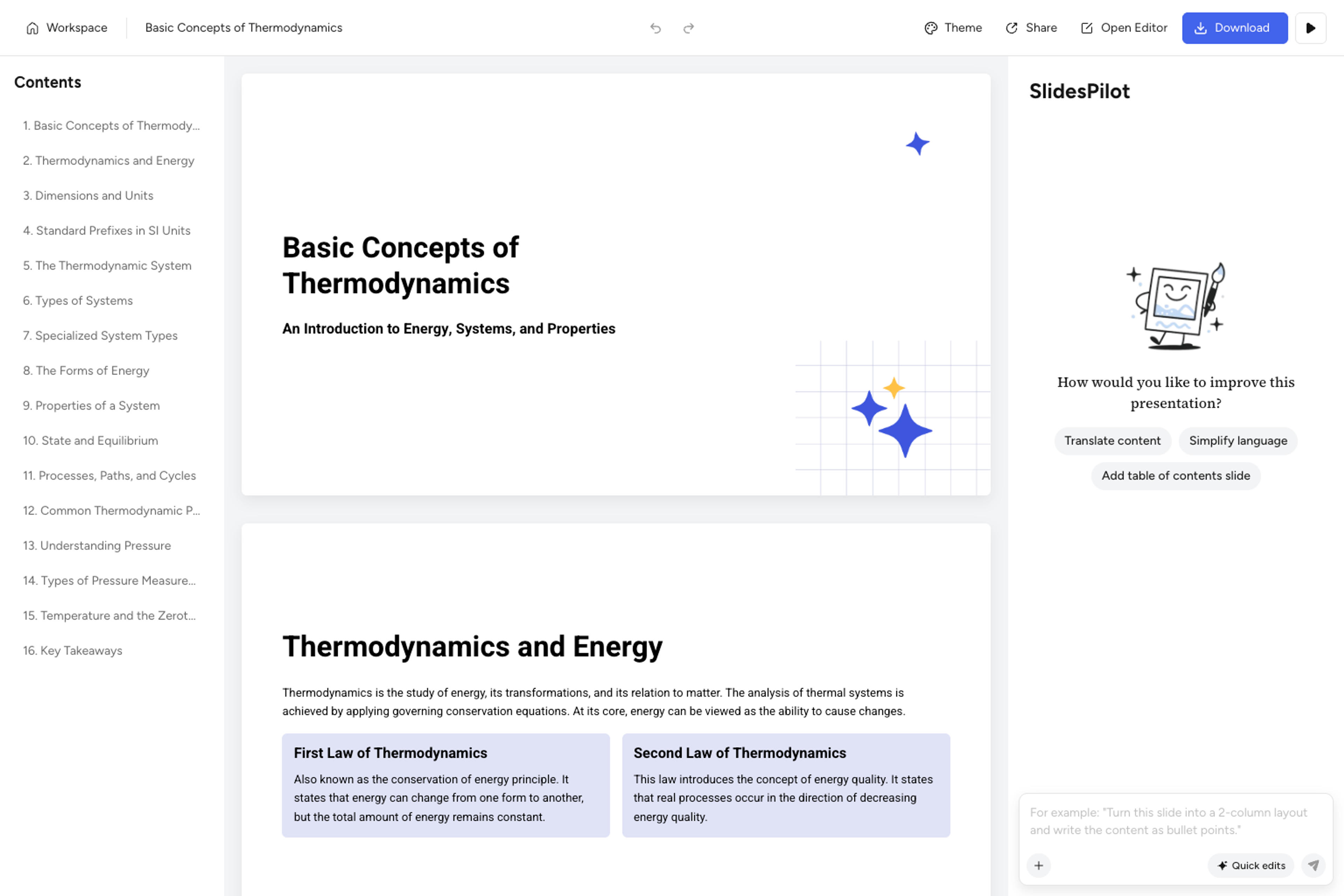
Turn your notes into a structured deck with control over detail, tone, and presentation style.
Create Your PresentationBoth products offer free access and paid subscriptions, but the tiers do not represent equivalent amounts of work. SlidesPilot separates presentation conversions or creations from AI credits used for features such as agent actions and image generation. Napkin uses AI credits across its generation workflows.
The table below separates monthly billing from the monthly rate shown for an annual subscription. All amounts are in USD; annual rates require an annual commitment.
| Product | Plan | Pay monthly | Annual plan: displayed monthly equivalent |
|---|---|---|---|
| SlidesPilot | Free | $0 | $0 |
| SlidesPilot | Starter | $9/month | $8/month; $96 billed yearly |
| SlidesPilot | Plus | $19/month | $15/month; $180 billed yearly |
| SlidesPilot | Pro | $39/month | $23.33/month; $280 billed yearly |
| Napkin AI | Free | $0 | $0 |
| Napkin AI | Plus | $12/person/month | $9/person/month, billed yearly |
| Napkin AI | Pro | $30/person/month | $22/person/month, billed yearly |
| Napkin AI | Enterprise | Custom quote | Custom quote |
SlidesPilot's Starter, Plus, and Pro plans offer 10, 30, and 200 presentation conversions or creations, alongside 300, 1,000, and 2,500 AI credits. Paid plans offer PowerPoint, Google Slides, PDF, and PNG downloads.
Napkin’s pricing page lists 500 weekly credits on Free, 10,000 monthly credits on Plus, and 30,000 monthly credits on Pro. Plus adds unlimited PPT and SVG exports and removes Napkin branding; Pro adds further branding and design features.
Those numbers cannot be compared one for one. A presentation creation, a word processed into a visual, an image generation, and an agent revision are different units of work. The relevant question is whether a plan covers the presentations you need to create, the revisions you expect to make, and the file formats you need to deliver.
A business report contains findings, context, and recommendations. A research paper contains a question, method, and evidence. SlidesPilot’s source-to-presentation approach is valuable because it helps organize those relationships across a deck.
Consider a project review. One diagram might explain the process, but the presentation also needs the original goal, what changed, the evidence, and the decision required. SlidesPilot provides a workflow for developing that broader story from the material you already have.
The same source may support a short management briefing and a detailed workshop. SlidesPilot’s length, density, and tone controls make those differences explicit before generation. The agent then provides a way to refine the content after the first draft.
This is a stronger fit for recurring presentation work than relying on visual treatment alone. You can adapt the explanation to the audience while keeping the source and purpose central.
Presentation work rarely ends with the initial layout. A reviewer asks for a clearer conclusion, a teacher needs simpler language, or a colleague wants another example. SlidesPilot combines content-processing requests with slide design and direct editing in Standard mode.
Standard export also gives the deck a practical handoff. PowerPoint or Google Slides can become the place for detailed finishing, feedback, or presentation delivery. That flexibility matters when your colleagues do not use the same AI creation tool.
SlidesPilot’s AI Summarizer, infographic tools, and presentation enhancement workflow support related preparation. A long document may need a summary before a briefing; an existing deck may need a new visual treatment; a complicated passage may need a diagram.
For users who regularly move between these tasks, SlidesPilot is the more versatile alternative. Its advantage is the range of useful deliverables around the presentation, backed by controls over content and a familiar export path.
For presentations built from documents, research, notes, or online sources, SlidesPilot is the stronger choice in this comparison. Its advantages are explicit generation controls, content and design refinement, and Standard-slide export to PowerPoint or Google Slides. This is a workflow recommendation, not a claim that it wins every visual-design task.
Yes. Napkin offers a Slides workflow as well as individual visual generation. Comparisons that describe it only as a diagram tool omit that capability.
Yes. Napkin supports PowerPoint export, and SlidesPilot supports editable PowerPoint output from Standard slides. SlidesPilot also provides a Google Slides output workflow. SlidesPilot’s Beautified image-based mode has a different editing model from Standard slides.
Napkin has expanded from visual explanations into slide creation, and a fair comparison needs to recognize that. SlidesPilot earns its place as the better alternative for source-heavy presentations through the combination of source processing, visible generation controls, content revision, and editable delivery.
If your next task starts with a report, paper, or set of notes and ends with a presentation other people need to understand and edit, SlidesPilot offers a practical path through the whole job.
Bring your source material, shape the narrative, and create a presentation you can keep editing.