


A recap after the presentation
Generate questions around the ideas in the deck. Use them to open a discussion or revisit the material at the next class.
Create quiz questions and answer explanations from the PowerPoint lesson you already teach.
Drag and drop your files here.
Paste a link from YouTube, TikTok, X/Twitter, Instagram, Facebook, or any website.
Start with your existing PowerPoint presentation.
Set the audience and question type. Specify the concepts learners should recall, compare, or apply.
Use the question-and-answer set for review, print it for practice, or edit the exported PPTX.
Keep the quiz connected to the lesson while choosing how learners demonstrate understanding.
Generate questions around the ideas in the deck. Use them to open a discussion or revisit the material at the next class.
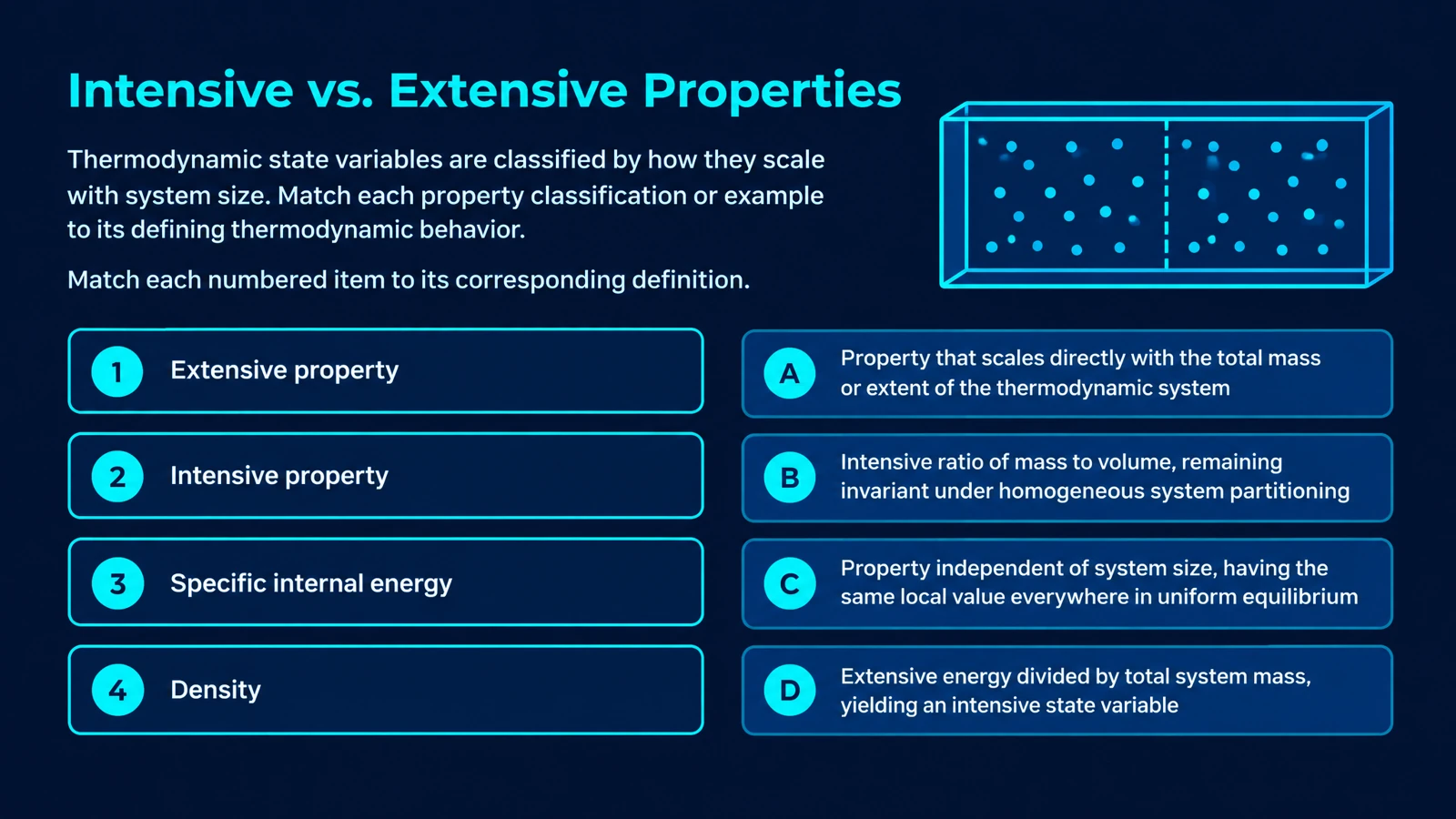
Choose multiple choice, matching, true or false, or fill in the blank. Set the format to suit the kind of understanding you want to check.
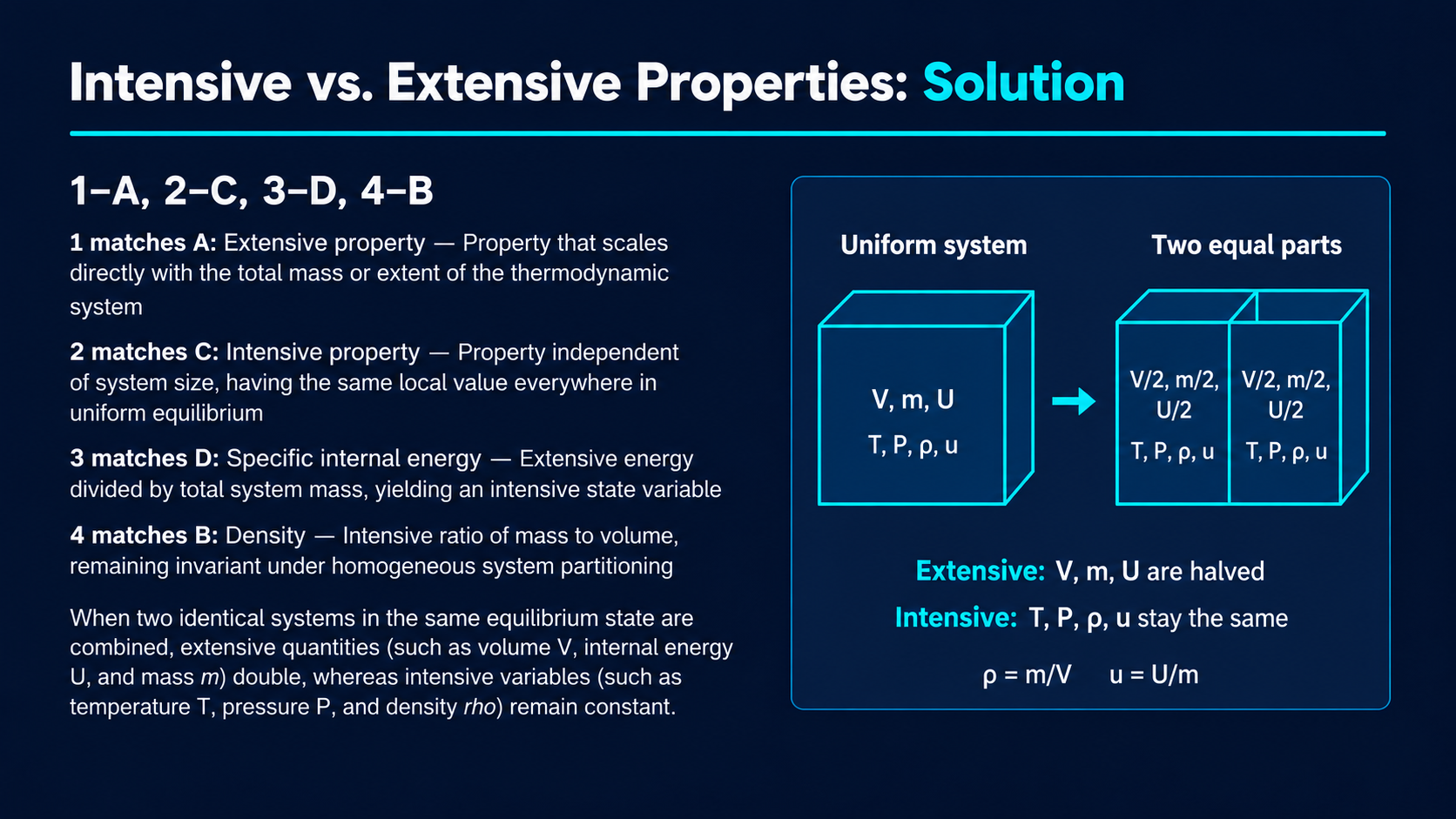
Reveal the generated answer pages to support your walkthrough. Visual explanations make the recap part of the teaching.
Bring the result into your teaching workflow.
Your existing presentation can supply both the subject and the context for a quiz. Choose the format that fits what happens after the explanation.
Print a practice copy: One-click printing turns the quiz into an offline activity for learners. Choose the question and answer pages you need in the print dialog.
Edit a new PowerPoint quiz deck: Export editable PPTX to adjust a question, add a class example, or arrange the quiz around the next session.
Present a question, then discuss it: Use the generated question-and-answer pages to lead a recap on-screen. Invite a choice or explanation first, then reveal the answer and connect it to the material from the lecture.
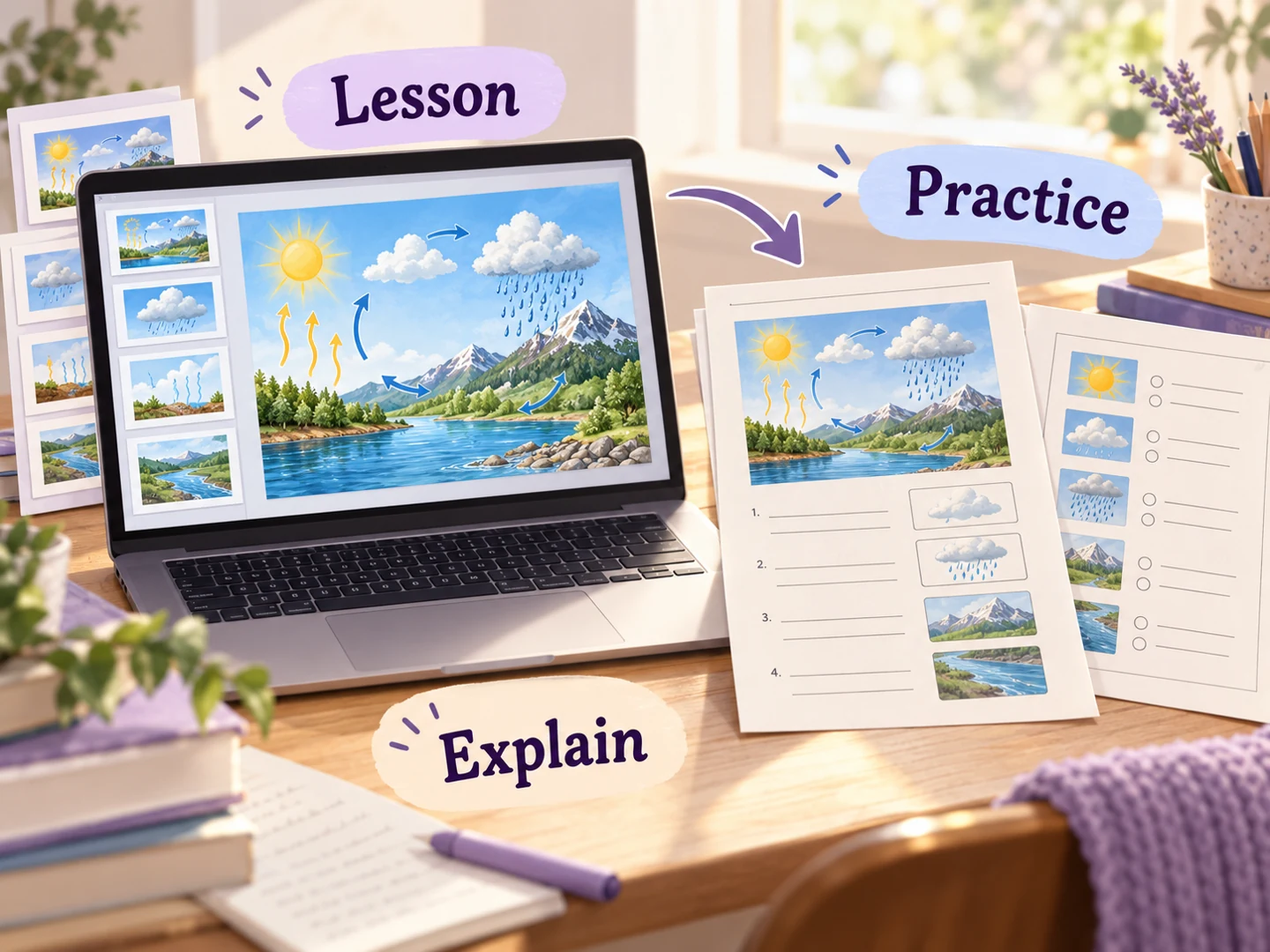
Upload a PPT or PPTX file, choose the question format, and set the audience and language. Tell SlidesPilot which ideas learners should recall, compare, or apply. It creates designed question-and-answer pages from your presentation, ready to use as a new lesson resource.
Yes. Start with the deck you used in class and describe the learning objectives you want to revisit. Present a question for discussion, reveal its explanation, or print a practice copy. This keeps the follow-up connected to the material learners have just covered.
Choose multiple choice, matching, true or false, or fill in the blank. Use matching for related terms, multiple choice for distinctions, or missing-word questions for terminology. Add instructions about the concepts and examples you want learners to work with.
Yes. Identify the topics or learning objectives to emphasize in your instructions. For a training deck, you might ask for questions about one procedure and how to apply it. Set the audience and depth so the questions fit the group and the time you have.
Yes. The set includes corresponding answer pages with explanations that support review. Reveal them during a walkthrough or keep them for independent practice. Visual explanations help you connect the answer back to the concepts from the presentation.
Yes. Choose the output language and audience and describe the vocabulary and complexity you want. A deck can support an introductory recap or more detailed practice. Export the resulting PPTX to keep adapting examples and wording to each group.
Yes. Download editable PPTX and revise questions, choices, answers, images, and layouts in PowerPoint. Bring selected questions into the original lesson deck or keep a separate quiz presentation. You can reuse the resource as your teaching material changes.
Yes. Select Print on the completed set and use page-range controls to choose the question pages for learners. Keep the answer pages for a later review, or print them separately. Save as PDF in the print dialog gives you a digital copy of the selected pages.
Reuse an existing slide deck as question-and-answer study material.
Create an editable quiz presentation for the shared classroom screen.
Create practice questions from a PDF reading or course document.
Build questions from a Word lesson, guide, or training handout.
Create a clear question, answer options, and a useful explanation.
Connect terms with definitions, examples, and related concepts.
Prepare question pages and answers for a paper-based activity.
Organize a practice set around your revision topics and goals.
Turn the deck you already teach into a quiz you can use next.