
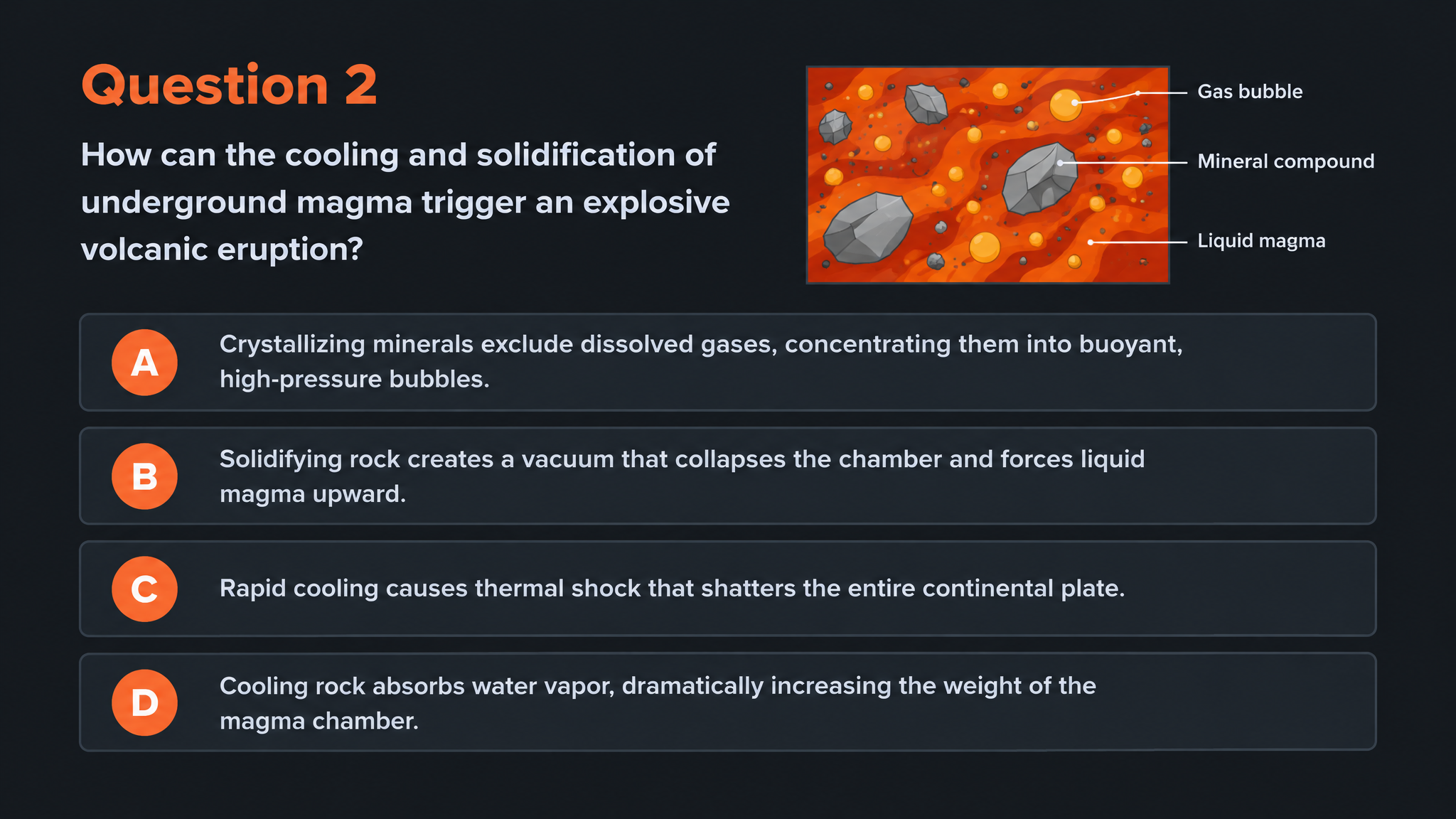
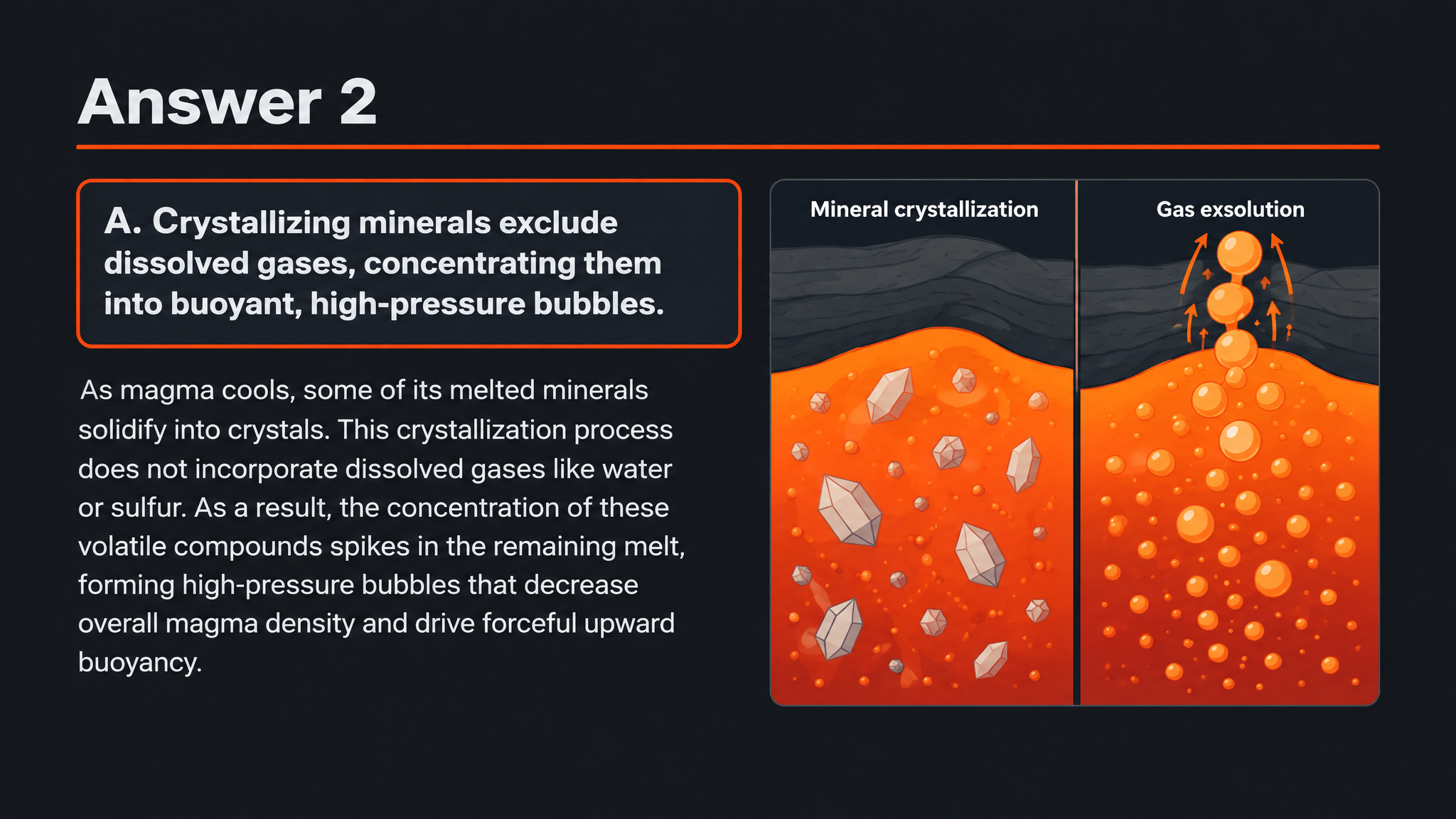

A quick exit question
Choose a concise quiz that checks the central lesson before the session ends. Use the explanation to close the loop.
Create quiz questions and explanations from a video link. Turn a demonstration or tutorial into a follow-up activity.
Drag and drop your files here.
Paste a link from YouTube, TikTok, X/Twitter, Instagram, Facebook, or any website.
SlidesPilot transforms video content into a question-and-answer activity, so watching becomes the start of a lesson you can continue.
Ask what the example shows and which concept explains it. A physics demonstration can become a question about forces, motion, or a cause-and-effect relationship.
Use questions to revisit the order and purpose of a process. Learners explain what comes next and why, rather than only recognizing a phrase from the presenter.
Reveal the answer after learners respond. Use its explanation as a starting point for comparing approaches or applying the idea to a new situation.
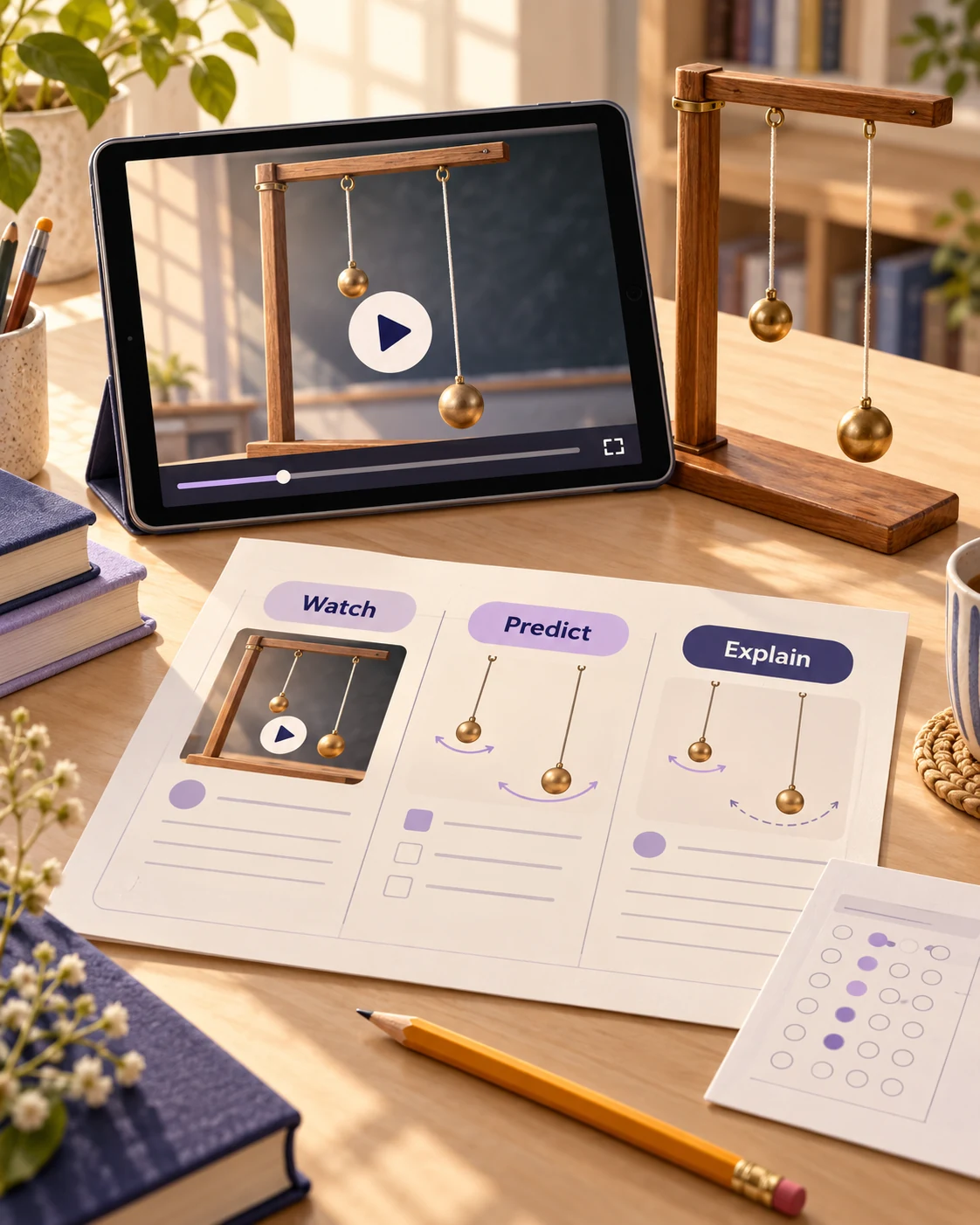
Use a link from YouTube, TikTok, X/Twitter, Instagram, or Facebook.
Choose the audience, language, question type, and length. Tell SlidesPilot what learners should take away.
Use the quiz after watching, print a practice copy, or edit the PPTX for your next class.
A short recap and a detailed review can start from the same source.
Choose a concise quiz that checks the central lesson before the session ends. Use the explanation to close the loop.
Print or project questions for learners to discuss together. Invite a reason for each answer before moving to the explanation.
Export editable PowerPoint to change the examples, reorder questions, and combine the set with other material you teach.
Paste its link, choose question settings, and generate. SlidesPilot uses the video content to create visual questions and answer pages for review or teaching.
Paste video links from YouTube, TikTok, X/Twitter, Instagram, or Facebook. Written websites also work through the same link tab when your source is an article.
Yes. Focus on the main explanation, an example, or a small number of key ideas. A short clip can support a quick classroom check or a focused practice activity.
Yes. Specify the concepts and level you want the quiz to cover. Choose a length that fits your review session and add instructions about the learning objectives.
Yes. Choose the quiz format and describe what learners should demonstrate. Multiple choice, matching, true or false, and fill in the blank support different kinds of practice.
Yes. The answer pages explain the generated questions. Use them to review the lesson independently or guide a conversation with learners.
Yes. Print the completed set and select the pages for the activity. You can keep answer pages for a later walkthrough or save the print selection as PDF.
Yes. Export editable PPTX and adjust the quiz in PowerPoint. Add a classroom example, change wording, or combine the questions with your existing presentation.
Make a lasting study resource from an educational video link.
Follow a YouTube explanation with questions learners can discuss.
Give assigned online reading a focused comprehension activity.
Use a focused statement to start a clear explanation of the answer.
Create a clear question, answer options, and a useful explanation.
Prepare question pages and answers for a paper-based activity.
Create an editable quiz presentation for the shared classroom screen.
Build visual questions and answer explanations for your next lesson.
Create the next learning activity from the link you have.