

How to Add Bullet Points in Google Slides
Add and style bulleted lists in Google Slides, indent supporting details, and use the right controls on desktop or mobile.

Add and style bulleted lists in Google Slides, indent supporting details, and use the right controls on desktop or mobile.
A slide with a few tasks or talking points is easier to scan when each item has its own line. In Google Slides, you can turn text you already have into a bulleted list, then indent supporting details under the point they belong to.
To add bullet points in Google Slides, click inside a text box and choose Bulleted list in the toolbar. For text you’ve already written, highlight the lines first. The shortcut is Ctrl + Shift + 8 on Windows and Chromebook or ⌘ + Shift + 8 on Mac. If the button is hidden, click More (the three dots) in the toolbar.
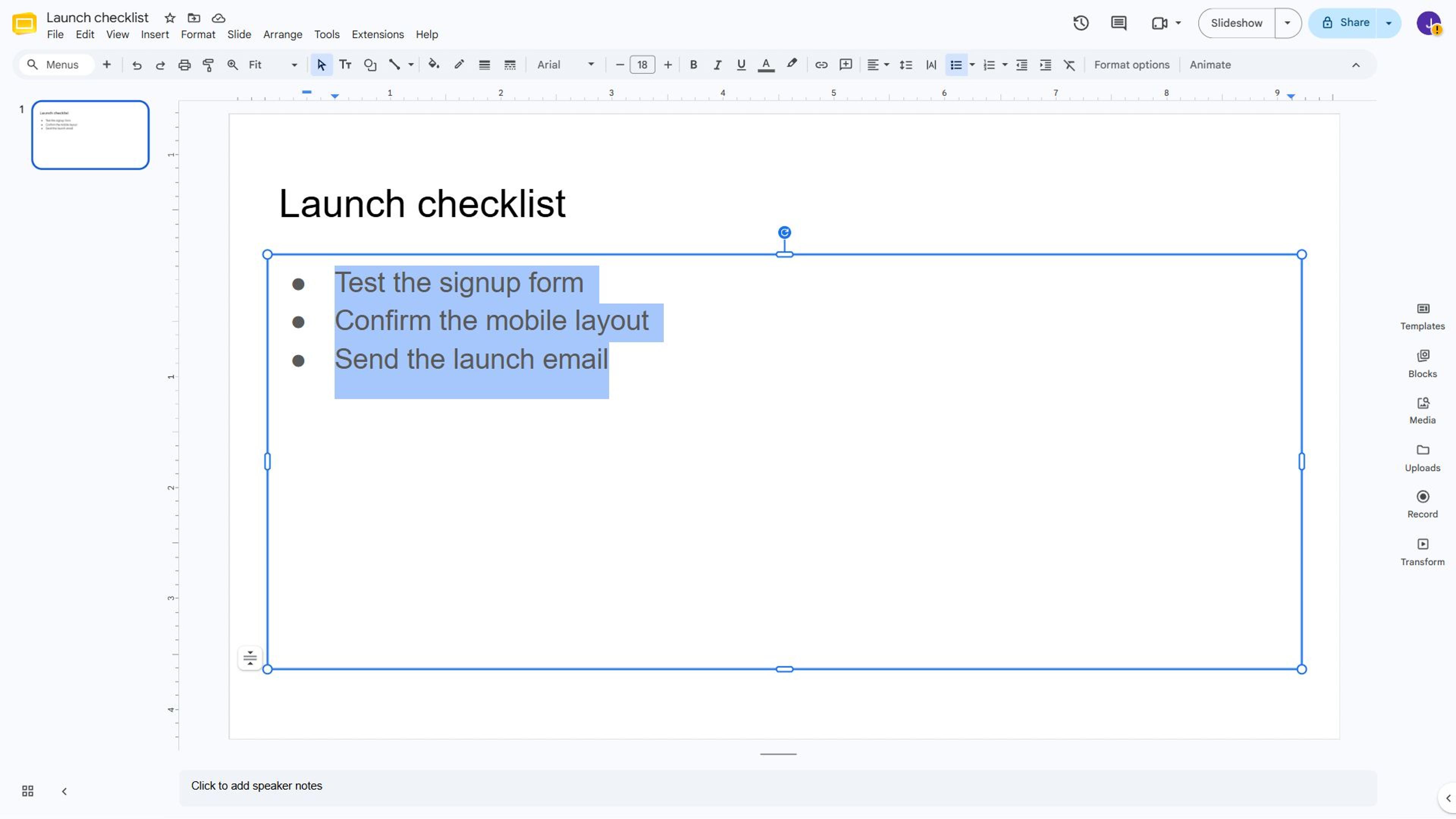
If your text came from an email or notes app, put each item on its own line. Remove any bullet characters that pasted as plain text before applying the list format, so each item has a single marker.
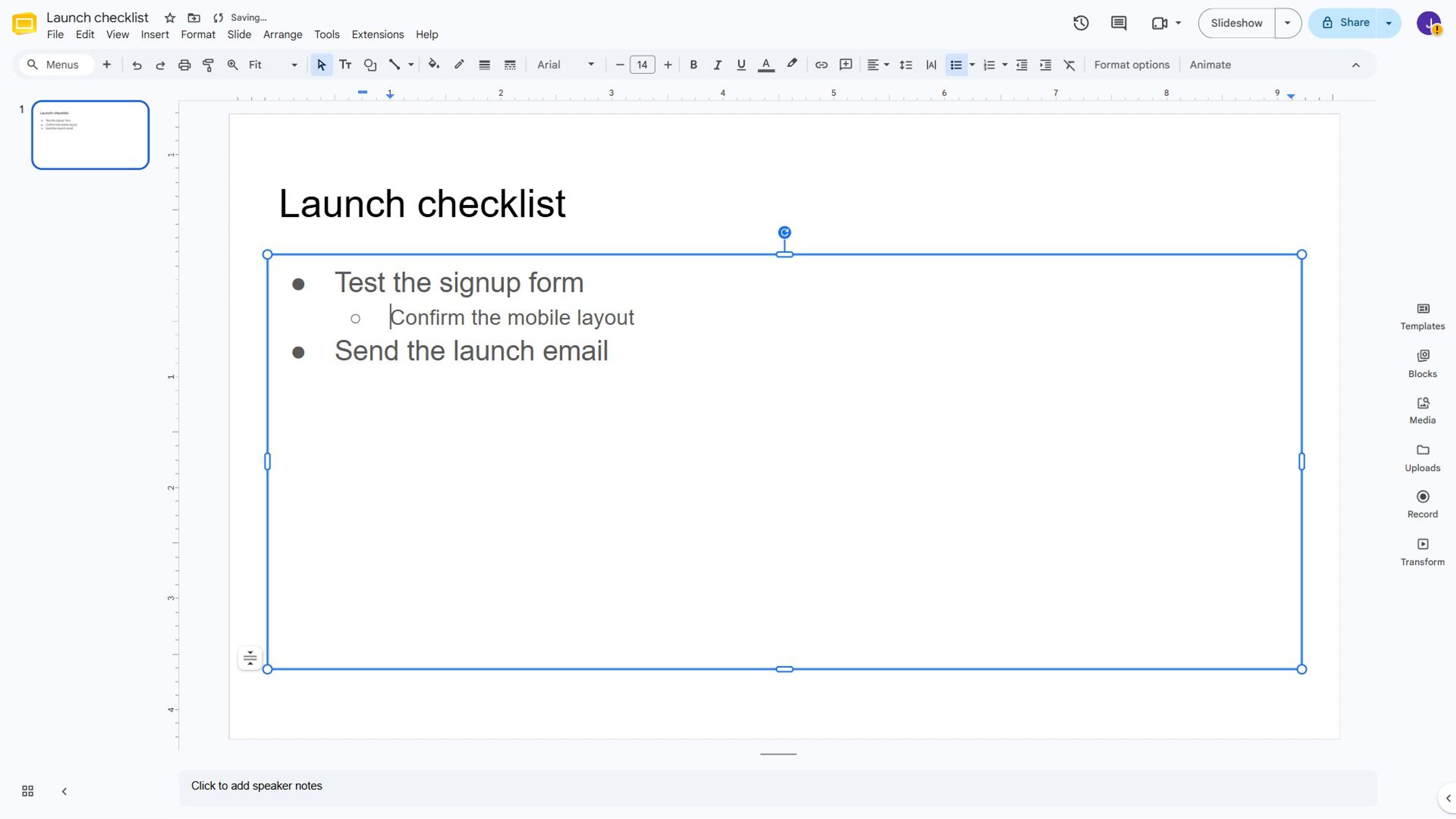
Place your cursor at the start of a bullet and press Tab to indent it one level. Press Shift + Tab at the start of a sub-bullet to move it back one level. You can also place the cursor in the item and use Increase indent or Decrease indent in the toolbar.
If a long bullet wraps, adjust the text box width to give it more room. For more space between items, select the list and use Format → Line & paragraph spacing. Set paragraph spacing to add a gap between items while keeping wrapped lines together.
If the list fills most of the slide, group the details into a few main points or give a separate decision its own slide. See the guide to making Google Slides look good for layout examples.
Paste your notes into SlidesPilot to create a presentation, and export it to Google Slides for editing.
Turn My Notes Into SlidesOpen the arrow next to Bulleted list and choose a preset, such as circles or squares. For a custom marker, click a bullet and choose Format → Bullets & numbering → List options → More bullets. To change the marker color, click the bullet marker and choose Text color in the toolbar.
In the Google Slides app, open your slide and tap into the text box. To format text that’s already there, double-tap a word and drag the selection handles over the lines.
Use Increase indent or Decrease indent at the bottom to change a bullet’s level.
On a computer, select the text box and choose Insert → Animation. In Object Animations, select Appear and On click, then check By paragraph. Click Play to preview the sequence.
Have an outline or a page of bullet points? Paste it into SlidesPilot to create a presentation, and export it to Google Slides for editing.