

How to Add Speaker Notes in PowerPoint (Windows, Mac, and Web)
Add notes beneath a slide, keep them on your presenter screen, and turn them into a script you can rehearse from.
Add notes beneath a slide, keep them on your presenter screen, and turn them into a script you can rehearse from.
To add speaker notes in PowerPoint, select a slide, open Notes below it, and type in the Notes pane. Each slide has its own notes. When you present in desktop PowerPoint, use Presenter View to read those notes while your audience sees the slideshow.
Select the next slide to add its notes. Save the deck when you finish.
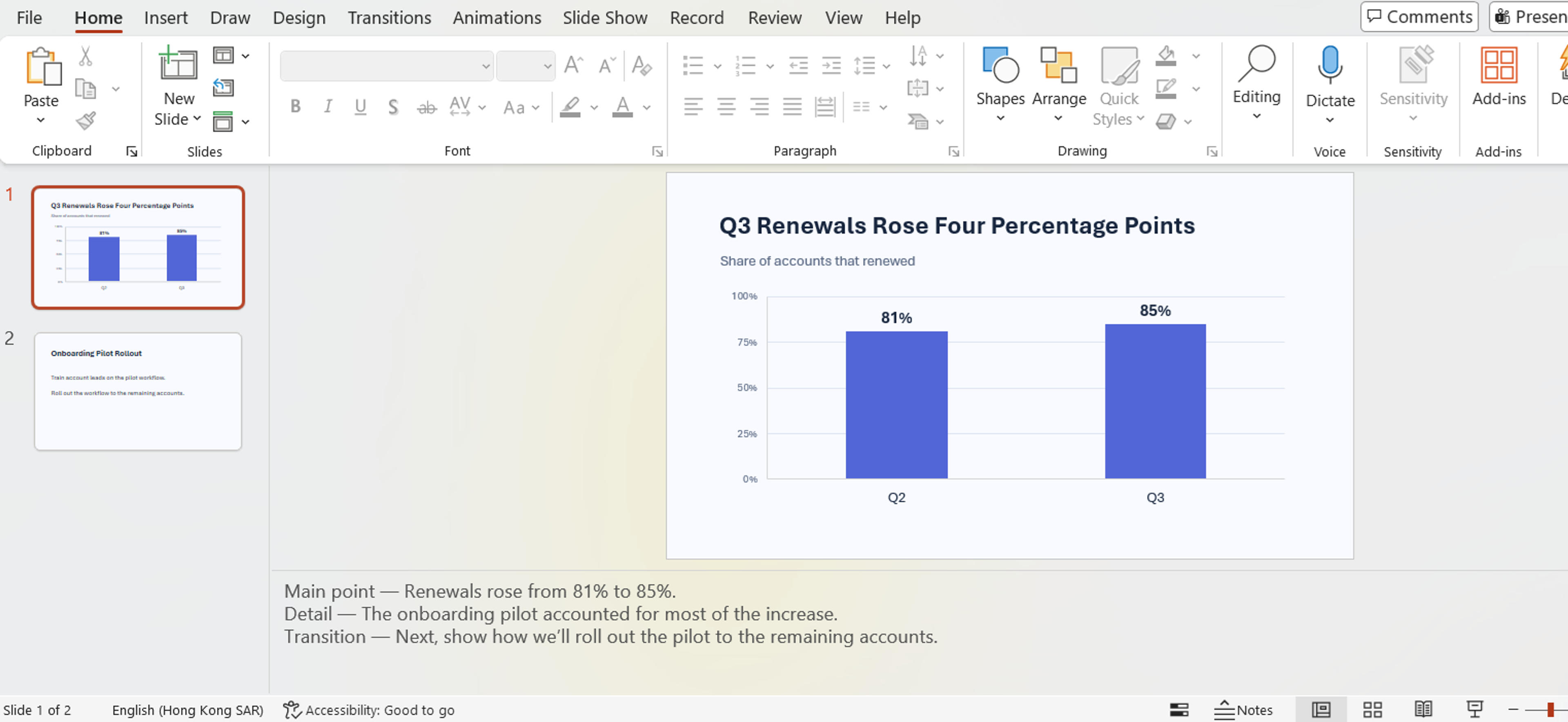
Open the deck in editing view, select a slide, and choose View → Notes. Type in the pane that opens below the slide. To read your notes in Presenter View during a slideshow, open the deck in the Windows or Mac desktop app.
Give yourself three cues for each slide. Write the point to make, the detail to say aloud, and the line that takes you to the next slide.
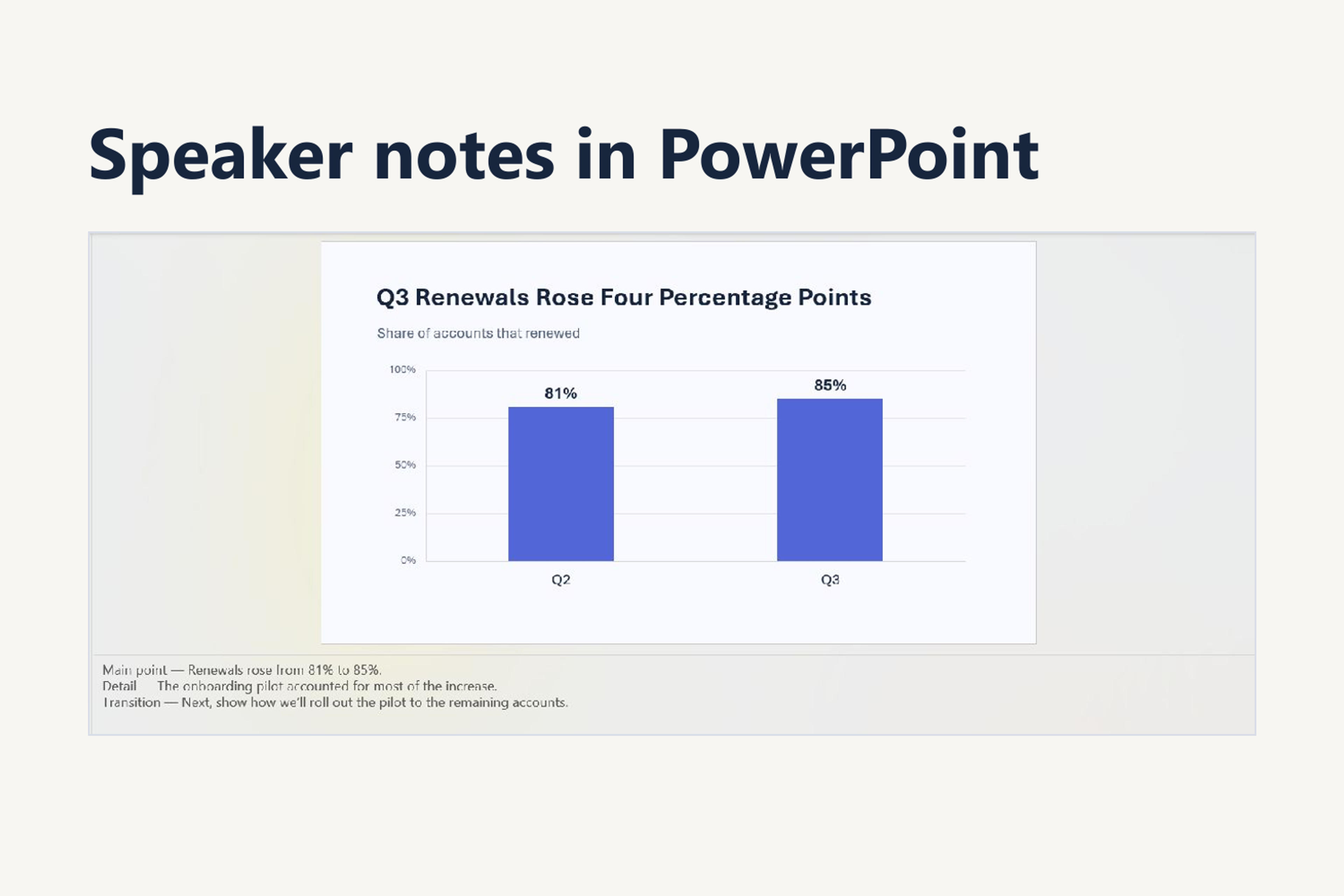
For a sample slide titled Q3 Renewals Rose Four Percentage Points, the notes might look like this.
The audience sees the chart and headline on the slide. The extra context is in your notes, ready when you reach that slide.
Connect a second display if you’re presenting in the room. Extend your desktop across the two displays so PowerPoint can show a different view on each.
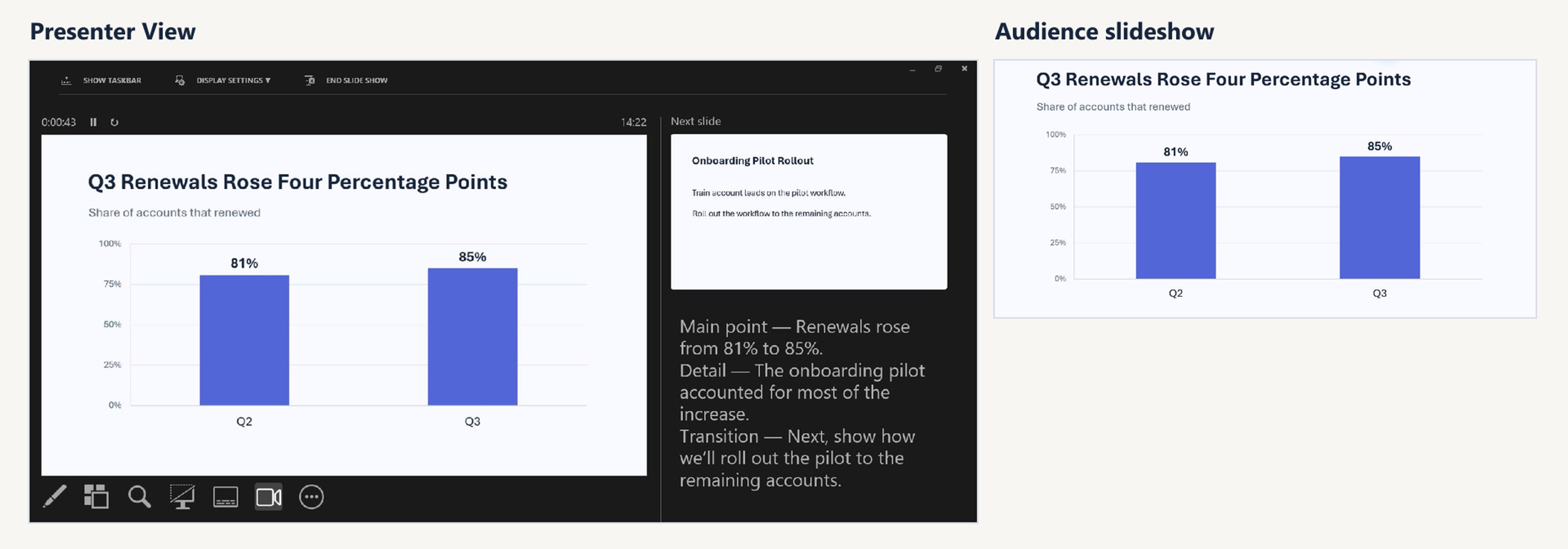
On your display, the notes for the current slide appear on the right. On the audience display, only the slideshow appears. If the displays are reversed, use Display Settings → Swap Presenter View and Slide Show on Windows or Swap Displays on Mac.
For a video call, share the slideshow window or the display showing the slideshow. In Microsoft Teams, you can also choose your deck under PowerPoint Live to get a dedicated presenter view. Check the share preview before you begin so you know which view the audience will see.
To print the slide with its notes underneath, open File → Print. On Windows, select Notes Pages under Print Layout. On Mac, choose Notes from the Layout menu under PowerPoint.
For a notes-only script, save the deck as a .pptx, upload it to the SlidesPilot speaker notes extractor, and choose an export format. Pick Word for an editable rehearsal copy, TXT for plain text, or Markdown for a writing workspace. The exported document gives you the talking points from your slides in one place.
Already added your notes? Export them to Word, TXT, or Markdown for rehearsal, editing, or sharing.
Extract Speaker NotesYes. In PowerPoint for Windows, start the slideshow, open the three-dot menu on the lower-left toolbar, and select Show Presenter View. On Mac, use Slide Show → Presenter View.
Yes. People who receive the .pptx can open its Notes pane. To remove the text from a copy in PowerPoint for Windows, choose File → Info → Check for Issues → Inspect Document. Inspect Presentation Notes and select Remove All next to the result.
Upload your PowerPoint to get a separate copy of your notes for your next rehearsal.