

How to Make NotebookLM (Gemini Notebook) Slides Editable in PowerPoint
A first-hand walkthrough from Gemini Notebook source upload and slide revision to an editable PowerPoint created with SlidesPilot.
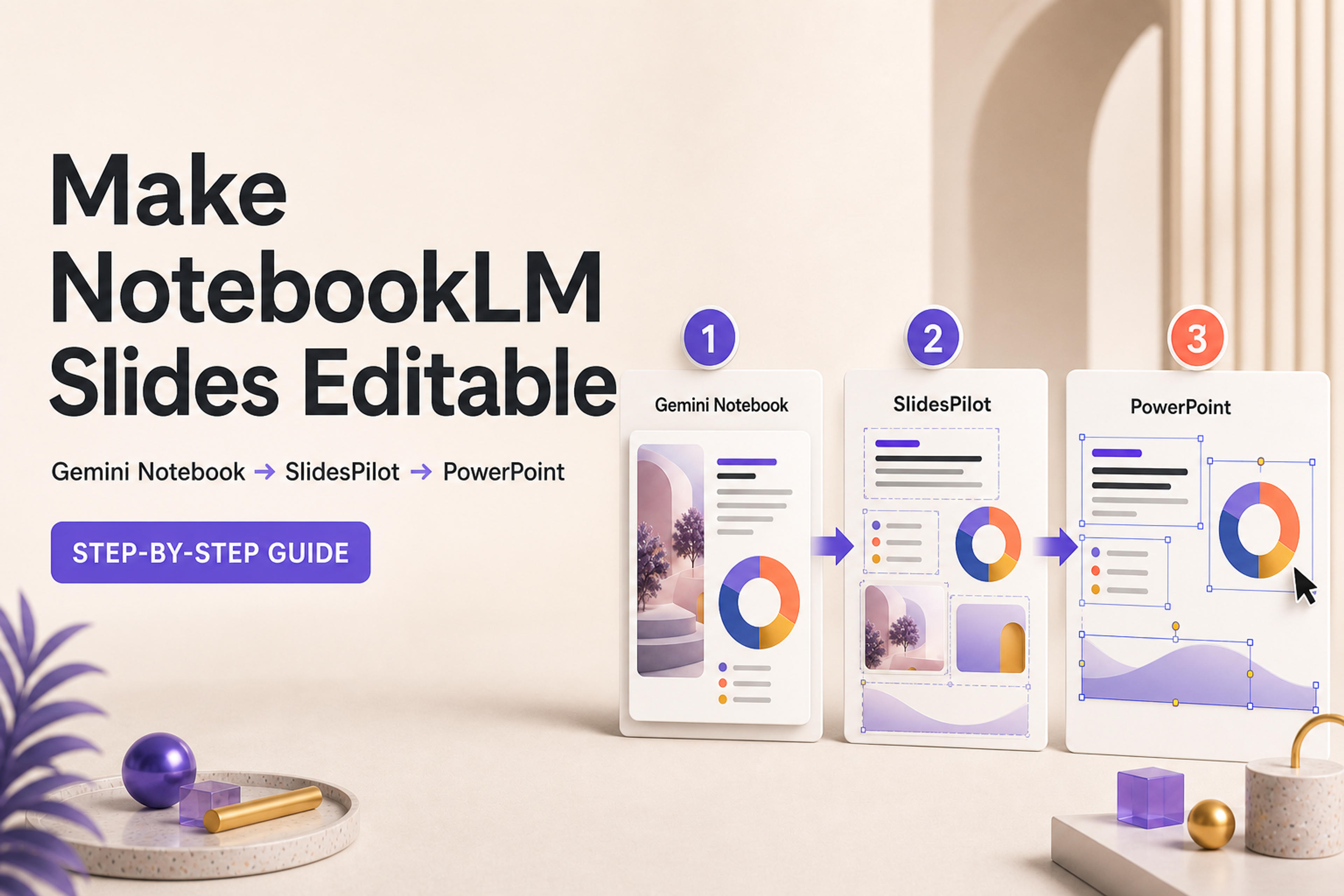
A first-hand walkthrough from Gemini Notebook source upload and slide revision to an editable PowerPoint created with SlidesPilot.
Yes—you can make NotebookLM slides editable. The most effective workflow is to use Gemini Notebook (the new name for NotebookLM) to build and revise the source-grounded deck, export it as a PDF or PowerPoint file, and then use SlidesPilot to reconstruct the slide text and visual elements as editable PowerPoint objects.
For this guide, we ran that entire workflow ourselves. We created a new Gemini Notebook, uploaded the original *Attention Is All You Need* research paper, explored the source in chat, generated a 13-slide presentation, revised a slide, exported the deck, converted it with SlidesPilot, and opened the result in Microsoft PowerPoint. Every screenshot below comes from that first-hand test.
The complete process has four stages:
This workflow combines the strengths of both products. Gemini Notebook turns a trusted source collection into a visual narrative. SlidesPilot carries that narrative into an editable presentation workflow where you can customize the deck for a class, client, meeting, conference, training program, or internal review.
Google renamed NotebookLM to Gemini Notebook on July 16, 2026. It is the same standalone research product, and existing notebooks continue to work in the renamed experience.
Both names matter for this tutorial. The interface now says Gemini Notebook, while many users still search for “NotebookLM slides,” “NotebookLM PPT,” and “how to edit NotebookLM slides.” Throughout this guide, NotebookLM and Gemini Notebook refer to the same product.
The rename also makes the end-to-end workflow easier to understand: Gemini Notebook is the source-grounded research and slide-generation workspace, while SlidesPilot turns the exported deck into an editable PowerPoint deliverable.
“Editable” can describe two complementary workflows. Choosing the right one depends on the change you want to make.
| Editing workflow | How it works | Best for |
|---|---|---|
| Gemini Notebook Revise | Describe the change you want and generate a revised version of the selected slides | Simplifying explanations, changing the visual direction, revising several slides together, deleting slides, and reorganizing the story |
| Direct PowerPoint editing | Select individual text boxes, images, shapes, and slide elements in PowerPoint | Updating exact wording, applying brand fonts and colors, moving objects, adjusting spacing, replacing visuals, and collaborating in a familiar PPTX workflow |
Gemini Notebook's Revise mode is a fast way to direct the AI at the slide level. SlidesPilot adds direct element-level control after export. You can use either workflow independently, but using them together gives you a strong source-to-presentation process: generate and refine the story first, then finish the deck with precise PowerPoint editing.
We used the same presentation from beginning to end so the result would be easy to verify. The source was the original Transformer research paper, *Attention Is All You Need*. Gemini Notebook created a visual explainer deck from the paper, and SlidesPilot converted that exported deck into a PowerPoint file that we could edit directly.
Open Gemini Notebook and select Create new notebook. The home screen keeps recent notebooks together, so the full research project—including sources, chat history, generated outputs, and Slide Decks—stays in one workspace.
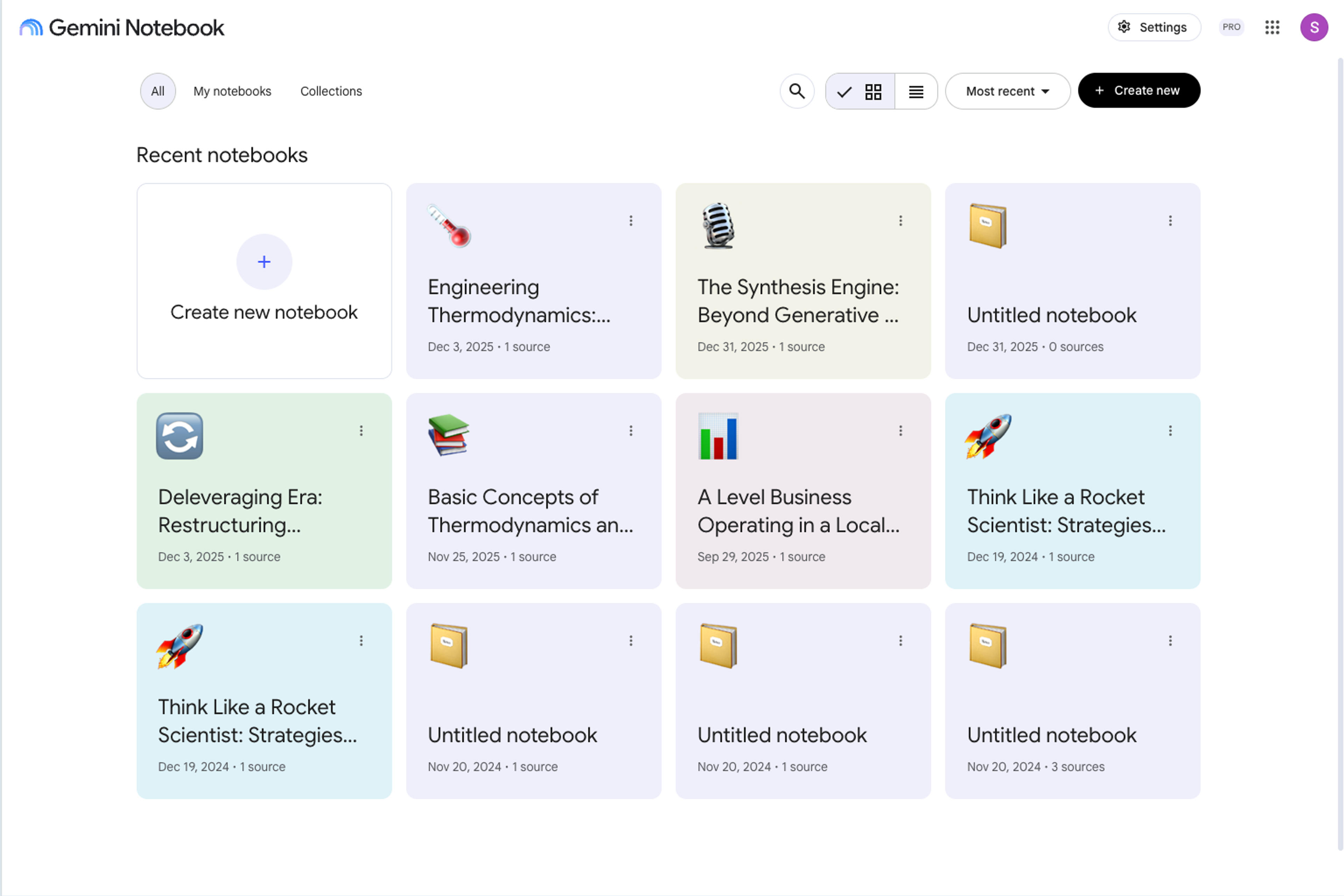
Starting with a dedicated notebook is useful because the Slide Deck will be built from the sources attached to that project. A focused source collection gives Gemini Notebook a clear body of material to organize into a presentation.
Select Add sources. Gemini Notebook accepts several starting points, including uploaded files, websites, Google Drive content, copied text, and web research.
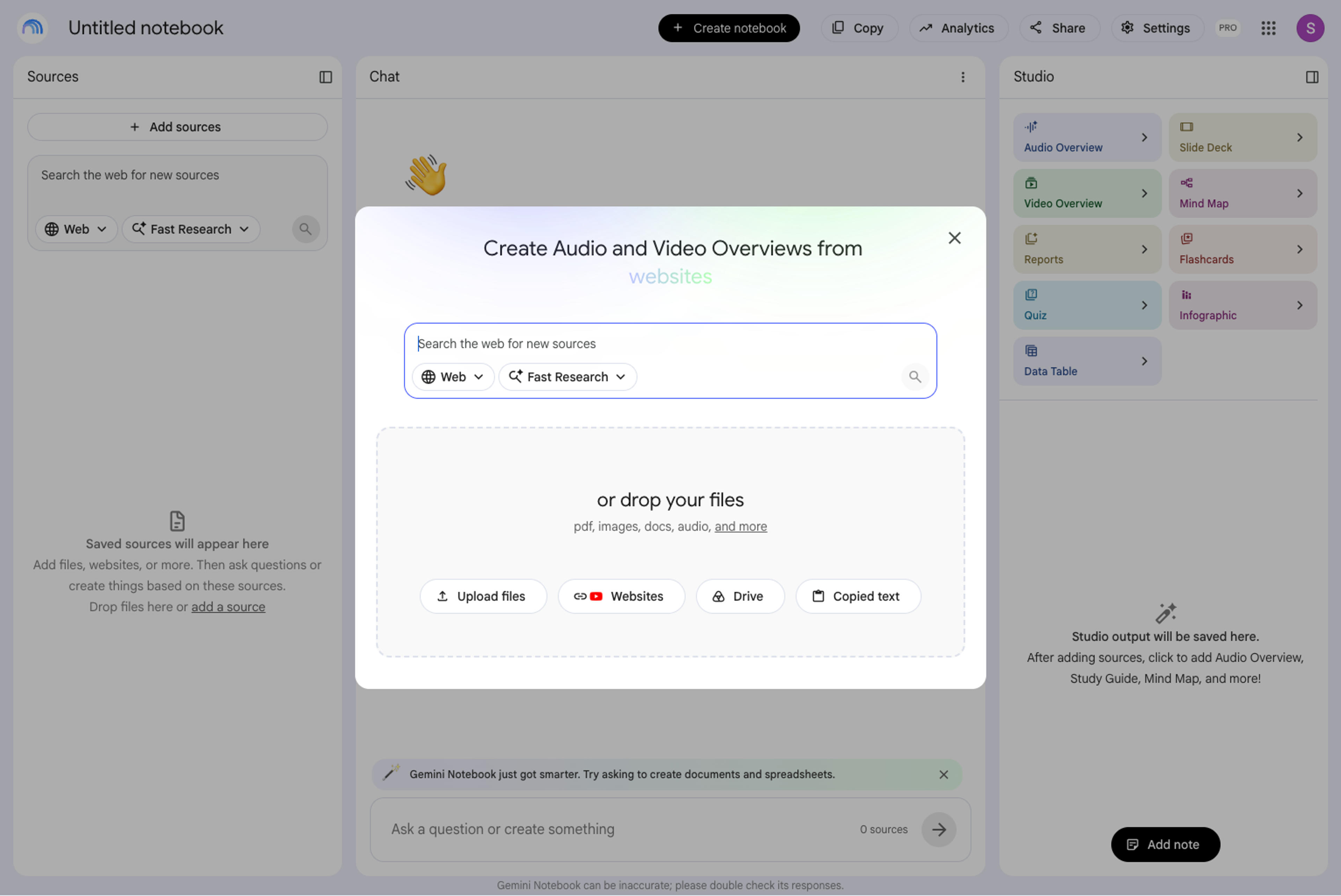
For our test, we uploaded the *Attention Is All You Need* paper as a PDF. This gave the notebook one authoritative source for the presentation. The same workflow works well for reports, academic papers, course readings, product documentation, meeting material, and other content that already contains the knowledge you want to present.
Once the source is ready, Gemini Notebook creates a source overview and lets you ask questions in chat. We asked, “What is this paper about?” to confirm that the notebook had identified the paper's central ideas: the Transformer architecture, self-attention, parallelization, and the model's translation results.
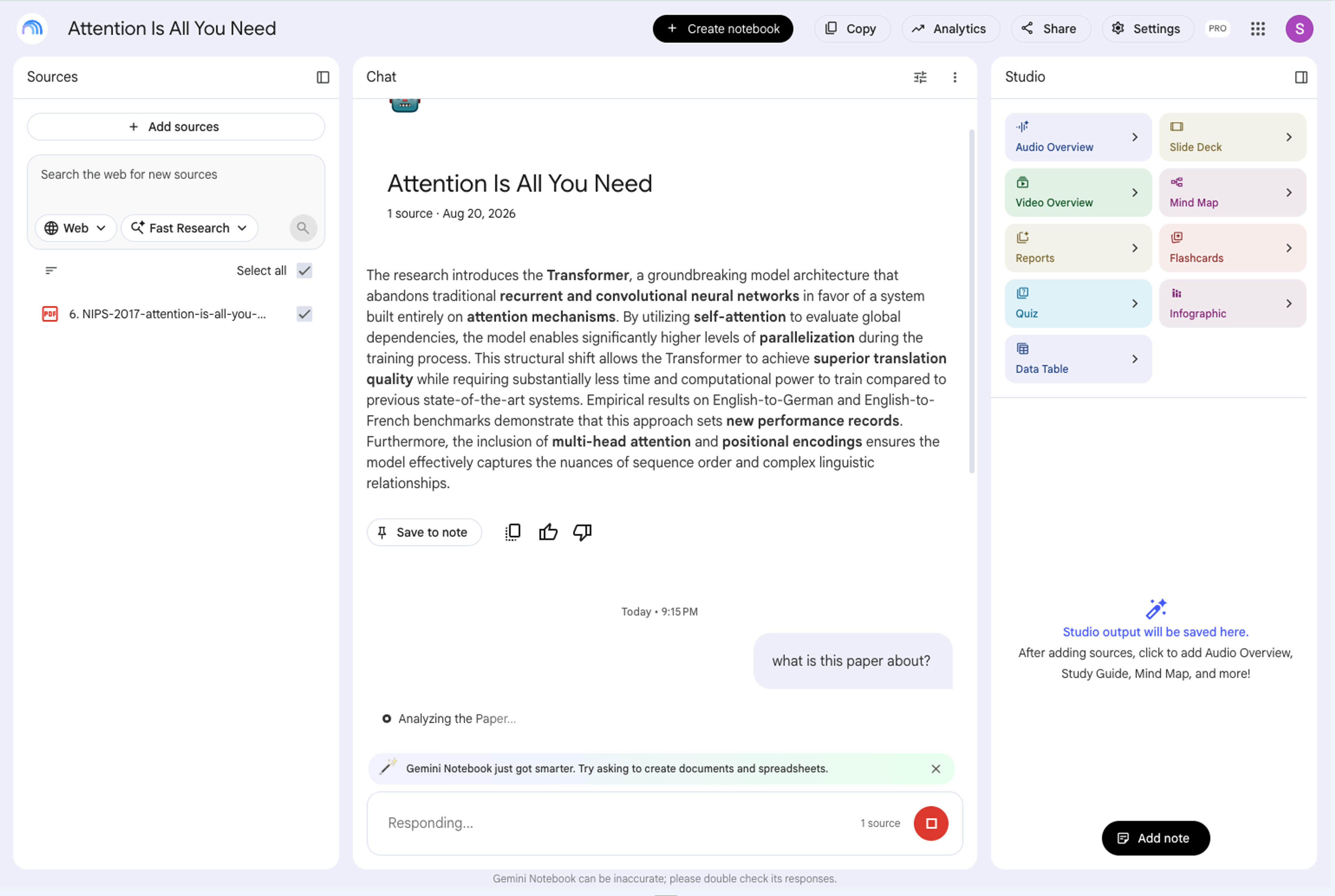
This is a valuable preparation step. A short conversation with the source helps you identify the argument, audience, and level of detail the presentation should use. You can then carry those decisions into the Slide Deck prompt instead of asking for a generic summary.
In the Studio panel, select Slide Deck and open the customization settings. Gemini Notebook lets you choose between a Detailed Deck and Presenter Slides, select the output language and length, confirm the sources, and add instructions for the audience, style, outline, and focus.
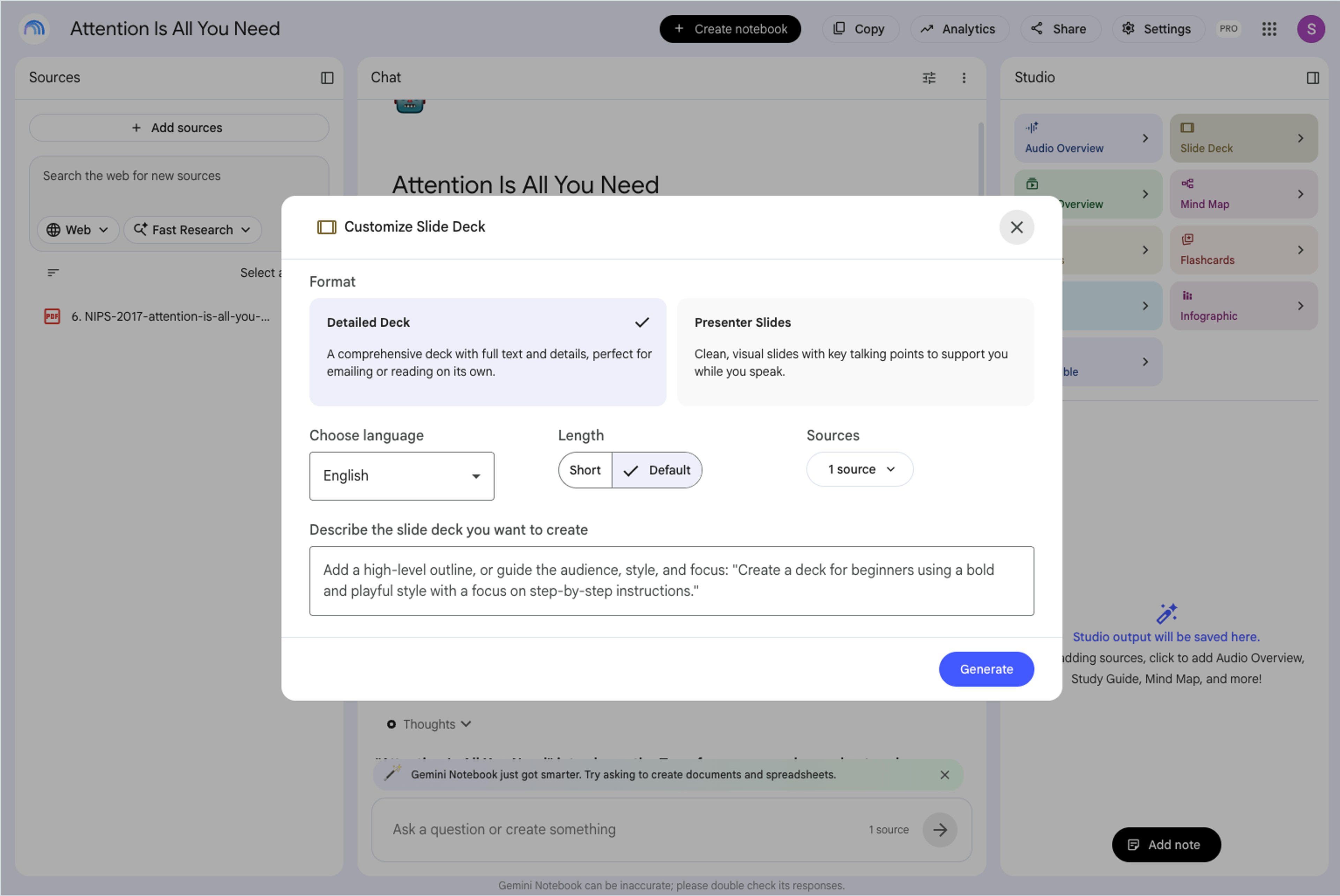
For this walkthrough, we selected a Detailed Deck in English using the uploaded research paper. Detailed Decks are well suited to self-contained explanations, while Presenter Slides emphasize concise talking points that support a speaker.
The instruction box is where you can make the result more purposeful. Include the intended audience, presentation goal, visual direction, and the concepts that deserve the most attention. A clear generation prompt produces a stronger first version and makes later editing more focused.
Upload the PDF or PPTX to SlidesPilot. AI reconstructs the original text and slide elements so you can continue in PowerPoint with the design you already chose.
Make My Slides EditableGemini Notebook generated a 13-slide presentation titled Transformer Blueprint. The deck turned the research paper into a visual sequence covering scaled dot-product attention, multi-head attention, positional encoding, and the complete Transformer architecture.
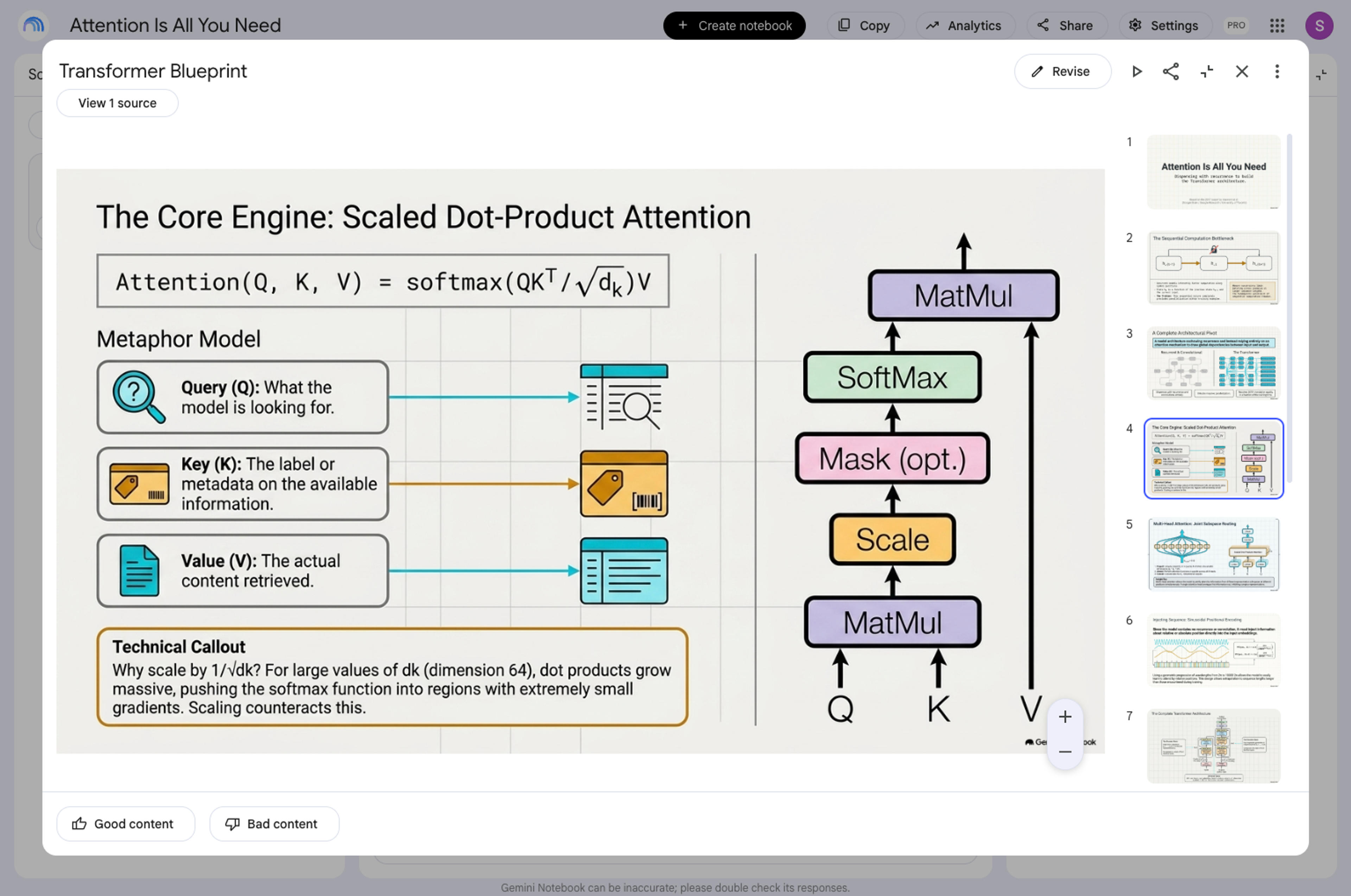
At this stage, review the whole deck as a story. Check whether the opening establishes the topic, whether each slide advances the explanation, and whether the ending delivers the right takeaway. The thumbnail rail makes it easy to scan the sequence before you begin revising individual slides.
Select Revise to add instructions to one or more slides. In our test, we asked Gemini Notebook to “make this easier to understand” on a technical slide about scaled dot-product attention.
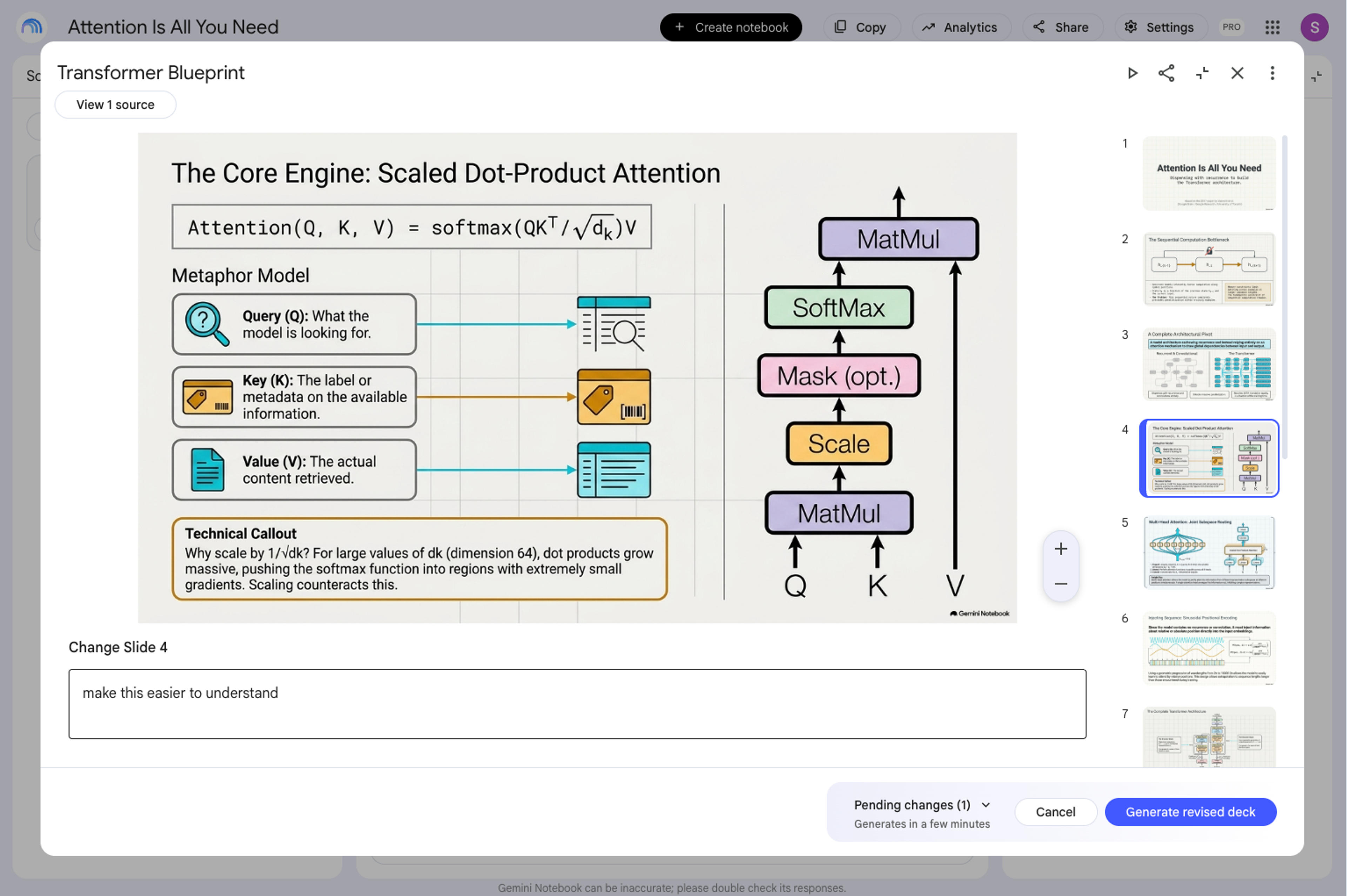
Gemini Notebook groups slide instructions as pending changes and then generates a revised deck. This makes it practical to batch several improvements into one revision: simplify an explanation, adjust a visual, change the tone, delete a slide, or move slides into a stronger order.
Revise mode is especially effective when you want the AI to reinterpret a slide as a whole. Once the story and visual direction are ready, the next stage gives you direct control over the presentation elements.
Open the three-dot menu and choose Download PDF Document (.pdf) or Download PowerPoint (.pptx). Both formats can continue into the SlidesPilot workflow.
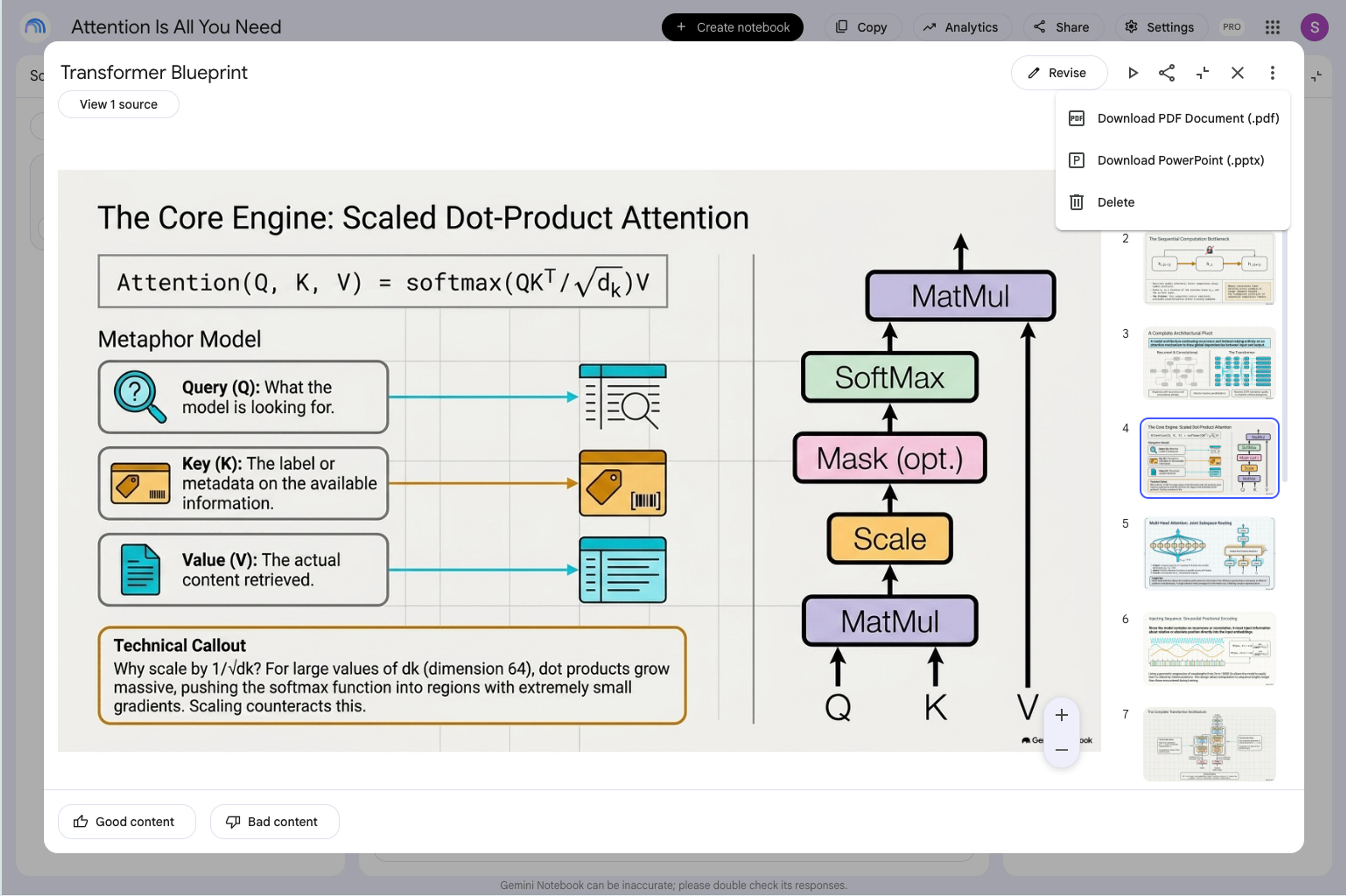
The export preserves the presentation Gemini Notebook created: the composition, diagrams, typography, images, colors, and overall slide design. When those slides are represented as rendered slide artwork, SlidesPilot can reconstruct the original content into editable PowerPoint elements while keeping that visual structure as the foundation.
The next three steps complete the handoff from an AI-generated Slide Deck to a working PowerPoint file. In our test, we used the exported Transformer_Blueprint.pptx file, but the same SlidesPilot page also accepts the PDF version.
Open the NotebookLM to editable PowerPoint converter and upload the Gemini Notebook PDF or PPTX. Once the file is ready, select Make Slides Editable.
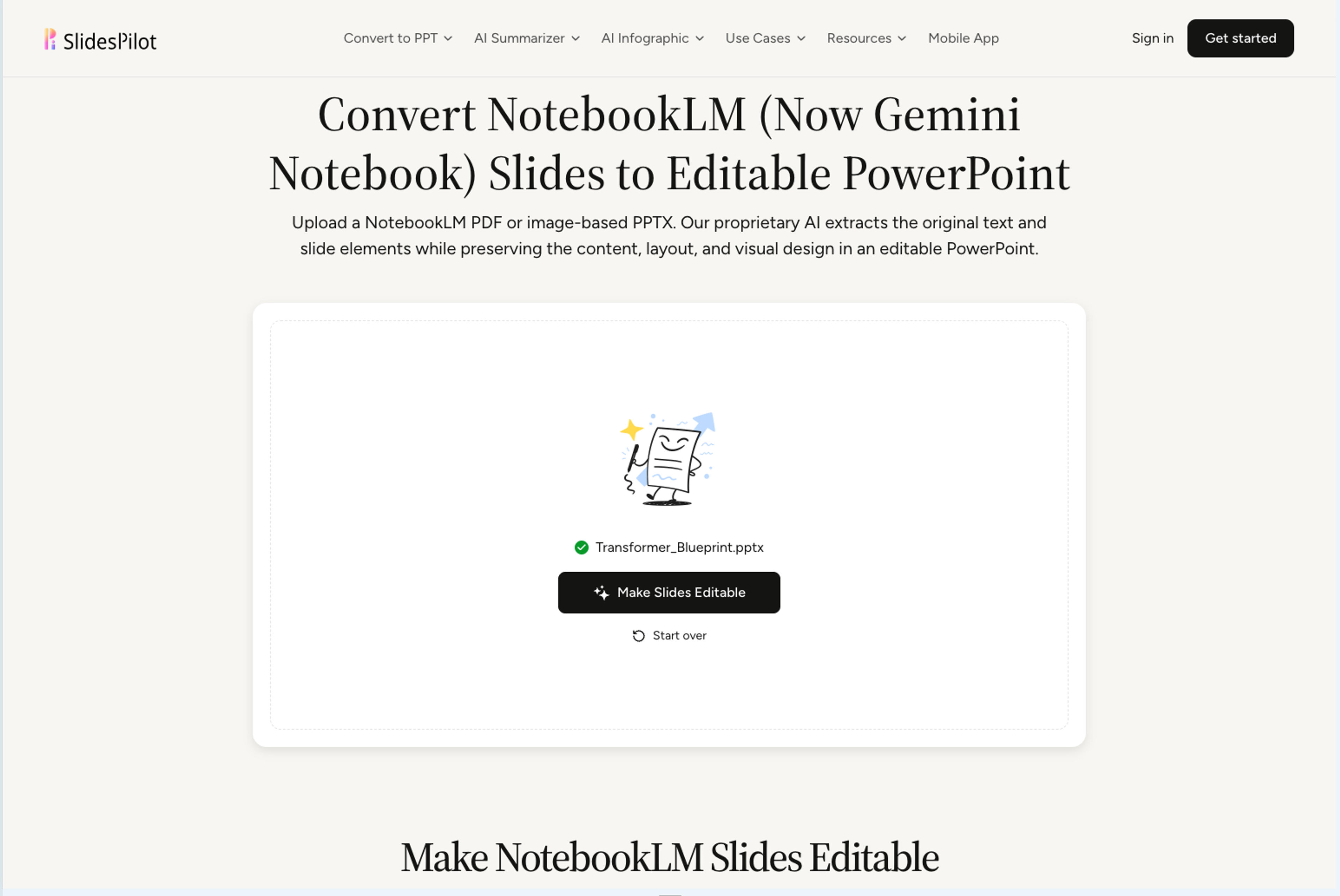
SlidesPilot analyzes the presentation, recognizes the words and visual structure inside each slide, and reconstructs the deck for continued editing. The goal is to retain the presentation you already chose in Gemini Notebook while giving you the flexibility expected from a real PowerPoint workflow.
After SlidesPilot processes the deck, open the Download menu and choose PowerPoint (Editable). The workspace also provides presentation options such as PowerPoint with preserved design, Google Slides, PDF, and PNG images, so the same deck can continue into the format that fits your next step.
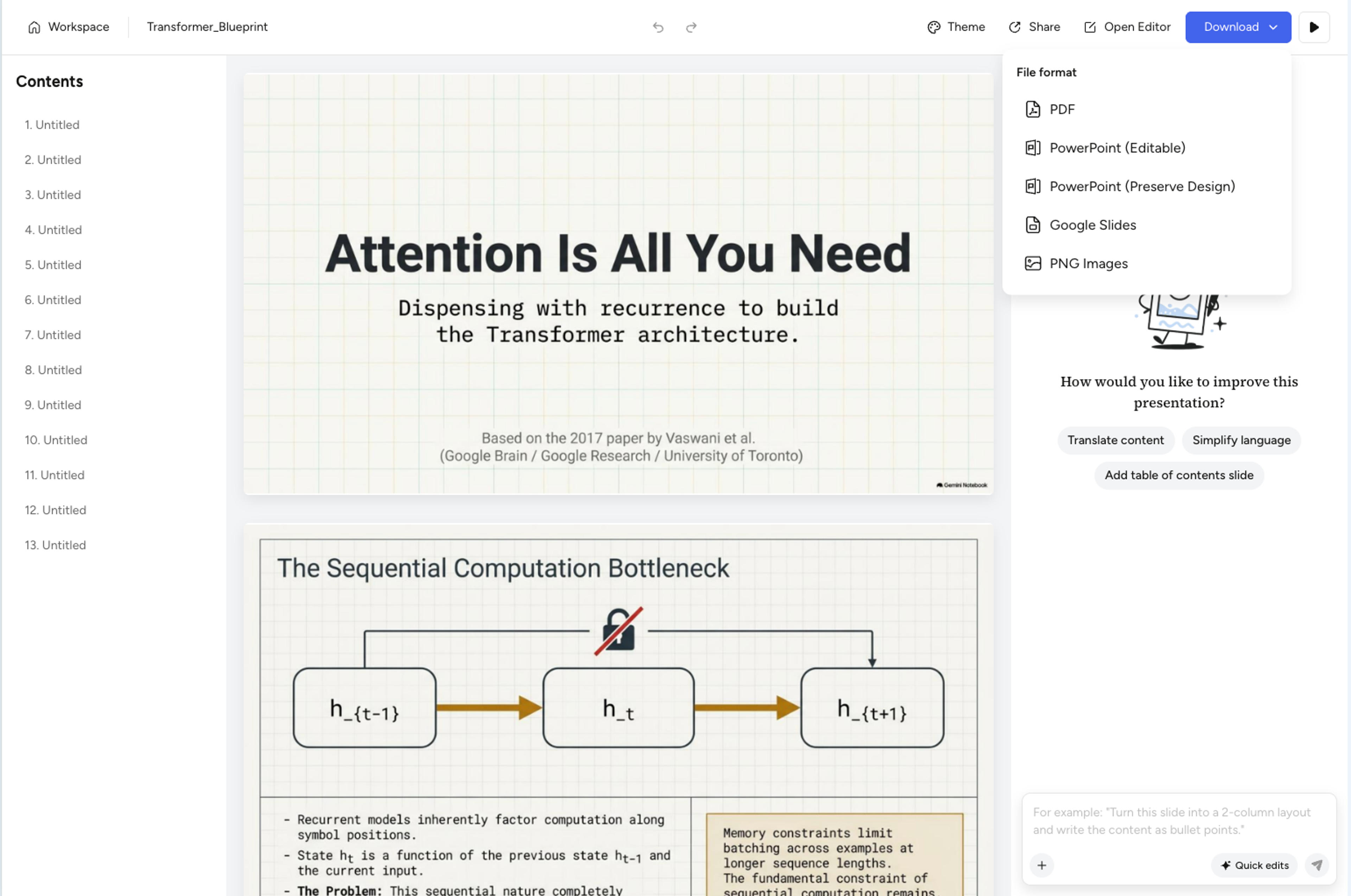
For this tutorial, we selected the editable PowerPoint option and downloaded the reconstructed PPTX to Microsoft PowerPoint.
Open the downloaded file in PowerPoint and select an element on the slide. In our final screenshot, the slide title is selected as an individual text object, with PowerPoint's text and Shape Format controls available for continued editing.
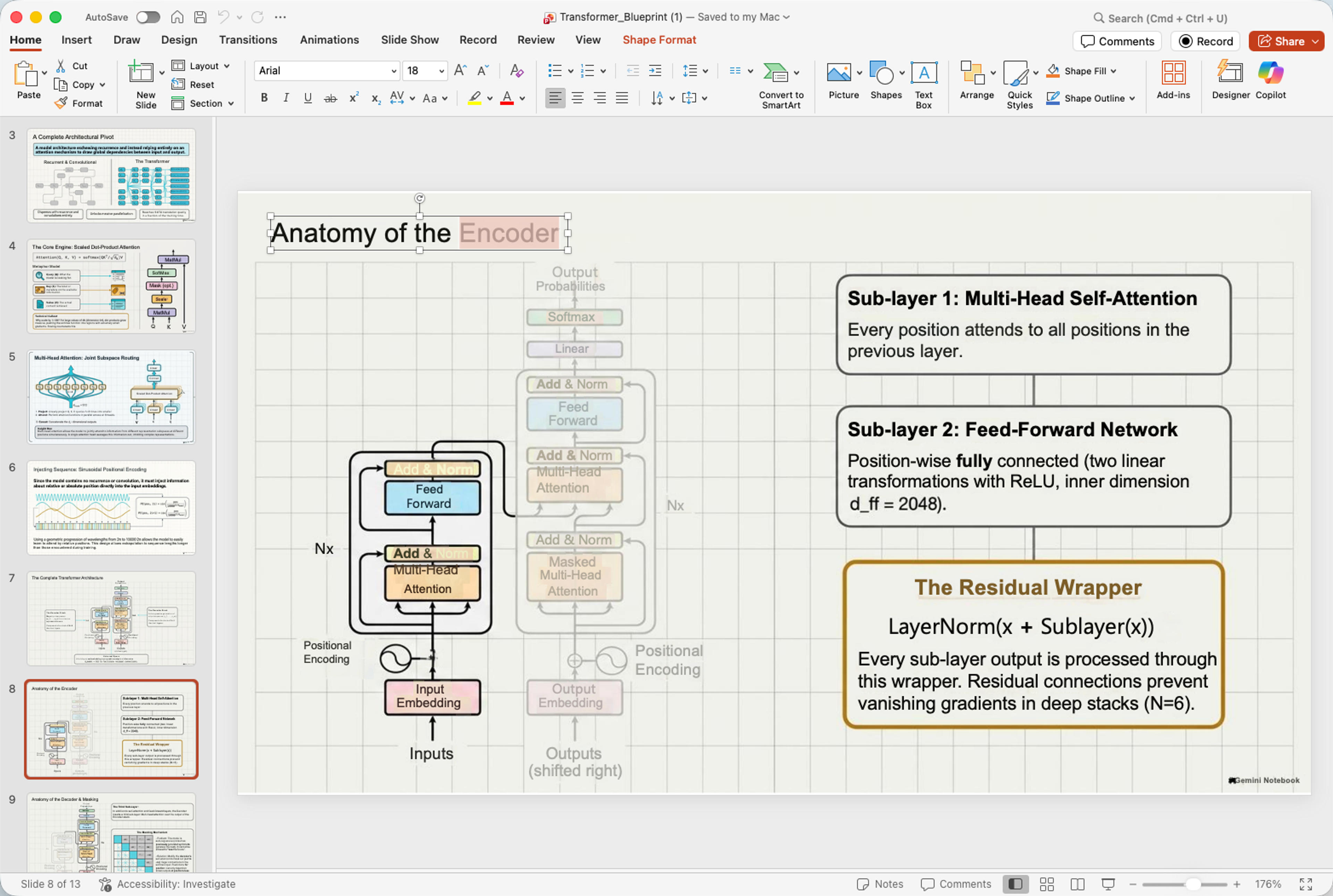
This is the result the workflow is designed to deliver: the Gemini Notebook presentation remains visually recognizable, while the deck can now move forward as working presentation content. You can rewrite exact words, move elements, adjust typography, adapt the layout, apply brand styling, and prepare the slides for the audience that will actually see them.
SlidesPilot turns the original presentation content into editable PowerPoint objects, giving you control across the parts of a deck that usually change between first draft and final delivery:
That flexibility is what turns an impressive AI-generated deck into a reusable presentation asset. A research explanation can become a lecture. A literature review can become a conference talk. A source-grounded business summary can become a branded client deliverable.
The strongest workflow uses each editing mode for the job it handles best.
| Your goal | Recommended workflow |
|---|---|
| Simplify the message across a complete slide | Revise in Gemini Notebook |
| Ask for a new visual interpretation | Revise in Gemini Notebook |
| Update one exact phrase or data point | Edit the converted PPTX in PowerPoint |
| Apply company fonts, colors, and layout standards | Edit the converted PPTX in PowerPoint |
| Move or resize an individual element | Edit the converted PPTX in PowerPoint |
| Rework several slides around a new audience | Revise first, then finish in PowerPoint |
| Share a file that colleagues can continue editing | Download PowerPoint (Editable) from SlidesPilot |
This sequence keeps the creative momentum of AI generation and adds the precision of direct editing. You do not need to choose between a strong Gemini Notebook design and a practical PowerPoint handoff—you can carry the same deck through both stages.
SlidesPilot supports both Gemini Notebook export paths shown in the current interface:
Choose the format that fits your existing workflow. SlidesPilot can recognize the content in either file, reconstruct the text and slide elements, and produce an editable PowerPoint output.
The important distinction is the result you need. A file can have a .pptx extension while the visible slide content is still represented as rendered artwork. The PowerPoint (Editable) output from SlidesPilot is built for direct editing of the reconstructed presentation elements.
Gemini Notebook often produces a clear visual system: consistent backgrounds, diagram styles, illustration language, typography, and slide rhythm. The best final edit builds on that visual foundation.
Use PowerPoint to make purposeful changes:
Because the content is editable, the same Gemini Notebook deck can support multiple versions. A Detailed Deck can become a concise speaker-led presentation. A technical explanation can become an executive briefing. A research summary can be adapted for students, colleagues, clients, or conference attendees without rebuilding the story from a blank slide.
Name the audience, objective, tone, and desired visual direction before generation. For example, ask for an accessible research briefing for product leaders, a graduate-level lecture, or a concise client presentation. This gives the deck a clear job from the beginning.
Use Gemini Notebook's Revise mode for changes that affect a whole slide or several slides. Batch related changes, review the revised deck, and export the version with the strongest narrative.
Once SlidesPilot has reconstructed the deck, make the precise edits that turn a strong generated presentation into your presentation: exact wording, brand styling, spacing, slide numbers, presenter details, and stakeholder feedback.
Gemini Notebook remains a valuable research companion after the presentation is exported. Keep the notebook for source-grounded questions and future updates, and keep the editable PPTX as the presentation deliverable. Together they make later revisions faster.
Yes. Google renamed NotebookLM to Gemini Notebook in July 2026. It remains the same standalone research product, and existing notebooks continue in the renamed experience.
Yes. Gemini Notebook can generate a Slide Deck from your selected sources and download it as either a PDF document or a PowerPoint .pptx file.
Yes. Gemini Notebook's Revise mode lets you enter instructions for individual slides, group several pending changes, delete or reorder slides, and generate a revised deck. It is ideal for AI-guided content and visual changes.
Download the Gemini Notebook Slide Deck as PDF or PowerPoint, upload it to SlidesPilot, select Make Slides Editable, and download PowerPoint (Editable). Open that file in Microsoft PowerPoint to continue editing the reconstructed text and slide elements.
Yes. Upload the exported PDF to SlidesPilot. The converter recognizes the original slide content and reconstructs it as an editable PowerPoint presentation while preserving the visual structure of the deck.
Yes. The SlidesPilot export menu includes Google Slides, and the editable PowerPoint output can also continue into presentation workflows that accept PPTX files.
Yes. SlidesPilot uses the exported deck as the visual foundation, preserving the content, layout, and design while reconstructing the text and slide elements for continued editing.
Yes. SlidesPilot is free to use after signup, with no credit card required, so you can upload your Gemini Notebook deck and start the editable PowerPoint workflow.
Gemini Notebook gives you a fast, visual way to turn trusted sources into a coherent Slide Deck. Its revision tools help you shape the story and creative direction before export. SlidesPilot completes the workflow by turning that exported deck into an editable PowerPoint you can adapt, brand, share, and reuse.
Our test took one research paper through the complete process: source upload, source-grounded chat, slide generation, AI revision, PPTX export, SlidesPilot conversion, editable PowerPoint download, and direct element editing in Microsoft PowerPoint.
That is the practical answer to how to make NotebookLM slides editable: build the source-grounded deck in Gemini Notebook, then use SlidesPilot to turn it into the PowerPoint presentation your real work needs.
Upload a NotebookLM PDF or image-based PPTX. Our proprietary AI extracts the original text and slide elements while preserving the content, layout, and visual design in an editable PowerPoint.
Turn reports, papers, and documents into clear, structured, editable PowerPoint presentations with AI.
Transform plain PowerPoint presentations into professional designs using AI
Turn a research paper into a clear, editable PowerPoint covering the question, methods, results, limitations, and citations.
Compare the best NotebookLM replacements for research, collaboration, privacy, and editable PowerPoint presentations.
Upload your NotebookLM or Gemini Notebook PDF or PPTX. SlidesPilot reconstructs the original text and slide elements into an editable PowerPoint ready for your next class, meeting, client, or presentation.

