
Refresh a sales presentation
Retrieve the product photos already used in a previous pitch and bring them into a new proposal with your updated message.
Get the pictures inside your presentation, ready to use again. Download a single image in its original file format, or select several and save them together as a ZIP. Free to use.

Open the free PowerPoint image extractor, upload your presentation, and choose the pictures you want to download.
Extract Images FreeA presentation often becomes the last place you can find a product photo, a campaign visual, or an illustration from a previous project. SlidesPilot extracts the image files inside the deck and makes them available to download. Pick the assets you need and carry them into your next piece of work.
From a finished presentation to a fresh set of creative assets.
SlidesPilot gives you the image format stored in the presentation. A JPG stays a JPG and a PNG stays a PNG, so you can bring each picture straight into the document, design, or presentation you are working on.
Need the product shot from an old sales presentation? Choose that image and download it on its own. It is a direct way to retrieve a useful asset when the PowerPoint is the file you have at hand.
Select multiple images and download a ZIP package for the next project. Keep a set of campaign photos together, prepare visual references for a designer, or gather the illustrations you want to reuse in a lesson.
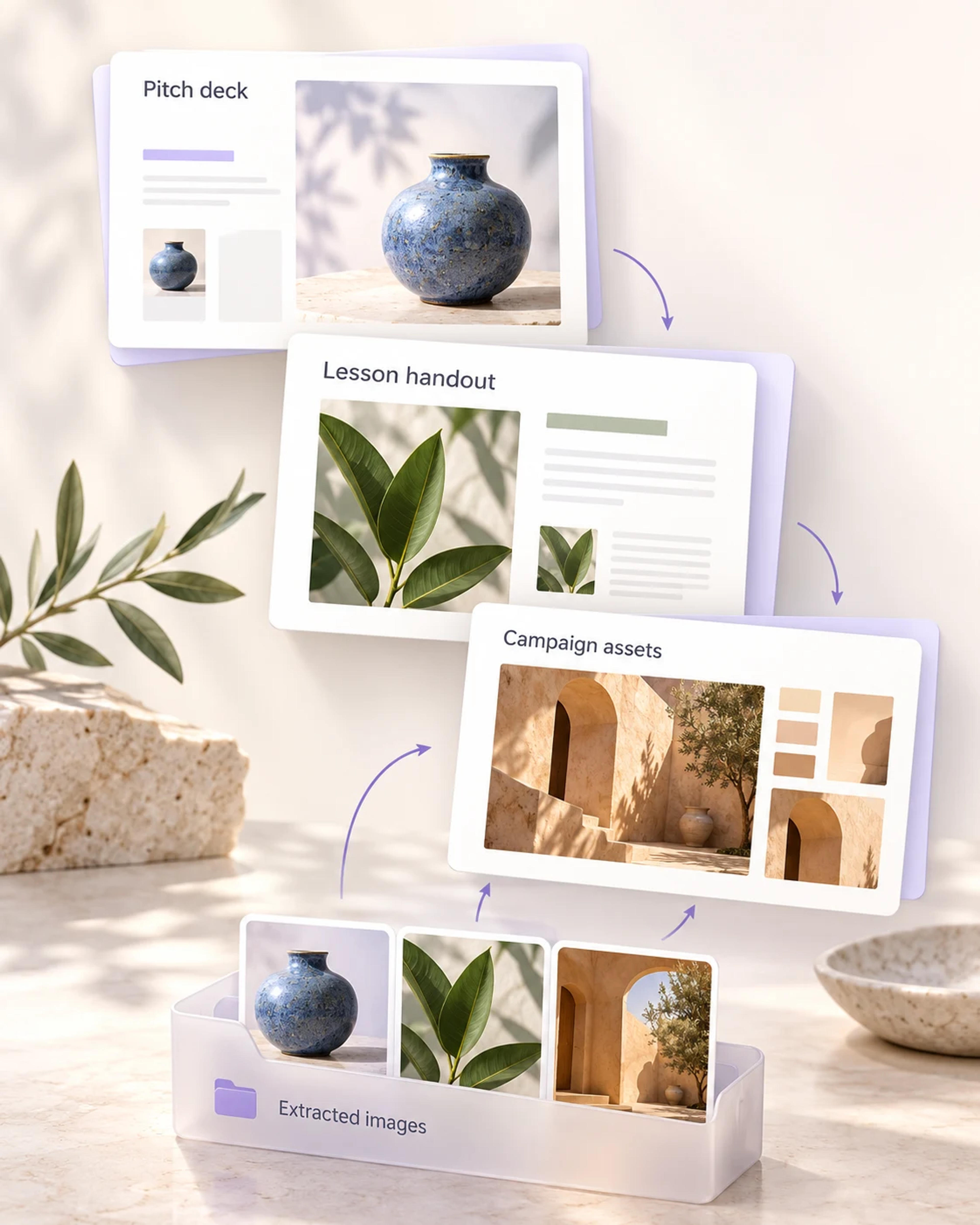
One presentation in. The pictures you need out.
Open the image extractor and upload the presentation containing your pictures. SlidesPilot quickly finds the image files inside the deck.
Select the picture you need or choose multiple images for a larger collection. You control which assets you take into your next project.
Download one image directly, or save your selection together as a ZIP. Your extracted pictures keep their stored file formats and are ready for your next document, design, or deck.
A quick, free workflow for the everyday jobs that start with an existing deck.
Retrieve the product photos already used in a previous pitch and bring them into a new proposal with your updated message.
Select the images from a launch presentation and package them together for a campaign brief or a designer's handoff.
Move pictures from a lecture deck into a worksheet, reading guide, or classroom exercise that students can use after the lesson.
Get the image you remember from a project presentation and save it as a separate file for your notes or research board.
Work with the picture files themselves. Position them in a new slide, resize them in a design, or place them alongside fresh copy.
Extracting your images and downloading a single picture or a selected ZIP package are free to use in SlidesPilot.
Open SlidesPilot's free PowerPoint image extractor, upload your presentation, and select the images you want. Download a single picture directly or choose multiple images and save them together as a ZIP.
Yes. You can extract images from your presentation and download them for free, including individual pictures and a ZIP containing your selected images.
Yes. Select all the extracted images you want to keep and download them together as a ZIP. You can also choose a smaller selection when you only need part of the presentation's image collection.
Each picture keeps the image format stored in your PowerPoint. For example, an embedded JPG is downloaded as a JPG, and an embedded PNG is downloaded as a PNG. A batch download packages the selected image files in a ZIP.
Yes. Choose the individual image you need and download it directly. This is useful when you want one product photo, illustration, or other picture from an existing deck.
You get separate image files from inside the presentation. These are useful when you want to reuse a picture in another document, slide, or design. Exporting a complete slide as an image is a separate workflow that creates a picture of the slide's entire layout.
Upload a PowerPoint file up to 100 MB. Once the images are extracted, choose an individual download or a ZIP package of your selected pictures.
Use them in your next presentation, a campaign brief, a worksheet, or a written report. Individual image files give you the flexibility to place each picture in the layout you are creating.
More ways to prepare your PowerPoint and its visual content.
Save complete slides as PNG images when you want the full layout.
Prepare a smaller, editable presentation for sharing.
Give your existing slide content a fresh visual design.
Save the media embedded in your presentation.
Export your speaking points as TXT, Markdown, or Word.
Extract images from your PowerPoint and download exactly what you need. One picture or a whole selection, free to use.